

What you can create
AI Presentation is useful for:- Business presentations
- Pitch decks
- Marketing reports
- Business updates
- Educational materials
- Other structured presentations that need clear content and professional visual design
Before you begin
Prepare a short description of the presentation you want to create. A strong prompt should include:- Topic: What the presentation is about
- Audience: Who will read or watch it
- Purpose: What the presentation should communicate
- Key points: Important sections, examples, benefits, challenges, or recommendations
- Desired outcome: What the audience should understand or do after the presentation
Example prompt
Create a presentation explaining how artificial intelligence is transforming modern businesses, including key use cases, benefits, challenges, real-world examples, and what businesses should do to prepare for the future.You do not need to write the individual slides yourself. AI Presentation uses your brief to structure the deck.
Create a presentation
1. Open AI Presentation
Open AI Presentation from your Klyra AI workspace. You will see the presentation creation area at the top of the page and your existing presentations below it.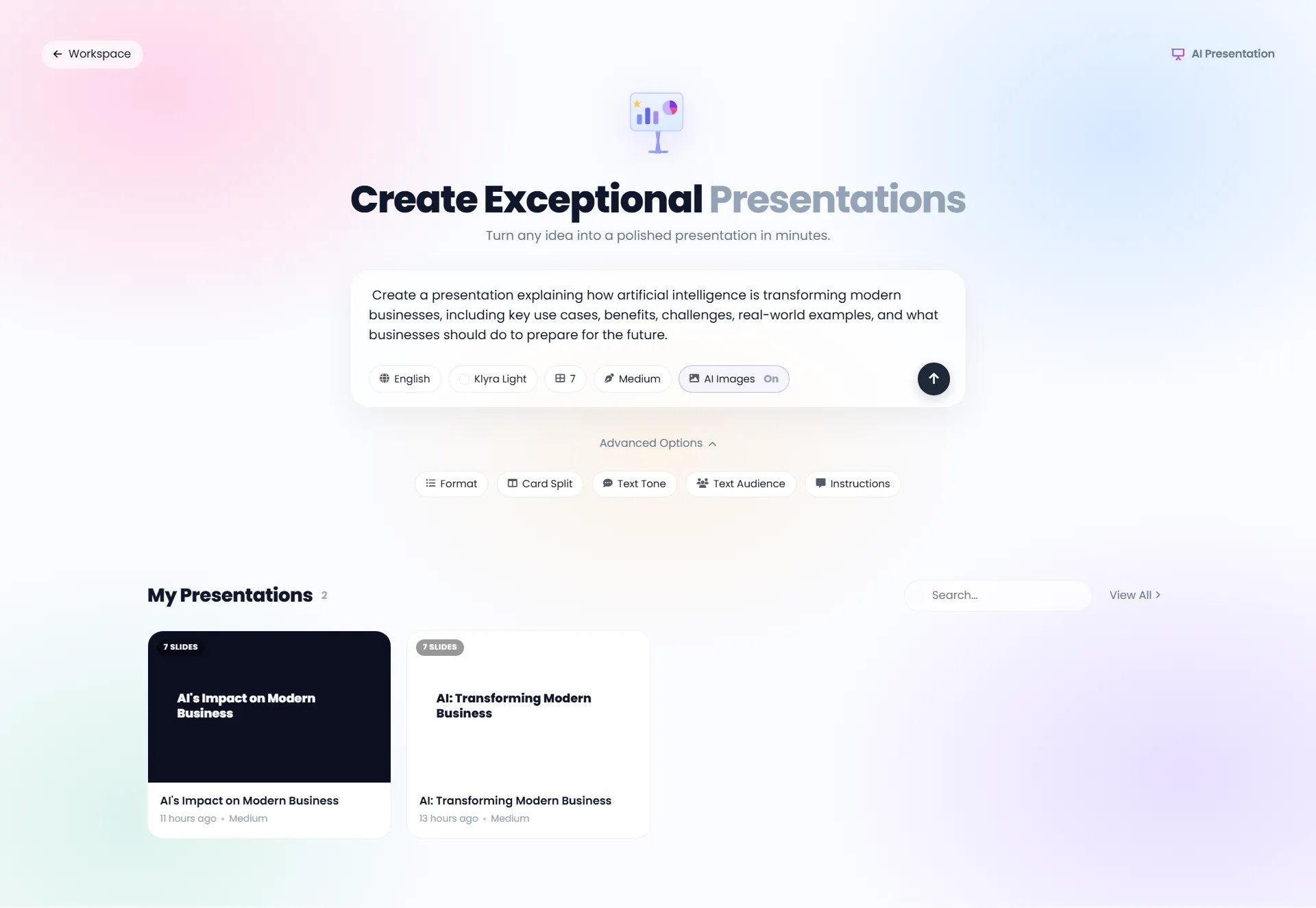
2. Enter your presentation brief
Click inside Create a presentation for and describe what you want the presentation to cover. Be specific about the subject and the information you want included. A clear brief gives the AI enough context to organize the presentation around your intended outcome. For example:Create a presentation explaining how artificial intelligence is transforming modern businesses, including key use cases, benefits, challenges, real-world examples, and what businesses should do to prepare for the future.
3. Choose the language
Use the Language option to select the language for the presentation. In the example workflow, the language is set to English.4. Choose a presentation style
Use Klyra Light to control the presentation theme. The available styling options may vary depending on the current product configuration. Choose the style that best fits the presentation you are creating.5. Set the number of slides
Use the slide-count control to select how many slides you want the presentation to contain. The example workflow uses 7 slides. A shorter deck is useful when the presentation needs to stay focused. A larger deck can be useful when the topic requires more sections or supporting detail.6. Set the generation level
Use the Medium control to select the available generation level for the presentation. Choose the setting that best matches how much variation or creative interpretation you want from the generated deck.7. Enable AI Images when needed
Use AI Images to control whether the presentation includes AI-generated visuals. When enabled, AI Presentation can create relevant visuals for the generated slides. When disabled, the presentation can be generated without AI-generated images. In the example workflow, AI Images is enabled.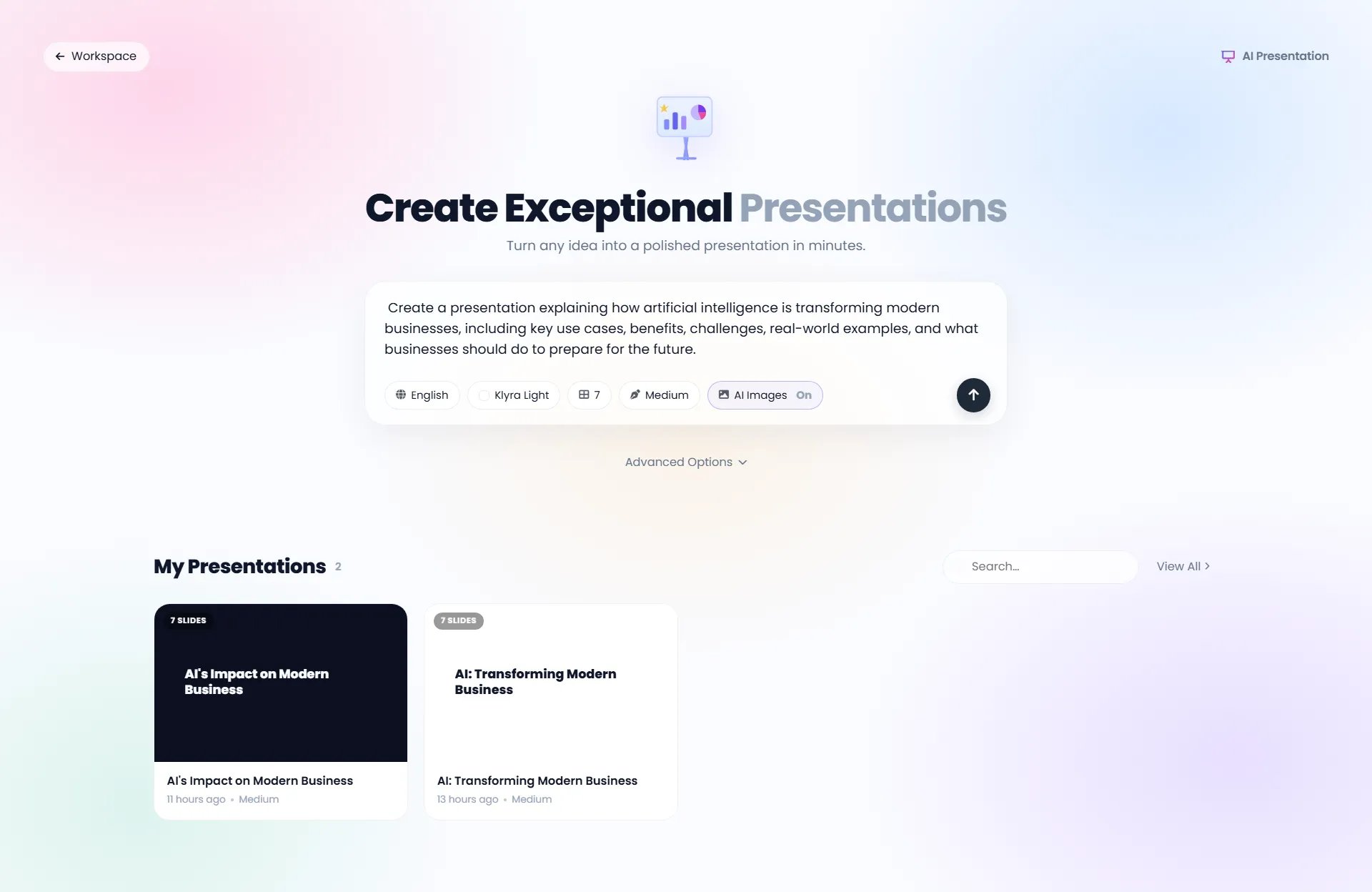
Use Advanced Options
Select Advanced Options when you want more control over the generated presentation. The current interface exposes the following controls:- Format
- Card Split
- Text Tone
- Text Audience
- Instructions
Format
Use Format to control the presentation format available in the app.Card Split
Use Card Split to control how presentation content is divided into cards or sections.Text Tone
Use Text Tone to guide the writing style of the presentation. For example, a business presentation may benefit from a professional and direct tone.Text Audience
Use Text Audience to tell AI Presentation who the presentation is intended for. Defining the audience helps the generated content stay appropriate for the people who will view the deck.Instructions
Use Instructions when you have additional requirements that do not fit naturally into the main presentation brief. Keep instructions focused on the result you want. Avoid adding unnecessary technical instructions.Generate the presentation
Once your brief and settings are ready, select the arrow button on the right side of the creation box. AI Presentation will generate the presentation based on your brief and selected settings. The result is added to My Presentations.Find your presentation
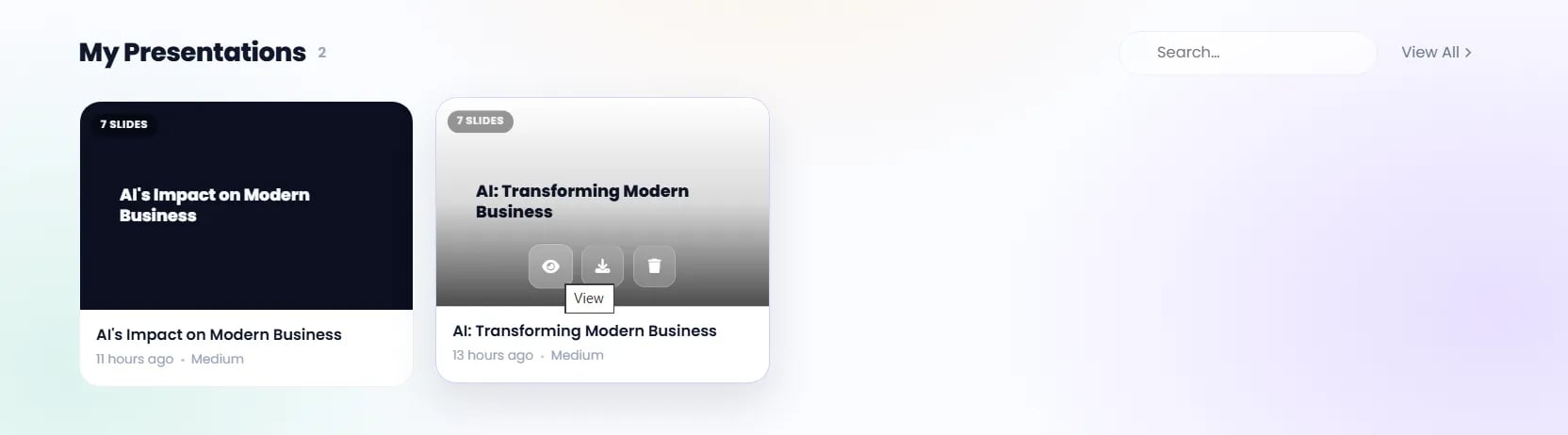
Your generated presentations appear in My Presentations. Each presentation card shows information such as:- Number of slides
- Presentation title
- Time since creation
- Generation level
Manage a presentation
Hover over a presentation card to reveal its available actions. The current interface provides:- View: Open the presentation
- Download: Download the presentation
- Delete: Remove the presentation
Review your presentation
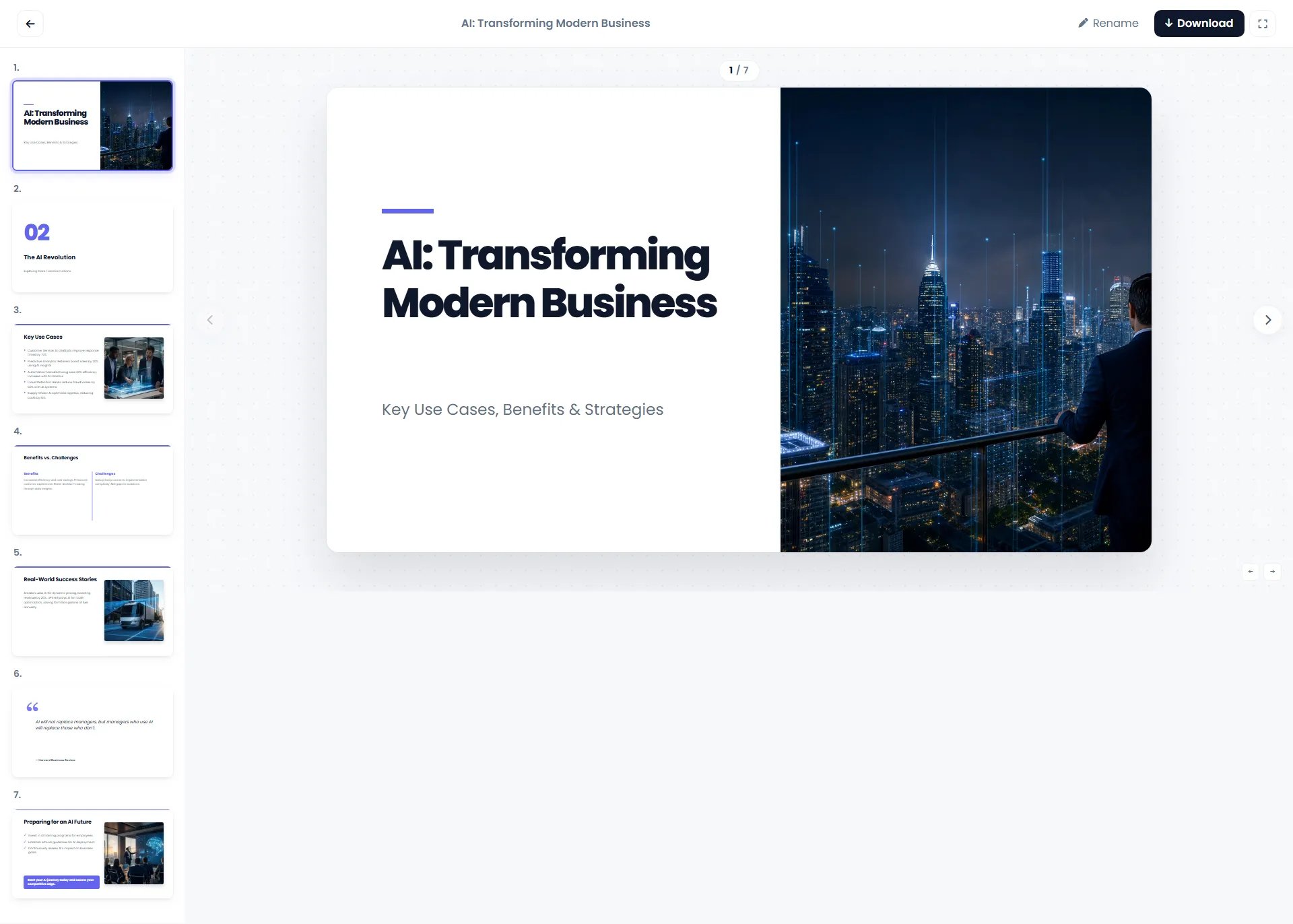
Opening a presentation takes you to the presentation viewer. The viewer provides:- A slide thumbnail panel on the left
- The currently selected slide in the main canvas
- Slide navigation controls
- A slide counter
- Presentation title
- Rename action
- Download action
- Fullscreen control
Navigate between slides
Select a slide thumbnail from the left panel to jump directly to that slide. You can also use the navigation arrows to move through the presentation. The slide counter at the top shows your current position, such as 1 / 7.Review the generated structure
Before downloading, review the complete deck for:- Accuracy of the content
- Logical flow between slides
- Titles and key messages
- Visual relevance
- Readability
- Consistency
- Whether the deck matches your original objective
Rename a presentation
If you need to change the presentation title, select Rename in the presentation viewer. Choose a clear title that makes the presentation easy to identify later.Download your presentation
When the presentation is ready, select Download. AI Presentation supports export and sharing in PPTX format, allowing you to continue working with the presentation in compatible presentation software. You can also use the Download action directly from a presentation card in My Presentations.Tips for better presentations
Start with the outcome
Instead of writing only:Artificial intelligencewrite:
Create a presentation explaining how artificial intelligence is transforming modern businesses and what business leaders should do next.The second prompt gives AI Presentation a clear outcome and scope.
Include the audience
Tell the AI who the presentation is for. For example:Create a presentation for small business owners explaining practical ways to use AI to improve productivity and customer service.
Define the important sections
If specific topics must appear, include them in the prompt. For example:Cover use cases, benefits, challenges, real-world examples, and recommendations for getting started.
Let the AI handle the structure
You do not need to describe every slide unless a specific slide structure is important to you. Start with the goal, audience, and key information. Let AI Presentation organize the content into a coherent deck.Review before downloading
Always review the generated presentation before using it externally. Check the content, visuals, ordering, and overall message against your original objective.Example workflow
A typical workflow looks like this:- Open AI Presentation.
- Enter a clear presentation brief.
- Select the language.
- Choose the presentation style.
- Set the number of slides.
- Select the generation level.
- Turn AI Images on or off.
- Optionally open Advanced Options.
- Add any additional instructions.
- Select the arrow to generate.
- Open the generated presentation from My Presentations.
- Review the slides.
- Rename the presentation if needed.
- Download the finished presentation in PPTX format.