> ## Documentation Index
> Fetch the complete documentation index at: https://docs.klyra.ai/llms.txt
> Use this file to discover all available pages before exploring further.
# AI Image to Video
> Transform your static images into dynamic, captivating videos with Klyra AI’s AI Image to Video feature. Powered by models like Stable Diffusion, Kling, Haiper, Luma Dream Machine, and Google Veo, this tool brings your visuals to life with cinematic animations and smooth transitions.
## Introduction
The [**AI Image to Video**](https://klyra.ai/page/ai-video-generator) feature enables you to turn photos, illustrations, or digital artwork into **professional-quality videos** with ease.
With support from cutting-edge AI models such as:
* **Stable Diffusion**
* **Kling 2.1 Master / Pro / Standard**
* **Kling 1.6 Pro**
* **Haiper 2.0 Video**
* **Luma Dream Machine**
* **Google Veo2**
…you can generate dynamic animations, creative transitions, and cinematic outputs while maintaining the essence and quality of your original images.
This is ideal for **marketers, content creators, artists, and businesses** looking to enhance visuals with engaging motion.
Access to this feature is only available with a **Starter** or **Premium** subscription plan.
 ## How to Use
> 🔎 **Navigation:** Dashboard → Left Panel → AI Video Creation → AI Image to Video
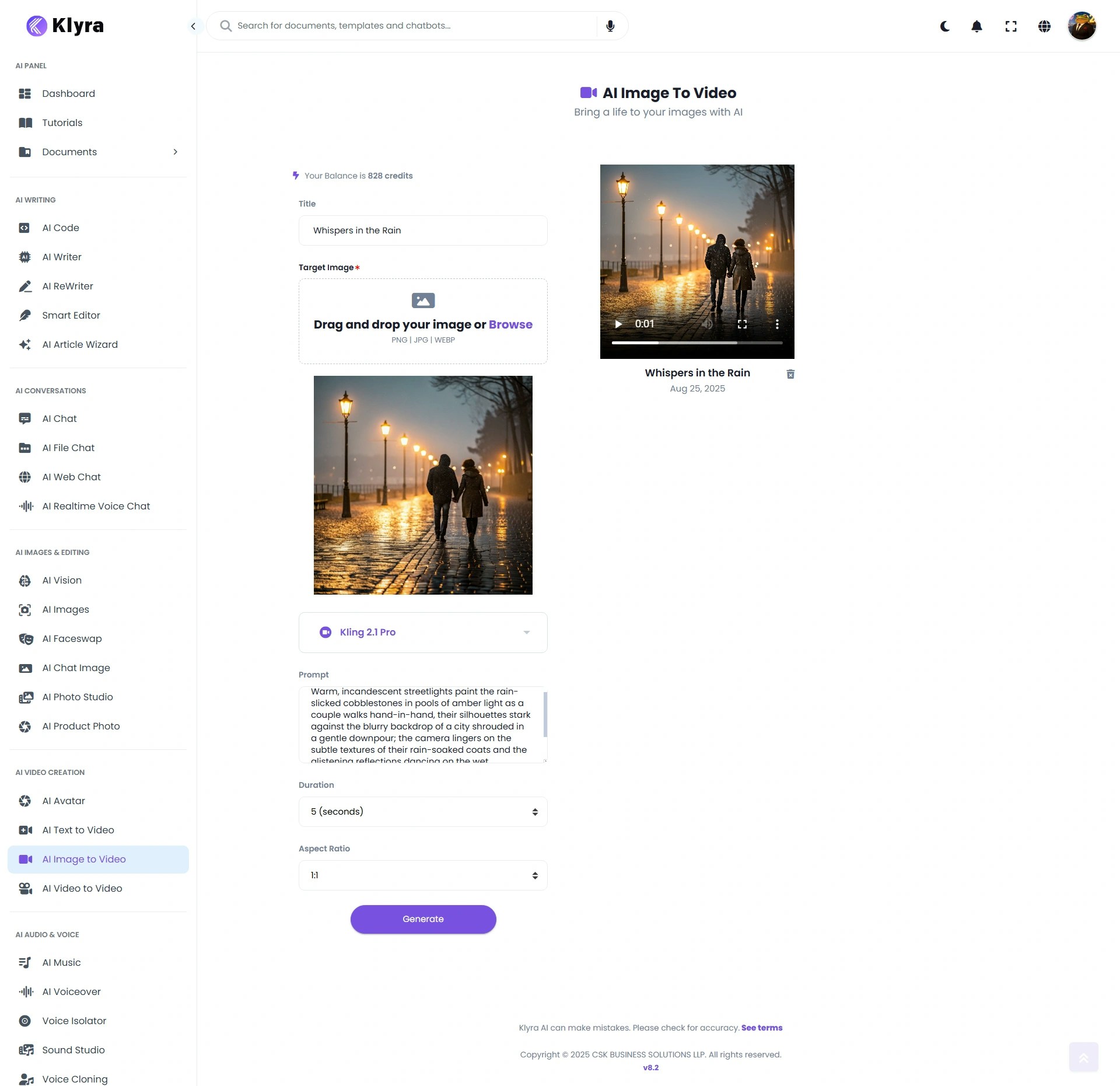
* Go to the **AI Image to Video** tab.
* (Optional) Enter a **Video Title** for easy project tracking.
* Upload your **static image** in **PNG, JPG, or WEBP** format.
* This will be the base visual that AI animates into a video.
* Choose from available models (Stable Diffusion, Kling, Haiper, Luma, Veo2).
* Once selected, the **settings panel updates dynamically** to show model-specific options.
Depending on the selected model, fill in:
* **Prompt** → Describe the video style/animation
* **Duration** → Length of video (varies by model; predefined and not available in every case).
* **Aspect Ratio** → Select aspect ratio (e.g., 16:9 for YouTube, 9:16 for TikTok, 1:1 for Instagram). Availability depends on the model chosen.
* Click **Generate**.
* Wait a few minutes for AI processing and then refresh your page.
⏳ **Note:** Video generation time varies by model and complexity. For example, below **5-second square video generated using Kling 2.1 Pro took \~122 seconds (just over 2 minutes)** to complete.
* Your animated video will appear in the **Results section**, where you can **Play, Download, or Delete** it.
### 🎬 Example Walkthrough
Here’s an example of how you can create a cinematic **AI Image to Video** output.
**Video Title:** *Whispers in the Rain*\
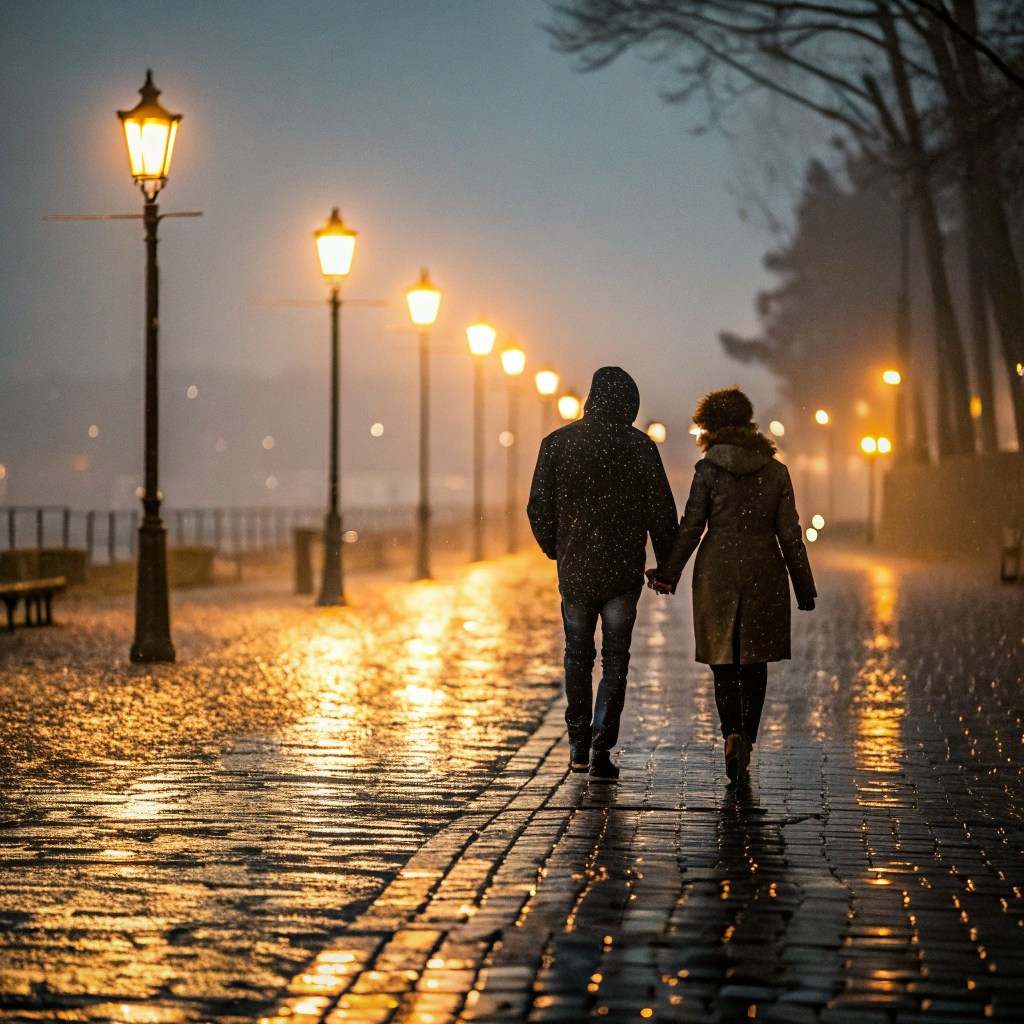
**Input Image:** *Amber Lights*
## How to Use
> 🔎 **Navigation:** Dashboard → Left Panel → AI Video Creation → AI Image to Video
* Go to the **AI Image to Video** tab.
* (Optional) Enter a **Video Title** for easy project tracking.
* Upload your **static image** in **PNG, JPG, or WEBP** format.
* This will be the base visual that AI animates into a video.
* Choose from available models (Stable Diffusion, Kling, Haiper, Luma, Veo2).
* Once selected, the **settings panel updates dynamically** to show model-specific options.
Depending on the selected model, fill in:
* **Prompt** → Describe the video style/animation
* **Duration** → Length of video (varies by model; predefined and not available in every case).
* **Aspect Ratio** → Select aspect ratio (e.g., 16:9 for YouTube, 9:16 for TikTok, 1:1 for Instagram). Availability depends on the model chosen.
* Click **Generate**.
* Wait a few minutes for AI processing and then refresh your page.
⏳ **Note:** Video generation time varies by model and complexity. For example, below **5-second square video generated using Kling 2.1 Pro took \~122 seconds (just over 2 minutes)** to complete.
* Your animated video will appear in the **Results section**, where you can **Play, Download, or Delete** it.
### 🎬 Example Walkthrough
Here’s an example of how you can create a cinematic **AI Image to Video** output.
**Video Title:** *Whispers in the Rain*\
**Input Image:** *Amber Lights*
 **Prompt:**
> *“Warm, incandescent streetlights paint the rain-slicked cobblestones in pools of amber light as a couple walks hand-in-hand, their silhouettes stark against the blurry backdrop of a city shrouded in a gentle downpour; the camera lingers on the subtle textures of their rain-soaked coats and the glistening reflections dancing on the wet pavement, creating a sense of intimate vulnerability and shared quietude.”*
**Settings Used:**
* **Model:** Kling 2.1 Pro
* **Duration:** 5 seconds
* **Aspect Ratio:** 1:1 (square, perfect for Instagram and social posts)
**Output:**\
The final video shows a **rain-soaked cobblestone street**, illuminated by **amber streetlights**, where a couple walks hand-in-hand. The glistening reflections and soft rain details create a cinematic, intimate mood — exactly as described in the prompt.
### 💡 Tips
* **Choose the right model**:
* *Stable Diffusion* → Artistic, experimental animations.
* *Kling* → Smooth, realistic motion and transitions.
* *Haiper* → Creative and stylized short videos.
* *Luma Dream Machine* → High-quality cinematic results.
* *Google Veo2* → Advanced generative motion for storytelling.
* **Be specific in prompts** → Mention movements, moods, and scene details.
* **Optimize aspect ratio for platform** → 9:16 for TikTok/Reels, 16:9 for YouTube, 1:1 for Instagram.
* **Use high-quality images** → Better source images yield more polished videos.
* **Experiment with duration** → Shorter clips often produce smoother, more coherent outputs.
***
### 📌 Example Use Cases
* **Marketers** → Animate product photos for engaging ads.
* **Content Creators** → Turn static thumbnails or graphics into dynamic social media videos.
* **Artists** → Transform digital artwork into moving, immersive experiences.
* **Educators** → Animate diagrams or infographics into explainer clips.
* **Businesses** → Create quick promotional videos from existing brand assets.
* **Event Planners** → Turn event posters into animated highlight reels.
**Prompt:**
> *“Warm, incandescent streetlights paint the rain-slicked cobblestones in pools of amber light as a couple walks hand-in-hand, their silhouettes stark against the blurry backdrop of a city shrouded in a gentle downpour; the camera lingers on the subtle textures of their rain-soaked coats and the glistening reflections dancing on the wet pavement, creating a sense of intimate vulnerability and shared quietude.”*
**Settings Used:**
* **Model:** Kling 2.1 Pro
* **Duration:** 5 seconds
* **Aspect Ratio:** 1:1 (square, perfect for Instagram and social posts)
**Output:**\
The final video shows a **rain-soaked cobblestone street**, illuminated by **amber streetlights**, where a couple walks hand-in-hand. The glistening reflections and soft rain details create a cinematic, intimate mood — exactly as described in the prompt.
### 💡 Tips
* **Choose the right model**:
* *Stable Diffusion* → Artistic, experimental animations.
* *Kling* → Smooth, realistic motion and transitions.
* *Haiper* → Creative and stylized short videos.
* *Luma Dream Machine* → High-quality cinematic results.
* *Google Veo2* → Advanced generative motion for storytelling.
* **Be specific in prompts** → Mention movements, moods, and scene details.
* **Optimize aspect ratio for platform** → 9:16 for TikTok/Reels, 16:9 for YouTube, 1:1 for Instagram.
* **Use high-quality images** → Better source images yield more polished videos.
* **Experiment with duration** → Shorter clips often produce smoother, more coherent outputs.
***
### 📌 Example Use Cases
* **Marketers** → Animate product photos for engaging ads.
* **Content Creators** → Turn static thumbnails or graphics into dynamic social media videos.
* **Artists** → Transform digital artwork into moving, immersive experiences.
* **Educators** → Animate diagrams or infographics into explainer clips.
* **Businesses** → Create quick promotional videos from existing brand assets.
* **Event Planners** → Turn event posters into animated highlight reels.