> ## Documentation Index
> Fetch the complete documentation index at: https://docs.klyra.ai/llms.txt
> Use this file to discover all available pages before exploring further.
# AI Avatars
> Bring your Avatar to life with AI Avatar, powered by Heygen. Create stunning, studio-quality videos with lifelike avatars, professional voiceovers, and multilingual support — all from a single input.
## Introduction
The [**AI Avatar**](https://klyra.ai/page/ai-avatar-generator) feature revolutionizes how you produce videos for **training, marketing, customer service, and sales**. With access to:
* **140+ video avatars** across diverse niches (doctors, trainers, business professionals, educators, and more).
* **700+ realistic AI voices** in **170+ languages and dialects**.
* Options to **generate your own avatar** by uploading profile photos.
You can create videos that are professional, scalable, and globally accessible. Simply provide a script, choose an avatar, and let Klyra AI do the rest.
Access to this feature is only available with a **Premium** subscription plan.
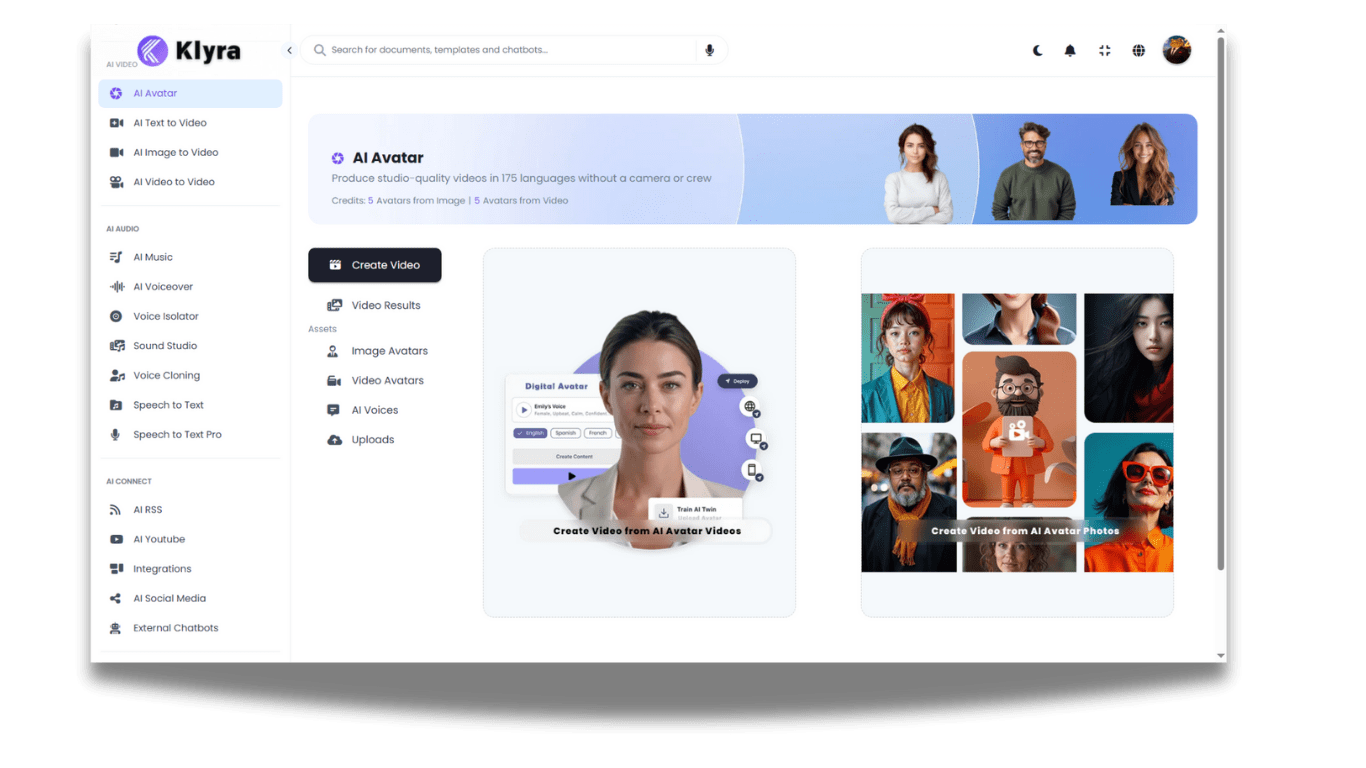
## How to Use
> 🔎 **Navigation:** Dashboard → Left Panel → AI Video Creation → AI Avatar
Inside the AI Avatar workspace, you’ll see several **tabs and asset libraries**:
* **Create Video**
* Options: **Create Video from AI Avatar Videos** or **Create Video from AI Avatar Photos**.
* **Video Results**
* All videos you’ve generated appear here. You can **play, download, or delete** them.
* **Assets**
* **Image Avatars**: Browse existing avatars or create your own using **+ Create Photo Avatar** (upload clear face photos in JPG/PNG). Once processed, your custom avatar appears in the library.
* **Video Avatars**: Explore \~140 avatars, each with multiple looks. Sample previews help you pick the right style (doctor, professor, trainer, Santa, etc.).
* **AI Voices**: Preview and select from **700+ voiceovers** in 170+ languages. Mark favorites for quick access.
* **Uploads**: Upload your **background images, background videos, or external voiceovers** for added customization.
1. Click **Create Video from AI Avatar Videos** in the **Create Video** tab.
2. **Select Avatar Video** — Choose from the avatar grid.
3. **Select Voice & Enter Script** — Pick from 700+ AI voices and paste your script text.
4. **Set Video Settings**:
* **Video Title**
* **Video Dimension** → Landscape (default) / Portrait
* **Avatar Style** → Normal (default) / Close-Up / Circle
* **Background** → Choose a solid color, upload an image, or provide a background image URL
5. Click **Generate Video**.
⏳ Wait a couple of minutes. The generated video will appear in **Video Results**, ready for download, playback, or deletion.
1. Click **Create Video from AI Avatar Photos** in the **Create Video** tab.
2. **Select Avatar Image** — Choose from your uploaded Photo Avatars or from the Image Avatars library.
3. **Select Voice & Enter Script Text** — Pick a voice from 700+ options and paste your script.
4. **Set Video Settings**:
* **Video Title**
* **Video Dimension** → Landscape (default) / Portrait
* **Avatar Crop Style** → Default / Square / Circle
* **Avatar Talking Style** → Stable (default) / Expressive
* **Avatar Expression** → Default / Happy
* **Background** → Choose a solid color, upload an image, or provide a background image URL
5. Click **Generate Video**.
⏳ Wait a couple of minutes. The generated video will appear in **Video Results**, ready for download, playback, or deletion.
### 💡 Tips
* **Upload high-quality profile photos** if generating your own avatar. Ensure the face is clear and well-lit.
* **Use multilingual voices** to reach global audiences — 170+ languages available.
* **Experiment with avatar looks** to match the use case (e.g., formal for business, casual for social campaigns).
* **Preview voices first** and mark favorites to save time during future video creation.
* **Set dimensions by platform**: Landscape for YouTube, Portrait for Instagram/TikTok, Square for LinkedIn/Facebook.
* **Backgrounds matter**: Use branded colors, office-style images, or videos for added professionalism.
***
### 📌 Example Use Cases
* **Sales Teams**: Create **personalized sales pitches** in multiple languages for prospects.
* **Customer Service**: Produce **FAQ-style videos** with avatars delivering clear answers.
* **Marketing Campaigns**: Launch **multilingual ad campaigns** with avatars speaking in local dialects.
* **E-learning & Training**: Develop **course modules or onboarding videos** with consistent avatars across lessons.
* **Executives & Leaders**: Deliver **company announcements or internal updates** with branded avatars.
* **Content Creators**: Generate **social media video posts** faster and at scale without studio costs.
 ## How to Use
> 🔎 **Navigation:** Dashboard → Left Panel → AI Video Creation → AI Avatar
## How to Use
> 🔎 **Navigation:** Dashboard → Left Panel → AI Video Creation → AI Avatar