> ## Documentation Index
> Fetch the complete documentation index at: https://docs.klyra.ai/llms.txt
> Use this file to discover all available pages before exploring further.
# Ai social media
# AI Social Media
AI Social Media brings social publishing into one intelligent workspace. Connect your social accounts, create text or media posts, generate content with AI, preview how a post will look on each network, choose where and when to publish, and manage your content from a single place.
AI Social Media supports one-off publishing as well as scheduled and auto-reposted content. Connected accounts can be managed without losing scheduled work.
## What you can do with AI Social Media
AI Social Media is designed around a simple workflow:
Connect the social accounts you want to publish from using the available account connection options.
Write a text post or media post, or use the built-in AI Content Generator to create captions, hooks, and full posts.
Select the connected accounts where the post should be published. Each target account can be toggled independently.
Switch between networks to see how the content renders on each platform.
Publish immediately, schedule the post for a specific date and time, or use auto-reposting when you want content to repeat on a recurring loop.
Use Posts, Calendar, and Library to manage your publishing workflow from one workspace.
## Supported networks
AI Social Media provides one-tap account connections for:
* X
* LinkedIn
* Instagram
* Facebook
* YouTube
* YouTube Shorts
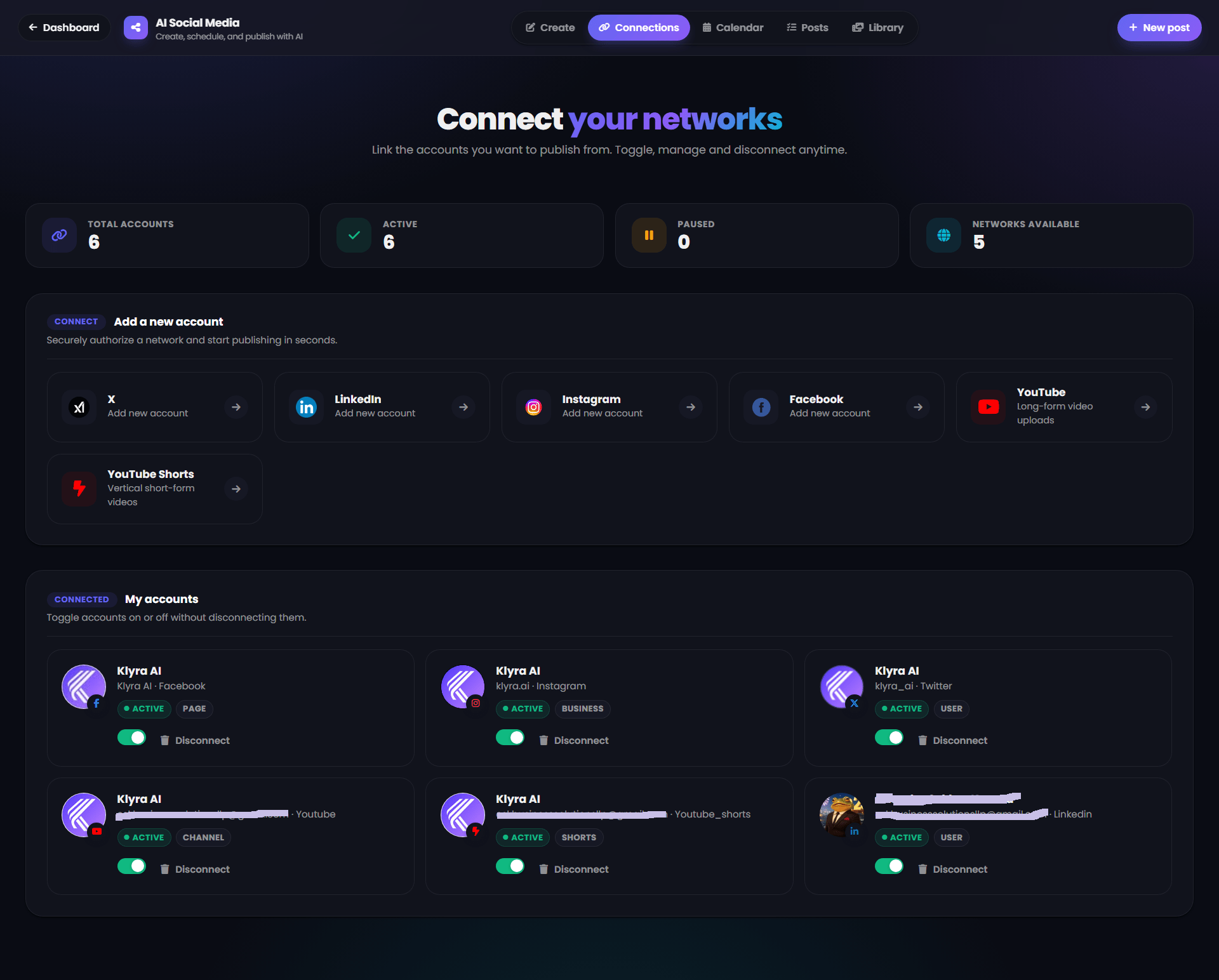
The Connections screen also shows how many accounts are connected, how many are active or paused, and how many networks are available.
 ## Connect a social account
Open **AI Social Media** and select **Connections**.
The page is divided into two main areas:
* **Add a new account**
* **My accounts**
### Add a new account
Under **Add a new account**, select the network you want to connect.
The available connection options include:
| Network | Description shown in the interface |
| ------------------ | ---------------------------------- |
| **X** | Add new account |
| **LinkedIn** | Add new account |
| **Instagram** | Add new account |
| **Facebook** | Add new account |
| **YouTube** | Long-form video uploads |
| **YouTube Shorts** | Vertical short-form videos |
Select the network and follow the authorization flow.
Use the network you want to publish from. You can connect multiple accounts and choose the target accounts independently when creating a post.
### Manage connected accounts
The **My accounts** section shows connected accounts and their current status.
For each account, you can:
* Toggle the account on or off.
* Disconnect the account.
* See the connected network.
* See the account type where applicable.
The Connections dashboard also displays:
* **Total Accounts**
* **Active**
* **Paused**
* **Networks Available**
Pausing or disconnecting an account does not remove scheduled work. You can reactivate the account when needed.
## Build your media library
Open **Library** to store reusable media assets.
The library is designed for images, videos, and audio that you can reuse across scheduled posts.
## Connect a social account
Open **AI Social Media** and select **Connections**.
The page is divided into two main areas:
* **Add a new account**
* **My accounts**
### Add a new account
Under **Add a new account**, select the network you want to connect.
The available connection options include:
| Network | Description shown in the interface |
| ------------------ | ---------------------------------- |
| **X** | Add new account |
| **LinkedIn** | Add new account |
| **Instagram** | Add new account |
| **Facebook** | Add new account |
| **YouTube** | Long-form video uploads |
| **YouTube Shorts** | Vertical short-form videos |
Select the network and follow the authorization flow.
Use the network you want to publish from. You can connect multiple accounts and choose the target accounts independently when creating a post.
### Manage connected accounts
The **My accounts** section shows connected accounts and their current status.
For each account, you can:
* Toggle the account on or off.
* Disconnect the account.
* See the connected network.
* See the account type where applicable.
The Connections dashboard also displays:
* **Total Accounts**
* **Active**
* **Paused**
* **Networks Available**
Pausing or disconnecting an account does not remove scheduled work. You can reactivate the account when needed.
## Build your media library
Open **Library** to store reusable media assets.
The library is designed for images, videos, and audio that you can reuse across scheduled posts.
 ### Upload an asset
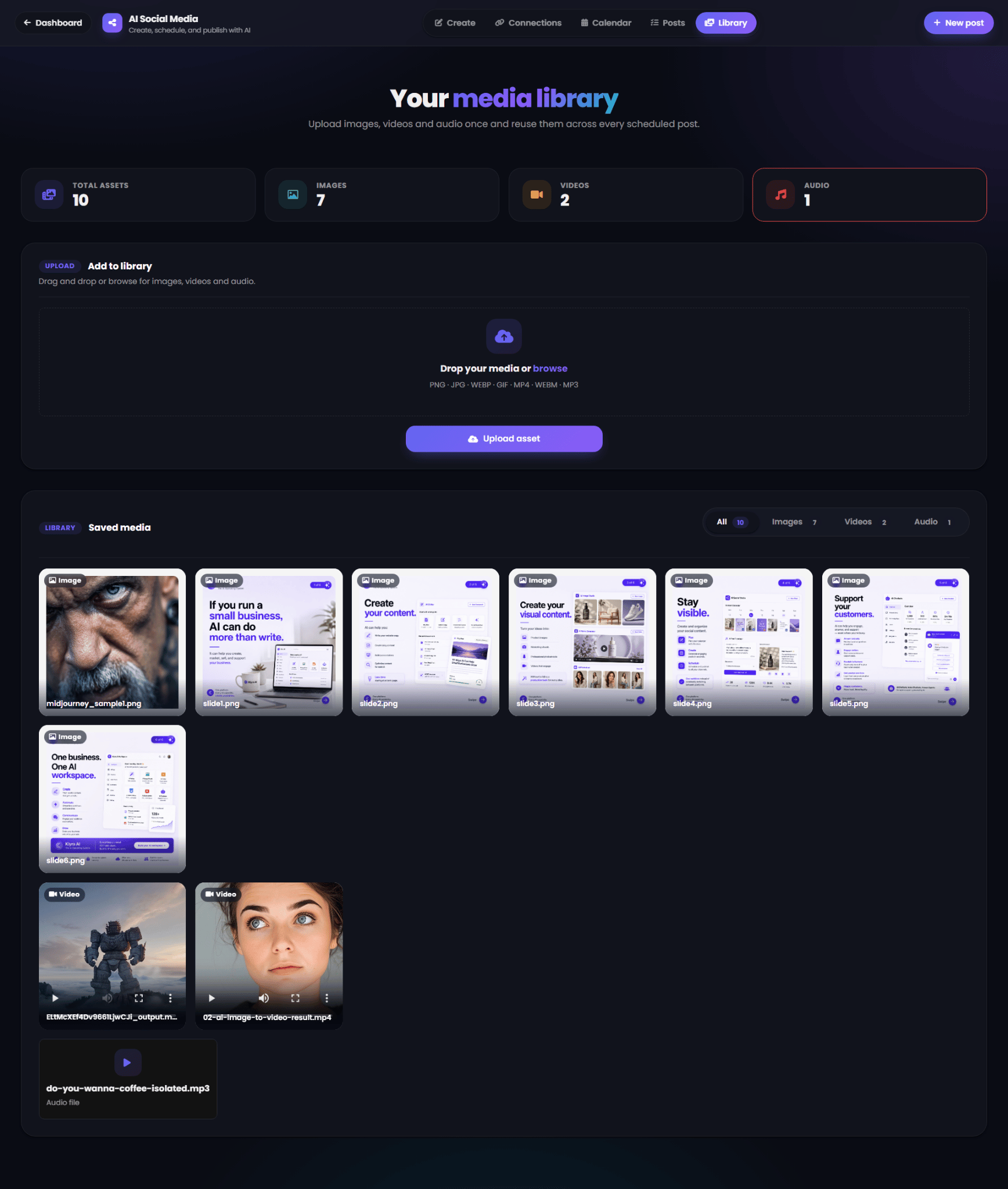
The **Add to library** section provides drag-and-drop upload as well as a browse option.
Supported formats shown in the interface include:
* PNG
* JPG
* WEBP
* GIF
* MP4
* WEBM
* MP3
Click **Upload asset** after selecting the file.
### Browse saved media
The **Saved media** area provides filters for:
* **All**
* **Images**
* **Videos**
* **Audio**
The library supports quick previews, including video playback and audio playback.
Use the library when you want to reuse an asset rather than uploading the same file again for every post.
## Create a social media post
Open **Create** from the AI Social Media navigation.
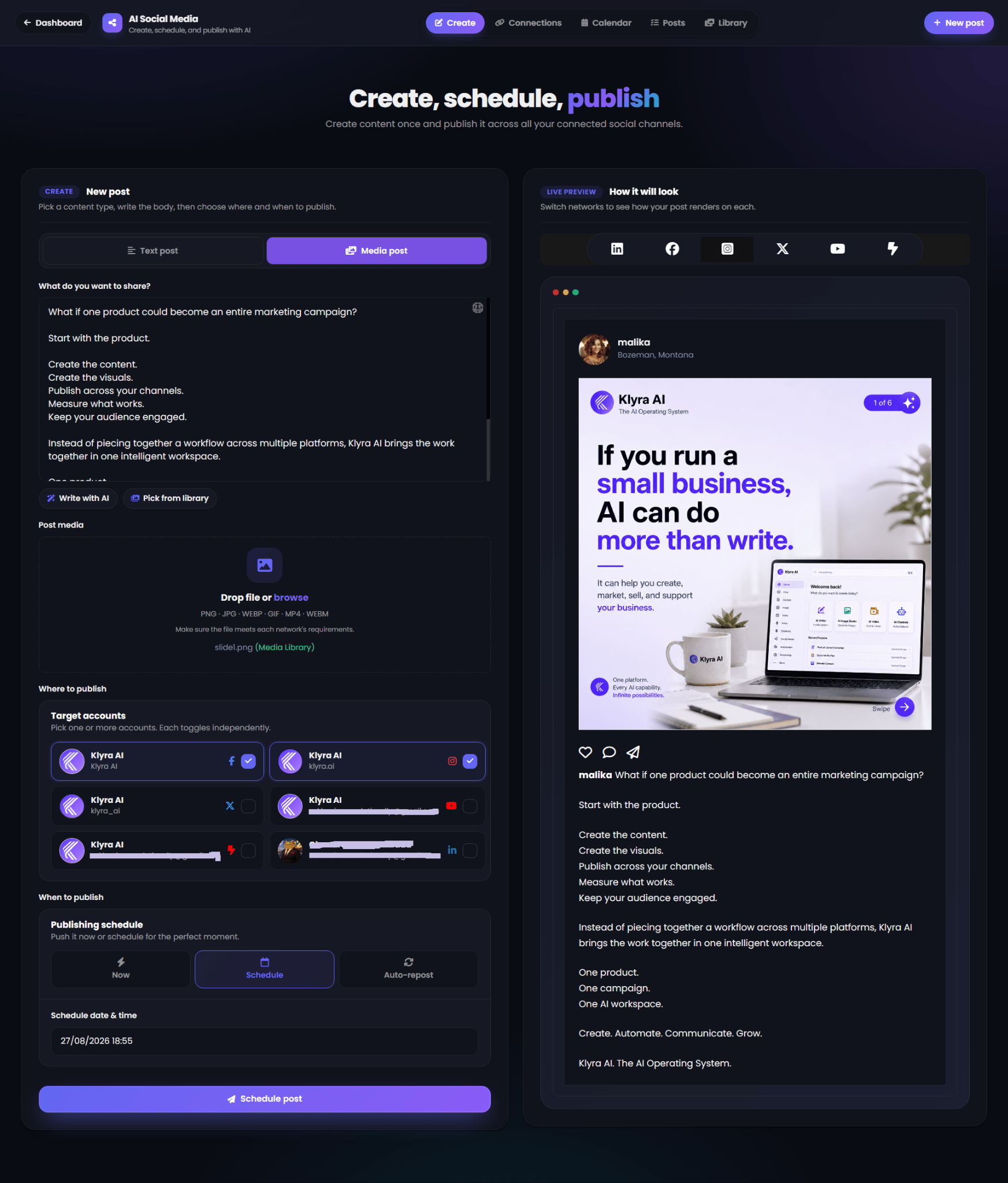
The page is built around two areas:
* **New post**
* **How it will look**
### Upload an asset
The **Add to library** section provides drag-and-drop upload as well as a browse option.
Supported formats shown in the interface include:
* PNG
* JPG
* WEBP
* GIF
* MP4
* WEBM
* MP3
Click **Upload asset** after selecting the file.
### Browse saved media
The **Saved media** area provides filters for:
* **All**
* **Images**
* **Videos**
* **Audio**
The library supports quick previews, including video playback and audio playback.
Use the library when you want to reuse an asset rather than uploading the same file again for every post.
## Create a social media post
Open **Create** from the AI Social Media navigation.
The page is built around two areas:
* **New post**
* **How it will look**
 ### Choose the content type
The composer supports:
* **Text post**
* **Media post**
Select the type that matches what you want to publish.
### Write your content
Use the **What do you want to share?** field to enter your post content.
You can write the post yourself or use the built-in **Write with AI** action.
AI Social Media's AI content generation supports:
* Captions
* Hooks
* Full posts
* Tone-aware copy
* Length-aware copy
* Platform-aware copy
* Reusable prompts aligned with your brand voice
The AI Content Generator is intended to help you create social copy quickly. Review the generated content before publishing.
### Add media
For a media post, use the **Post media** area.
You can:
* Drop a file into the upload area.
* Browse for a file.
* Pick reusable content from your media library.
AI Social Media supports images, videos, GIFs, and short-form vertical clips.
The interface displays the file format guidance beneath the upload area.
## Select where to publish
Under **Where to publish**, the **Target accounts** section displays your connected accounts.
Each account has its own toggle.
Select one or more accounts for the post.
You do not need to publish to every connected account. Target accounts are selected independently for each post.
This lets you create once and publish to the specific networks that make sense for that piece of content.
## Preview your post
The right side of the Create screen contains the **Live Preview**.
Use the network selector at the top of the preview to switch between supported platforms.
AI Social Media provides platform-specific previews for:
* LinkedIn
* Facebook
* Instagram
* X
* YouTube
* YouTube Shorts
The preview helps you understand how your post will render before it is published.
The preview is intended to show the platform-specific presentation of your content. Review it before scheduling or publishing.
## Choose when to publish
Under **When to publish**, the publishing schedule offers three options:
* **Now**
* **Schedule**
* **Auto-repost**
### Publish now
Select **Now** when you want to publish the post immediately.
Review the selected accounts and live preview, then submit the post.
### Schedule a post
Select **Schedule** when you want the post to publish at a specific date and time.
The composer displays a **Schedule date & time** field.
Select the desired date and time, then choose **Schedule post**.
Scheduling is useful when you want to prepare content in advance and maintain a consistent publishing rhythm.
### Auto-repost
Select **Auto-repost** when you want content to publish again on a recurring loop.
AI Social Media supports configurable:
* Repost interval
* Day-of-week rules
* All days
* Even days
* Odd days
* Weekdays
Use auto-reposting when the same content is intentionally designed to be reused over time.
## Manage your posts
Open **Posts** to see your social publishing activity in one place.
### Choose the content type
The composer supports:
* **Text post**
* **Media post**
Select the type that matches what you want to publish.
### Write your content
Use the **What do you want to share?** field to enter your post content.
You can write the post yourself or use the built-in **Write with AI** action.
AI Social Media's AI content generation supports:
* Captions
* Hooks
* Full posts
* Tone-aware copy
* Length-aware copy
* Platform-aware copy
* Reusable prompts aligned with your brand voice
The AI Content Generator is intended to help you create social copy quickly. Review the generated content before publishing.
### Add media
For a media post, use the **Post media** area.
You can:
* Drop a file into the upload area.
* Browse for a file.
* Pick reusable content from your media library.
AI Social Media supports images, videos, GIFs, and short-form vertical clips.
The interface displays the file format guidance beneath the upload area.
## Select where to publish
Under **Where to publish**, the **Target accounts** section displays your connected accounts.
Each account has its own toggle.
Select one or more accounts for the post.
You do not need to publish to every connected account. Target accounts are selected independently for each post.
This lets you create once and publish to the specific networks that make sense for that piece of content.
## Preview your post
The right side of the Create screen contains the **Live Preview**.
Use the network selector at the top of the preview to switch between supported platforms.
AI Social Media provides platform-specific previews for:
* LinkedIn
* Facebook
* Instagram
* X
* YouTube
* YouTube Shorts
The preview helps you understand how your post will render before it is published.
The preview is intended to show the platform-specific presentation of your content. Review it before scheduling or publishing.
## Choose when to publish
Under **When to publish**, the publishing schedule offers three options:
* **Now**
* **Schedule**
* **Auto-repost**
### Publish now
Select **Now** when you want to publish the post immediately.
Review the selected accounts and live preview, then submit the post.
### Schedule a post
Select **Schedule** when you want the post to publish at a specific date and time.
The composer displays a **Schedule date & time** field.
Select the desired date and time, then choose **Schedule post**.
Scheduling is useful when you want to prepare content in advance and maintain a consistent publishing rhythm.
### Auto-repost
Select **Auto-repost** when you want content to publish again on a recurring loop.
AI Social Media supports configurable:
* Repost interval
* Day-of-week rules
* All days
* Even days
* Odd days
* Weekdays
Use auto-reposting when the same content is intentionally designed to be reused over time.
## Manage your posts
Open **Posts** to see your social publishing activity in one place.
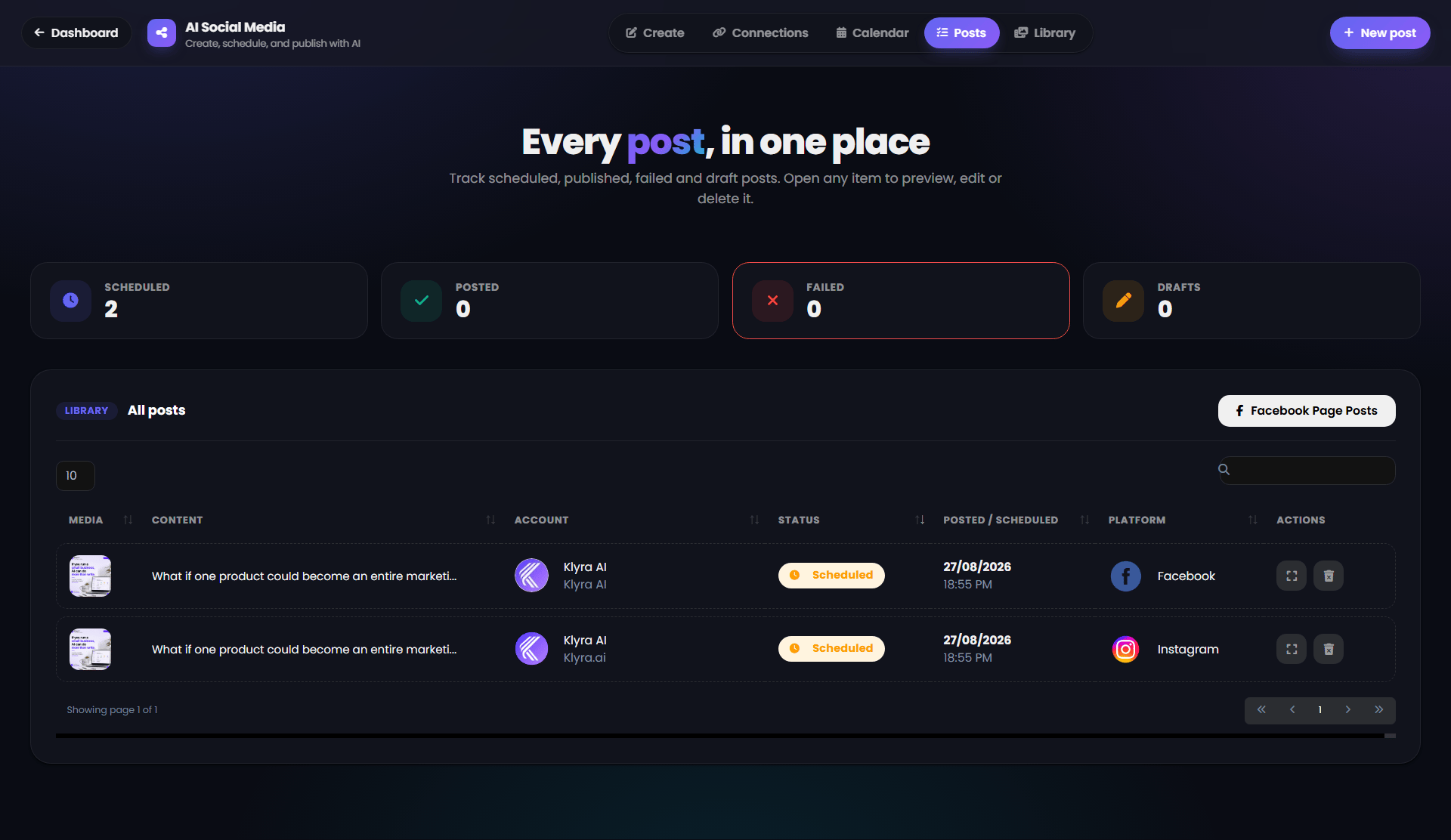 The Posts page provides status dashboards for:
* **Scheduled**
* **Posted**
* **Failed**
* **Drafts**
It also provides a searchable and sortable archive of posts.
### Scheduled posts
Posts waiting for their scheduled publication time appear under the **Scheduled** status.
The list can show:
* Media
* Content
* Account
* Status
* Posted / Scheduled date and time
* Platform
* Actions
### Processing posts
When a post is being published, its status can temporarily show **Processing**.
The Posts page provides status dashboards for:
* **Scheduled**
* **Posted**
* **Failed**
* **Drafts**
It also provides a searchable and sortable archive of posts.
### Scheduled posts
Posts waiting for their scheduled publication time appear under the **Scheduled** status.
The list can show:
* Media
* Content
* Account
* Status
* Posted / Scheduled date and time
* Platform
* Actions
### Processing posts
When a post is being published, its status can temporarily show **Processing**.
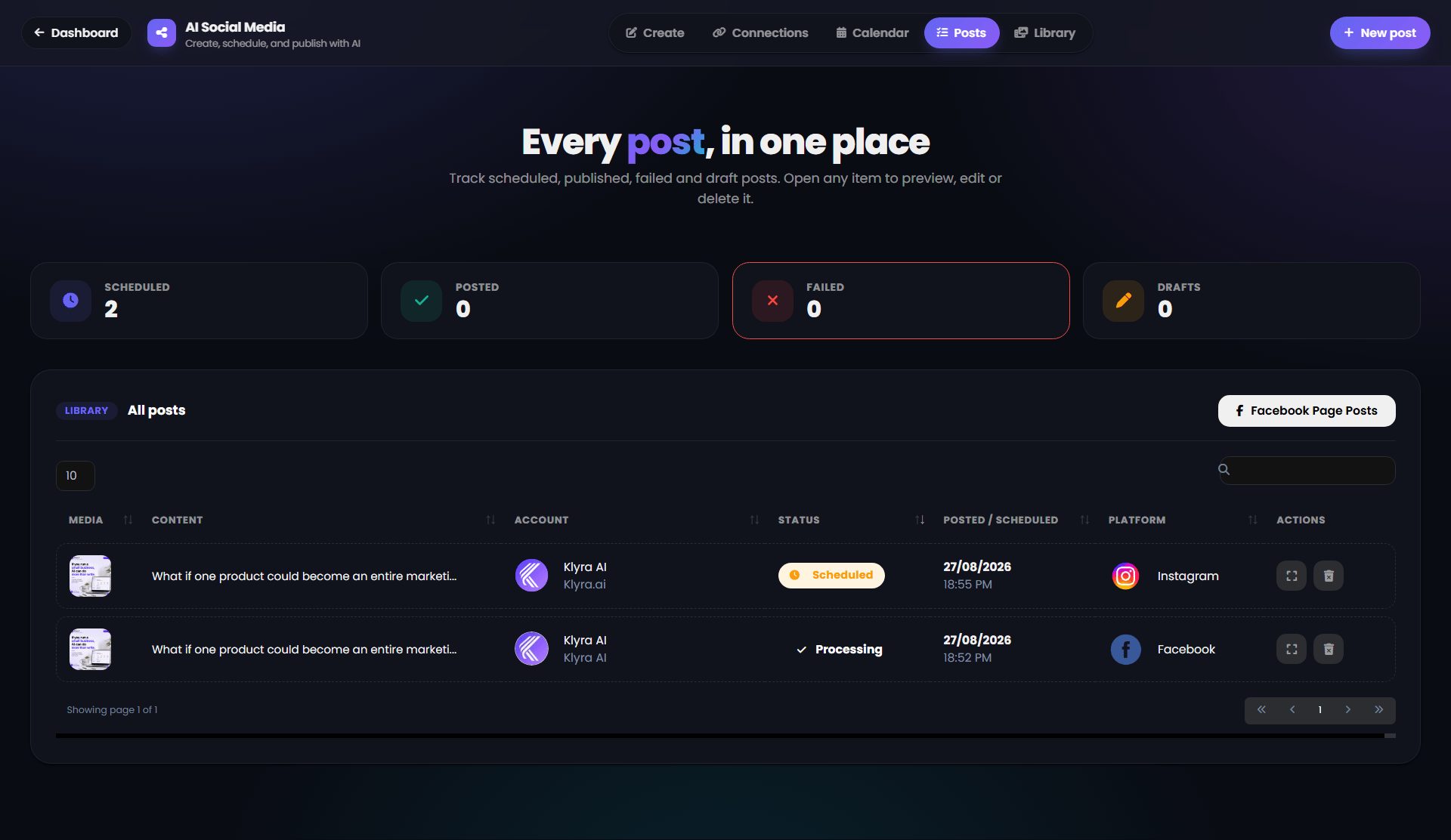 Processing indicates that the publishing workflow is currently running.
### Posted posts
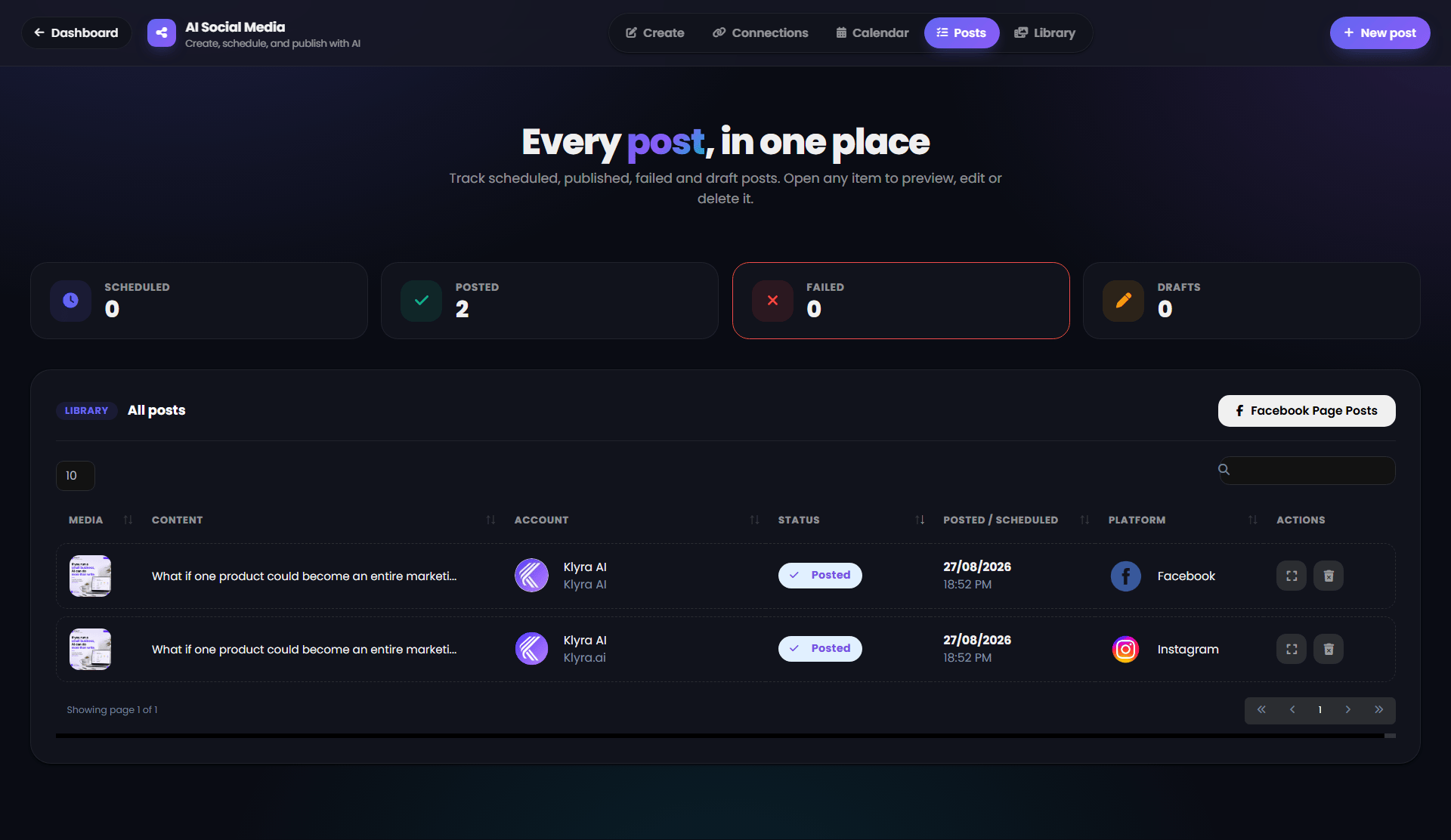
After successful publication, the post appears with a **Posted** status.
Processing indicates that the publishing workflow is currently running.
### Posted posts
After successful publication, the post appears with a **Posted** status.
 ### Failed posts
If a publishing operation fails, the post can appear under **Failed**.
Use the post information and account status to determine what needs attention before trying again.
### Drafts
Posts that have been saved without being published can appear under **Drafts**.
Drafts are useful when you want to prepare content before deciding when or where to publish it.
## Search and sort your posts
The Posts page includes a search field and sortable columns.
Use search when you need to locate a specific post quickly.
The archive can be organized using columns such as:
* Content
* Account
* Status
* Posted / Scheduled
* Platform
This gives you a centralized view of your social publishing history.
## Use the content calendar
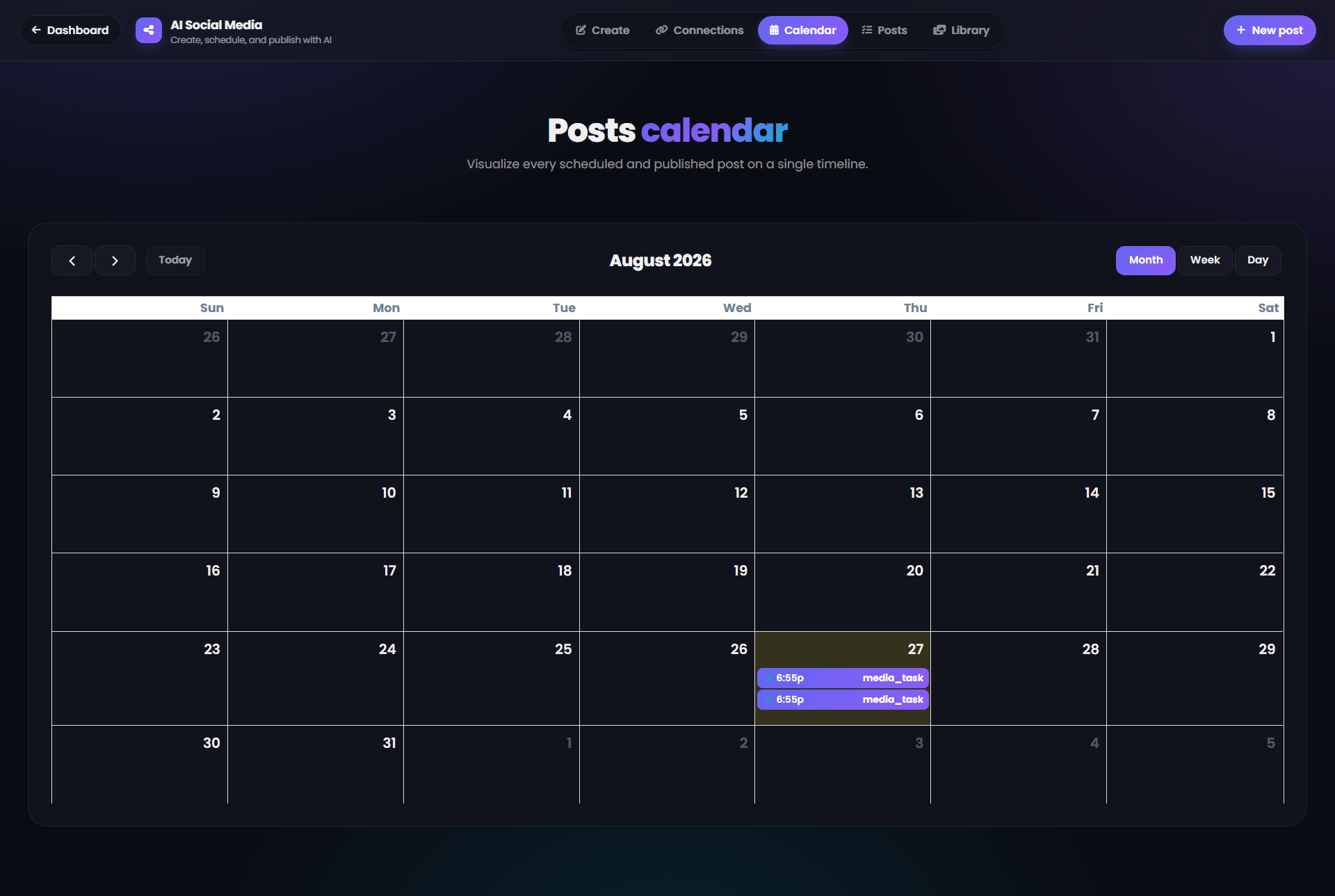
Open **Calendar** to visualize your scheduled and published content on a timeline.
### Failed posts
If a publishing operation fails, the post can appear under **Failed**.
Use the post information and account status to determine what needs attention before trying again.
### Drafts
Posts that have been saved without being published can appear under **Drafts**.
Drafts are useful when you want to prepare content before deciding when or where to publish it.
## Search and sort your posts
The Posts page includes a search field and sortable columns.
Use search when you need to locate a specific post quickly.
The archive can be organized using columns such as:
* Content
* Account
* Status
* Posted / Scheduled
* Platform
This gives you a centralized view of your social publishing history.
## Use the content calendar
Open **Calendar** to visualize your scheduled and published content on a timeline.
 ### Calendar views
The calendar provides:
* **Month**
* **Week**
* **Day**
Use the navigation controls to move between dates and select **Today** to return to the current date.
### Month view
Month view provides a broad overview of your publishing schedule.
Scheduled items appear directly on their corresponding dates.
This makes it easier to identify publishing gaps, clusters of posts, and upcoming content.
### Week and Day views
Use **Week** when you need a more focused view of your schedule.
Use **Day** when you want to inspect publishing activity for a single date.
## A recommended workflow
For a simple and reliable publishing process:
Connect the networks you actively publish to and keep only the accounts you need.
Add your frequently used images, videos, GIFs, and audio to Library.
Write a text post or media post, or use AI to generate the content.
Choose the accounts that should receive the post.
Switch between networks and review how the content will render.
Publish now, schedule for a specific date and time, or configure auto-reposting.
Use Posts to track status and Calendar to review the overall publishing schedule.
## Best practices
### Create once, adapt across networks
Use the unified composer to create the core message once, then use the platform-aware preview to check how it appears on each selected network.
### Review platform-specific presentation
Different networks have different presentation requirements. Always review the Live Preview before publishing.
### Reuse assets from Library
Store commonly used media in Library so you can quickly reuse assets across future posts.
### Use scheduling for consistency
Prepare content ahead of time and schedule it for the dates and times that fit your publishing plan.
### Use auto-reposting intentionally
Auto-reposting is useful for evergreen content that is designed to be reused. Make sure recurring content remains appropriate and current.
### Keep account connections organized
Pause accounts you temporarily do not want to publish to and disconnect accounts that should no longer be used.
## Quick reference
| Task | Where to do it |
| ------------------------- | ------------------------------------------- |
| Connect a social account | **Connections → Add a new account** |
| Manage connected accounts | **Connections → My accounts** |
| Upload reusable media | **Library → Add to library** |
| Filter media | **Library → All / Images / Videos / Audio** |
| Create a post | **Create** |
| Generate copy with AI | **Create → Write with AI** |
| Add media | **Create → Post media** |
| Select accounts | **Create → Target accounts** |
| Preview a post | **Create → Live Preview** |
| Publish immediately | **Create → Now** |
| Schedule a post | **Create → Schedule** |
| Auto-repost | **Create → Auto-repost** |
| Track post status | **Posts** |
| View publishing schedule | **Calendar** |
| Search posts | **Posts → Search** |
## Troubleshooting
### A social account is not available as a target
Open **Connections** and check whether the account is connected and active.
If the account is paused, reactivate it before publishing.
### I cannot find a previously uploaded image
Open **Library** and use the **Images** filter or the **All** filter.
The library is designed to keep reusable images, videos, and audio in one place.
### My post is scheduled but has not published yet
Open **Posts** and check the post status.
A scheduled post remains under **Scheduled** until its publishing time. During publication, the status may temporarily show **Processing**.
### A post appears under Failed
Open the post and check the associated account and publishing details. Also verify that the target social account is still connected and active.
### I want to publish to only one network
In **Target accounts**, enable only the account you want to use. Each connected account can be toggled independently.
## AI Social Media in one workspace
AI Social Media brings the core social publishing workflow together:
* Connect your networks
* Create text and media posts
* Generate social copy with AI
* Reuse media from a centralized library
* Preview content across platforms
* Publish immediately
* Schedule posts
* Auto-repost recurring content
* Track scheduled, posted, failed, and draft posts
* Visualize your publishing schedule with the calendar
Everything stays connected inside Klyra AI's intelligent workspace, helping you create, automate, communicate, and grow from one platform.
### Calendar views
The calendar provides:
* **Month**
* **Week**
* **Day**
Use the navigation controls to move between dates and select **Today** to return to the current date.
### Month view
Month view provides a broad overview of your publishing schedule.
Scheduled items appear directly on their corresponding dates.
This makes it easier to identify publishing gaps, clusters of posts, and upcoming content.
### Week and Day views
Use **Week** when you need a more focused view of your schedule.
Use **Day** when you want to inspect publishing activity for a single date.
## A recommended workflow
For a simple and reliable publishing process:
Connect the networks you actively publish to and keep only the accounts you need.
Add your frequently used images, videos, GIFs, and audio to Library.
Write a text post or media post, or use AI to generate the content.
Choose the accounts that should receive the post.
Switch between networks and review how the content will render.
Publish now, schedule for a specific date and time, or configure auto-reposting.
Use Posts to track status and Calendar to review the overall publishing schedule.
## Best practices
### Create once, adapt across networks
Use the unified composer to create the core message once, then use the platform-aware preview to check how it appears on each selected network.
### Review platform-specific presentation
Different networks have different presentation requirements. Always review the Live Preview before publishing.
### Reuse assets from Library
Store commonly used media in Library so you can quickly reuse assets across future posts.
### Use scheduling for consistency
Prepare content ahead of time and schedule it for the dates and times that fit your publishing plan.
### Use auto-reposting intentionally
Auto-reposting is useful for evergreen content that is designed to be reused. Make sure recurring content remains appropriate and current.
### Keep account connections organized
Pause accounts you temporarily do not want to publish to and disconnect accounts that should no longer be used.
## Quick reference
| Task | Where to do it |
| ------------------------- | ------------------------------------------- |
| Connect a social account | **Connections → Add a new account** |
| Manage connected accounts | **Connections → My accounts** |
| Upload reusable media | **Library → Add to library** |
| Filter media | **Library → All / Images / Videos / Audio** |
| Create a post | **Create** |
| Generate copy with AI | **Create → Write with AI** |
| Add media | **Create → Post media** |
| Select accounts | **Create → Target accounts** |
| Preview a post | **Create → Live Preview** |
| Publish immediately | **Create → Now** |
| Schedule a post | **Create → Schedule** |
| Auto-repost | **Create → Auto-repost** |
| Track post status | **Posts** |
| View publishing schedule | **Calendar** |
| Search posts | **Posts → Search** |
## Troubleshooting
### A social account is not available as a target
Open **Connections** and check whether the account is connected and active.
If the account is paused, reactivate it before publishing.
### I cannot find a previously uploaded image
Open **Library** and use the **Images** filter or the **All** filter.
The library is designed to keep reusable images, videos, and audio in one place.
### My post is scheduled but has not published yet
Open **Posts** and check the post status.
A scheduled post remains under **Scheduled** until its publishing time. During publication, the status may temporarily show **Processing**.
### A post appears under Failed
Open the post and check the associated account and publishing details. Also verify that the target social account is still connected and active.
### I want to publish to only one network
In **Target accounts**, enable only the account you want to use. Each connected account can be toggled independently.
## AI Social Media in one workspace
AI Social Media brings the core social publishing workflow together:
* Connect your networks
* Create text and media posts
* Generate social copy with AI
* Reuse media from a centralized library
* Preview content across platforms
* Publish immediately
* Schedule posts
* Auto-repost recurring content
* Track scheduled, posted, failed, and draft posts
* Visualize your publishing schedule with the calendar
Everything stays connected inside Klyra AI's intelligent workspace, helping you create, automate, communicate, and grow from one platform.