> ## Documentation Index
> Fetch the complete documentation index at: https://docs.klyra.ai/llms.txt
> Use this file to discover all available pages before exploring further.
# Dashboard Overview
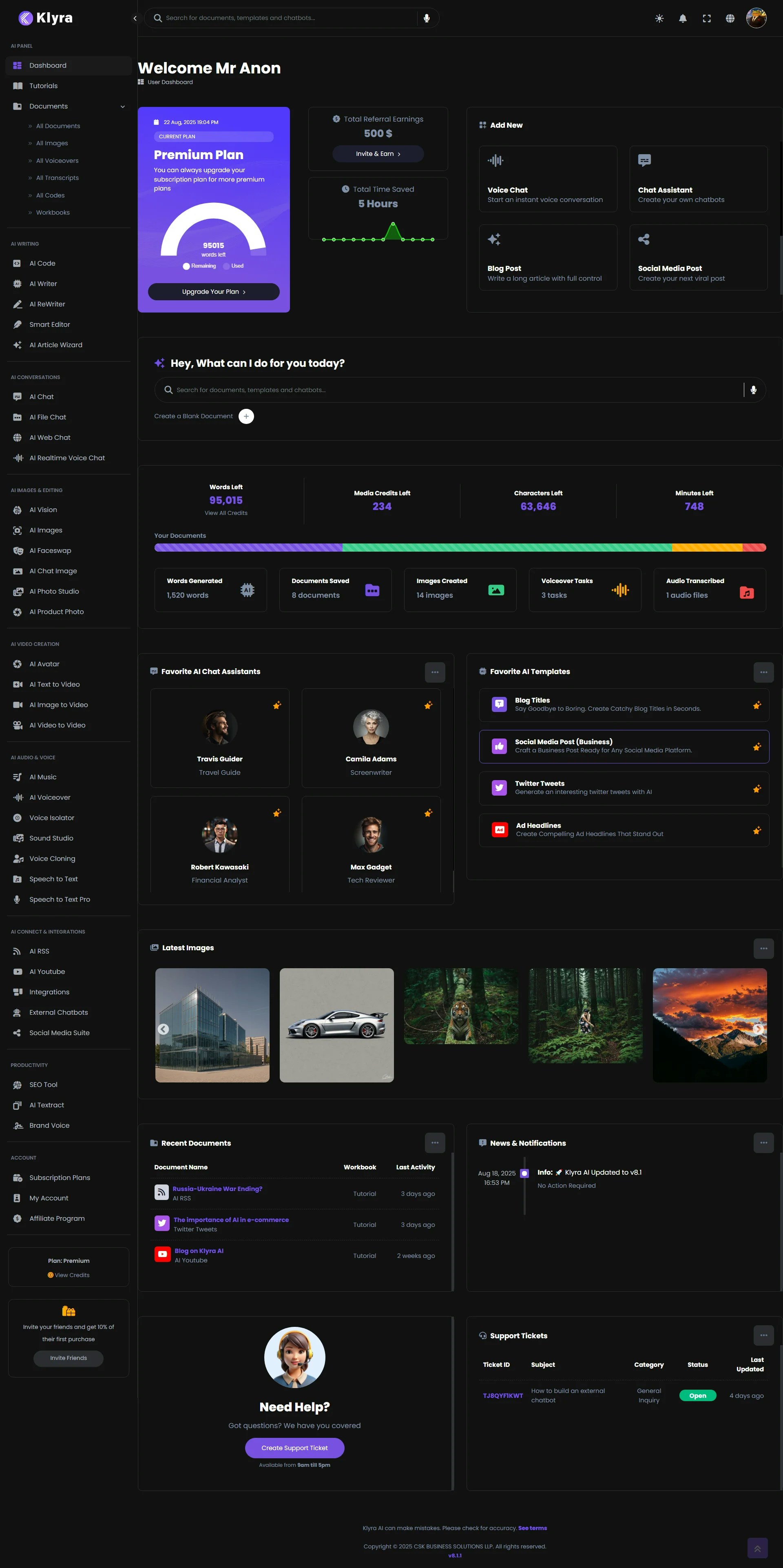
> Welcome to Klyra AI! The dashboard is your central hub to access all tools, track usage, and manage your account. This guide will walk you through the layout and functionality of the dashboard so you can get the most out of your subscription.
## 🔐 Accessing the Dashboard
After logging in, you’ll be redirected to the **Klyra AI Dashboard**. From here, you can:
* Access all AI tools and features.
* Manage your subscription and credits.
* View and organize your generated content.
 ## 🔎 Top Menu Bar
The **top navigation bar** provides quick access to key actions:
* **Search Bar (center):** Find your saved documents, templates, and chatbots.
* **Right-side icons:**
* 🌙 Light/Dark Mode toggle
* 🔔 Notifications
* ⛶ Full Screen
* 🌐 Language Selector
* 👤 Account Menu (hover to view):
* Subscription Plans
* My Workbooks
* Affiliate Program
* Orders
* Support Requests
* Notifications
* Profile Settings
* Logout
## 🖥️ Main Dashboard Area
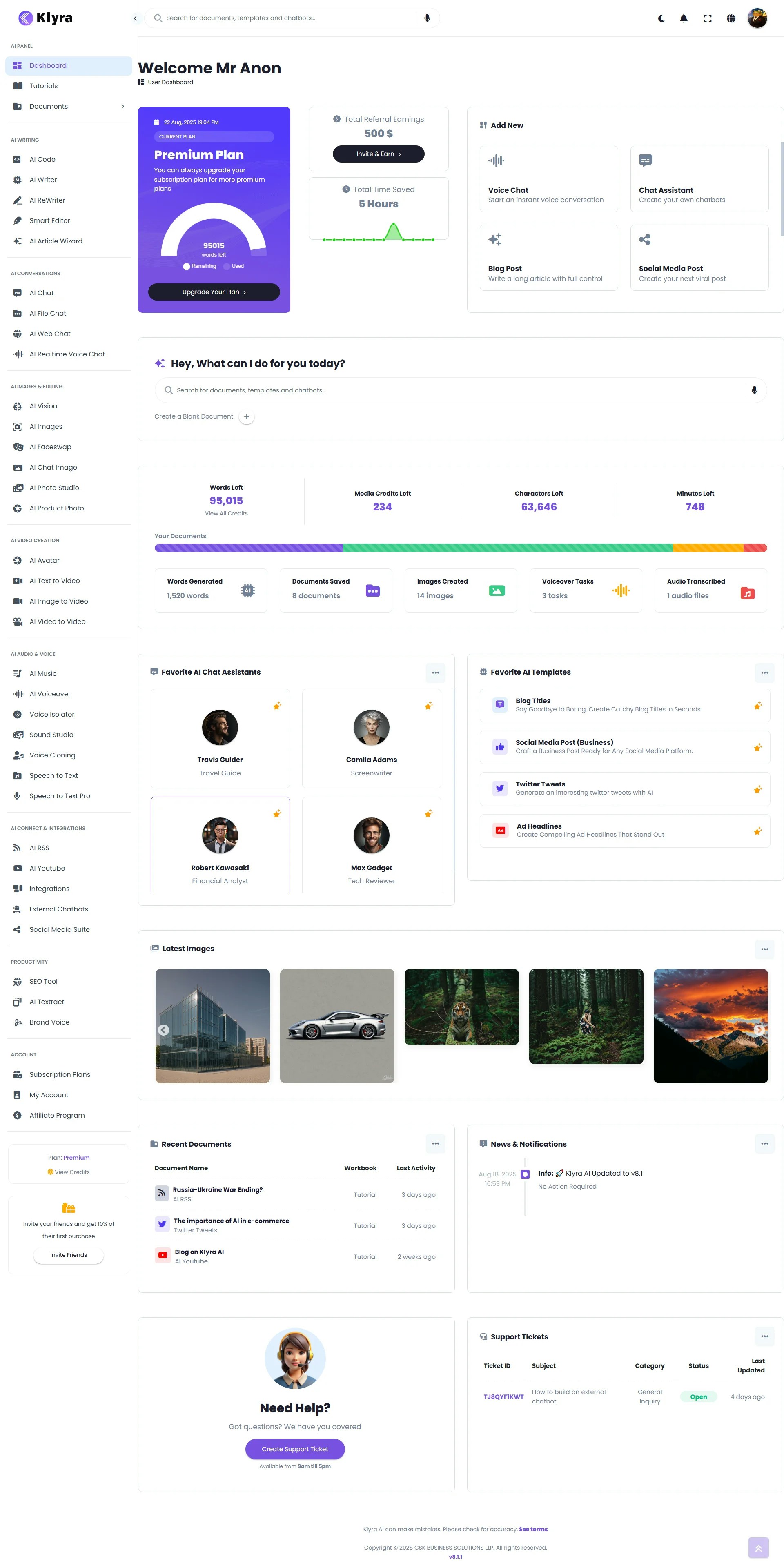
The main area displays your subscription status, quick actions, and recent activity.
* **Current Plan** → view details & upgrade.
* **Referral Earnings** → track earnings and access the *Invite & Earn* program.
Instantly start creating with:
* Voice Chat
* Chat Assistant
* Blog Post
* Social Media Post
* Templates
👉 You’ll also find a **search bar with a “Create Blank Document” option**, which takes you directly to the **Smart Editor** — Klyra’s advanced AI-powered text editor.
**Smart Editor:** Create, edit, and refine your content in one place with integrated AI writing tools and templates.
Monitor your subscription credits:
* **Words** → for AI writing & chat tools.
* **Media Credits** → for images, video, and music generation.
* **Characters** → for voice-related tools.
* **Minutes** → for speech-to-text.
Beneath this, you’ll see your activity summary:
* Words Generated
* Documents Saved
* Images Created
* Voiceover Tasks
* Audio Transcribed
* Favorite AI Chat Assistants & Templates
* Latest Images Generated
* Recent Documents
* **News & Notifications** → stay updated on new features.
* **Support Tickets** → create and manage requests.
## 📂 Left-Side Menu Panel
The **left navigation panel** organizes all tools into groups. Clicking on any option opens it in the main dashboard area.
* **Dashboard** – Your central hub with plan details, credits, and shortcuts.
* **Documents** – Access all generated files: documents, images, voiceovers, transcripts, code, and workbooks.
* **AI Code** – Generate, optimize, and debug code faster.
* **AI Writer** – Create high-quality written content instantly.
* **AI ReWriter** – Refine and rephrase existing text.
* **Smart Editor** – Advanced AI text editor with templates and content tools.
* **AI Article Wizard** – Create long-form articles with outlines and AI-generated images.
* **AI Chat** – Get instant answers with conversational AI.
* **AI File Chat** – Upload documents (PDF, Word, CSV) and chat with them.
* **AI Web Chat** – Share a URL and get summarized insights.
* **AI Realtime Voice Chat** – Speak directly with AI in live conversations.
* **AI Vision** – Analyze and extract insights from uploaded images.
* **AI Images** – Generate professional images with multiple AI models.
* **AI Faceswap** – Swap faces seamlessly in images.
* **AI Chat Image** – Create images directly from a chat interface.
* **AI Photo Studio** – Advanced editing with inpainting, outpainting, and retouching.
* **AI Product Photo** – Generate high-quality product and fashion images.
* **AI Avatar** – Create talking avatars with text-to-speech.
* **AI Text to Video** – Convert written prompts into videos.
* **AI Image to Video** – Animate static images into dynamic videos.
* **AI Video to Video** – Transform existing videos into new styles.
* **AI Music** – Generate original music from text prompts.
* **AI Voiceover** – Create natural voiceovers in 150+ languages.
* **Voice Isolator** – Remove background noise from audio.
* **Sound Studio** – Mix and edit audio professionally.
* **Voice Cloning** – Clone any voice with lifelike accuracy.
* **Speech to Text** – Transcribe audio into text in multiple languages.
* **Speech to Text Pro** – Advanced transcription with diarization and live streaming.
* **AI RSS** – Generate content directly from RSS feeds.
* **AI YouTube** – Summarize and repurpose YouTube videos.
* **Integrations** – Connect Klyra AI with external apps and platforms.
* **Social Media Suite** – Create and schedule social media posts.
* **External Chatbots** – Build and deploy custom chatbots for your website.
* **SEO Tool** – Optimize your content with keywords and meta data.
* **AI Textract** – Extract data from scanned documents, forms, and tables.
* **Brand Voice** – Maintain consistent brand tone across all content.
* **Subscription Plans** – View or upgrade your plan.
* **My Account** – Manage profile and account settings.
* **Affiliate Program** – Track and manage your affiliate earnings.
Click **View Credits** to see your remaining allocation:
* **Words** - Used for text-based tools like AI Writer, Smart Editor, Chat Assistants, and ReWriter.
* **Media Credits** – Consumed by image, video, and music generation tools.
* **Characters** – Spent on voice-related tools such as Text-to-Speech, Voice Cloning, and Voice Isolator.
* **Minutes** – Used for Speech-to-Text transcription features.
Each credit type powers specific tools, ensuring you can track and manage your usage effectively.
Share Klyra AI with your friends and earn rewards!
* **Offer:** Get **10% of their first purchase** when someone joins using your referral.
* **How to start:** Click **Invite Friends** to access your referral link and share it.
A simple way to save on your subscription while helping others discover Klyra AI.
## ✅ Summary
The Klyra AI Dashboard is designed for **productivity and simplicity**:
* **Top bar** for account and global settings.
* **Main area** for subscriptions, quick actions, and activity.
* **Left panel** for accessing 30+ AI tools.
Mastering the dashboard is the first step to unlocking the full power of **Klyra AI**.
## 🔎 Top Menu Bar
The **top navigation bar** provides quick access to key actions:
* **Search Bar (center):** Find your saved documents, templates, and chatbots.
* **Right-side icons:**
* 🌙 Light/Dark Mode toggle
* 🔔 Notifications
* ⛶ Full Screen
* 🌐 Language Selector
* 👤 Account Menu (hover to view):
* Subscription Plans
* My Workbooks
* Affiliate Program
* Orders
* Support Requests
* Notifications
* Profile Settings
* Logout
## 🖥️ Main Dashboard Area
The main area displays your subscription status, quick actions, and recent activity.
* **Current Plan** → view details & upgrade.
* **Referral Earnings** → track earnings and access the *Invite & Earn* program.
Instantly start creating with:
* Voice Chat
* Chat Assistant
* Blog Post
* Social Media Post
* Templates
👉 You’ll also find a **search bar with a “Create Blank Document” option**, which takes you directly to the **Smart Editor** — Klyra’s advanced AI-powered text editor.
**Smart Editor:** Create, edit, and refine your content in one place with integrated AI writing tools and templates.
Monitor your subscription credits:
* **Words** → for AI writing & chat tools.
* **Media Credits** → for images, video, and music generation.
* **Characters** → for voice-related tools.
* **Minutes** → for speech-to-text.
Beneath this, you’ll see your activity summary:
* Words Generated
* Documents Saved
* Images Created
* Voiceover Tasks
* Audio Transcribed
* Favorite AI Chat Assistants & Templates
* Latest Images Generated
* Recent Documents
* **News & Notifications** → stay updated on new features.
* **Support Tickets** → create and manage requests.
## 📂 Left-Side Menu Panel
The **left navigation panel** organizes all tools into groups. Clicking on any option opens it in the main dashboard area.
* **Dashboard** – Your central hub with plan details, credits, and shortcuts.
* **Documents** – Access all generated files: documents, images, voiceovers, transcripts, code, and workbooks.
* **AI Code** – Generate, optimize, and debug code faster.
* **AI Writer** – Create high-quality written content instantly.
* **AI ReWriter** – Refine and rephrase existing text.
* **Smart Editor** – Advanced AI text editor with templates and content tools.
* **AI Article Wizard** – Create long-form articles with outlines and AI-generated images.
* **AI Chat** – Get instant answers with conversational AI.
* **AI File Chat** – Upload documents (PDF, Word, CSV) and chat with them.
* **AI Web Chat** – Share a URL and get summarized insights.
* **AI Realtime Voice Chat** – Speak directly with AI in live conversations.
* **AI Vision** – Analyze and extract insights from uploaded images.
* **AI Images** – Generate professional images with multiple AI models.
* **AI Faceswap** – Swap faces seamlessly in images.
* **AI Chat Image** – Create images directly from a chat interface.
* **AI Photo Studio** – Advanced editing with inpainting, outpainting, and retouching.
* **AI Product Photo** – Generate high-quality product and fashion images.
* **AI Avatar** – Create talking avatars with text-to-speech.
* **AI Text to Video** – Convert written prompts into videos.
* **AI Image to Video** – Animate static images into dynamic videos.
* **AI Video to Video** – Transform existing videos into new styles.
* **AI Music** – Generate original music from text prompts.
* **AI Voiceover** – Create natural voiceovers in 150+ languages.
* **Voice Isolator** – Remove background noise from audio.
* **Sound Studio** – Mix and edit audio professionally.
* **Voice Cloning** – Clone any voice with lifelike accuracy.
* **Speech to Text** – Transcribe audio into text in multiple languages.
* **Speech to Text Pro** – Advanced transcription with diarization and live streaming.
* **AI RSS** – Generate content directly from RSS feeds.
* **AI YouTube** – Summarize and repurpose YouTube videos.
* **Integrations** – Connect Klyra AI with external apps and platforms.
* **Social Media Suite** – Create and schedule social media posts.
* **External Chatbots** – Build and deploy custom chatbots for your website.
* **SEO Tool** – Optimize your content with keywords and meta data.
* **AI Textract** – Extract data from scanned documents, forms, and tables.
* **Brand Voice** – Maintain consistent brand tone across all content.
* **Subscription Plans** – View or upgrade your plan.
* **My Account** – Manage profile and account settings.
* **Affiliate Program** – Track and manage your affiliate earnings.
Click **View Credits** to see your remaining allocation:
* **Words** - Used for text-based tools like AI Writer, Smart Editor, Chat Assistants, and ReWriter.
* **Media Credits** – Consumed by image, video, and music generation tools.
* **Characters** – Spent on voice-related tools such as Text-to-Speech, Voice Cloning, and Voice Isolator.
* **Minutes** – Used for Speech-to-Text transcription features.
Each credit type powers specific tools, ensuring you can track and manage your usage effectively.
Share Klyra AI with your friends and earn rewards!
* **Offer:** Get **10% of their first purchase** when someone joins using your referral.
* **How to start:** Click **Invite Friends** to access your referral link and share it.
A simple way to save on your subscription while helping others discover Klyra AI.
## ✅ Summary
The Klyra AI Dashboard is designed for **productivity and simplicity**:
* **Top bar** for account and global settings.
* **Main area** for subscriptions, quick actions, and activity.
* **Left panel** for accessing 30+ AI tools.
Mastering the dashboard is the first step to unlocking the full power of **Klyra AI**.