> ## Documentation Index
> Fetch the complete documentation index at: https://docs.klyra.ai/llms.txt
> Use this file to discover all available pages before exploring further.
# AI Vision
> Analyze and understand images with AI-powered vision models. Upload a picture, ask questions, and get instant insights into its contents and semantics.
## Introduction
The **AI Vision** tool in Klyra AI allows you to interact with your images in a completely new way. By combining advanced computer vision with conversational AI, you can upload an image and **ask natural-language questions** about it.
Whether you need to identify objects, analyze visual patterns, extract semantic meaning, or simply describe what’s happening in an image, AI Vision provides fast, accurate results. All interactions are **saved automatically** and can be exported for reference.
This feature is available only with a paid subscription plan.
## How to Use
> 🔎 **Navigation:** Dashboard → Left Panel → AI Images & Editing → AI Vision
This opens the **AI Vision workspace** in the main area.
* **Drag & Drop** your image into the upload area,\
**or** click **Browse** to select a file from your device.
* Supported formats: JPG, PNG, and other common image files.
* Choose from the list of **AI Vision models** available in your subscription.
* Different models may have unique strengths (e.g., object recognition, contextual understanding).
* Type a natural-language question or request about the uploaded image.
* Example prompts:
* *“What objects do you see in this image?”*
* *“Can you identify the fruits and vegetables in this market?”*
* *“How many market stalls do you estimate are present?”*
Click **Send** to start interacting with AI Vision.
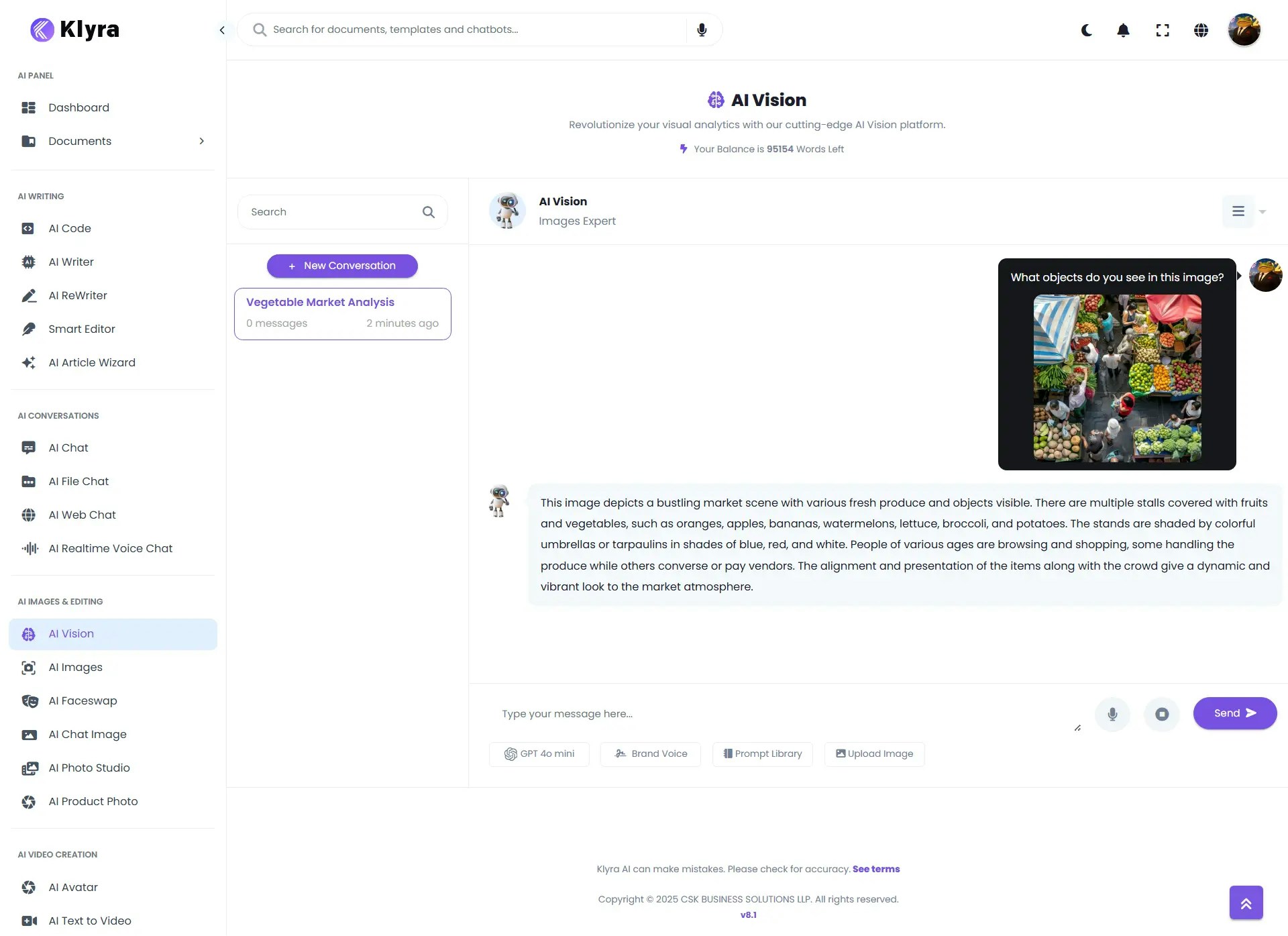 * Your interaction history is **saved automatically** for future reference.
* You can export the conversation as:
* **Text File (.txt)**
* **MS Word (.docx)**
* **PDF File (.pdf)**
### 💡 Tips
* Use **specific prompts** to get precise answers. For example, instead of *“What do you see?”* ask *“What type of car is in this image?”*
* For complex analysis, break your query into multiple smaller prompts.
* Combine AI Vision with **Knowledge Retrieval** (via custom assistants) to link visual insights with your own files or data.
* Export conversations regularly to build a **visual insights library** for your projects.
### 📌 Example Use Cases
* **E-commerce:** Analyze product photos to ensure images match descriptions.
* **Design Teams:** Get semantic feedback on colors, themes, or style consistency.
* **Content Creators:** Generate accurate captions or descriptions for social media posts.
* **Education & Research:** Use AI Vision to label datasets, identify objects, or explain diagrams.
* **Accessibility:** Provide alt-text for images to improve accessibility in digital content.
* **Security & Compliance:** Detect sensitive content or confirm brand/logo usage in images.
* Your interaction history is **saved automatically** for future reference.
* You can export the conversation as:
* **Text File (.txt)**
* **MS Word (.docx)**
* **PDF File (.pdf)**
### 💡 Tips
* Use **specific prompts** to get precise answers. For example, instead of *“What do you see?”* ask *“What type of car is in this image?”*
* For complex analysis, break your query into multiple smaller prompts.
* Combine AI Vision with **Knowledge Retrieval** (via custom assistants) to link visual insights with your own files or data.
* Export conversations regularly to build a **visual insights library** for your projects.
### 📌 Example Use Cases
* **E-commerce:** Analyze product photos to ensure images match descriptions.
* **Design Teams:** Get semantic feedback on colors, themes, or style consistency.
* **Content Creators:** Generate accurate captions or descriptions for social media posts.
* **Education & Research:** Use AI Vision to label datasets, identify objects, or explain diagrams.
* **Accessibility:** Provide alt-text for images to improve accessibility in digital content.
* **Security & Compliance:** Detect sensitive content or confirm brand/logo usage in images.