> ## Documentation Index
> Fetch the complete documentation index at: https://docs.klyra.ai/llms.txt
> Use this file to discover all available pages before exploring further.
# AI Photo Studio
> Edit, enhance, and transform your photos with AI-powered precision. From reimagining entire scenes to inpainting, outpainting, and upscaling, AI Photo Studio delivers professional-grade photo editing in just a few clicks.
## Introduction
The [**AI Photo Studio**](https://klyra.ai/page/ai-photo-studio) in Klyra AI is a **multi-purpose image editing suite** built on advanced Stable Diffusion algorithms. Whether you want to:
* **Reimagine** an image with new artistic directions,
* **Erase, replace, or inpaint** elements,
* **Outpaint** to expand the canvas,
* **Convert sketches or structures** into finished art,
* **Upscale conservatively or creatively**,
* Or even create a **new image from text** —
AI Photo Studio offers all the tools in a single, intuitive workspace.
With **task-based editing, advanced settings, and flexible output**, this tool is equally valuable for **photographers, designers, marketers, and content creators**.
For tasks like **Inpaint and Erase Objects,** you may need to **mask an object in your input image**. If you don’t mask it, the AI will simply regenerate the original image without applying your changes.
👉 To mask an image, you can use free tools like [AI Image Editor](https://ai-image-editor.netlify.app/).
## How to Use
> 🔎 **Navigation:** Dashboard → Left Panel → AI Images & Editing → AI Photo Studio
From the **Task dropdown** (default = Reimagine), choose the editing function you want:
* **Reimagine** – Generate a new artistic interpretation of your image.
* **Same Style Image** – Apply the style of your uploaded image to new generations.
* **Erase Objects** – Select and remove unwanted elements.
* **Inpaint** – Replace or fix specific areas inside your image.
* **Outpaint** – Extend the canvas beyond the original boundaries.
* **Search and Replace** – Swap targeted objects (e.g., “replace apple with orange”).
* **Remove Background** – Isolate the subject from its backdrop.
* **Sketch to Image** – Convert rough sketches into polished visuals.
* **Structure to Image** – Generate new images guided by structural outlines.
* **Conservative Upscale** – Improve quality while keeping details intact.
* **Creative Upscale** – Enhance with AI-added creative flair.
* **Text to Image** – Generate a fresh image directly from your prompt.
* Click **Upload** or **Drag & Drop** your file.
* Supported formats: **PNG, JPEG, WEBP**.
* Not required for **Text to Image** (you only provide a prompt).
* Write clear instructions for the AI.
* Examples:
* Reimagine → *“Transform this living room into a futuristic cyberpunk lounge.”*
* Inpaint → *“Replace the sky with a sunset.”*
* Erase Objects → *“Remove the coffee mug from the desk.”*
* Click **Generate**.
* Your new image will appear on the right of the workspace.
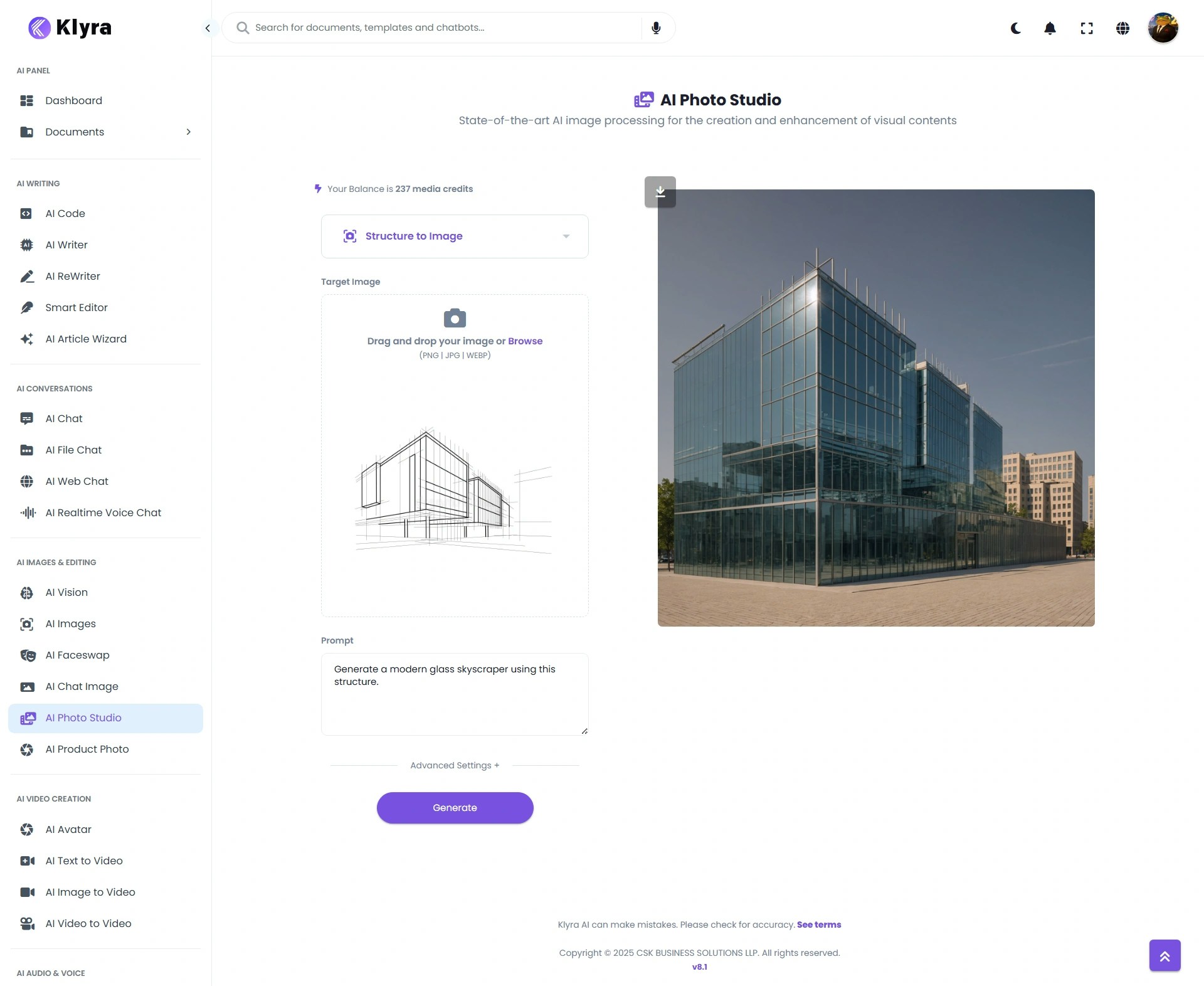 Fine-tune the generation process with **Advanced Settings**:
* **Negative Prompt** – Specify what to avoid (e.g., *“no text, no extra people”*).
* **Creativity** *(default 0.5)* – Controls freedom of interpretation (0 = faithful, 1 = very imaginative).
* **Control Strength** *(default 0.7)* – Balances influence of original image (0 = minimal, 1 = maximum).
* **Seed** *(default 0)* – Fix randomness for repeatable results (0 = random each time).
* **Download** your edited image immediately,
* Or access later under **AI Panel → Documents → All Images**.
## 🔹 AI Photo Studio Capabilities in Action
Below are practical examples of how each feature works. Each description can be paired with its generated image output for demonstration.
For tasks like **Inpaint and Erase Objects,** you may need to **mask an object in your input image**. If you don’t mask it, the AI will simply regenerate the original image without applying your changes.
👉 To mask an image, you can use free tools like [AI Image Editor](https://ai-image-editor.netlify.app/).
***
### 🔹 Reimagine
* **Input:** Street photo
Fine-tune the generation process with **Advanced Settings**:
* **Negative Prompt** – Specify what to avoid (e.g., *“no text, no extra people”*).
* **Creativity** *(default 0.5)* – Controls freedom of interpretation (0 = faithful, 1 = very imaginative).
* **Control Strength** *(default 0.7)* – Balances influence of original image (0 = minimal, 1 = maximum).
* **Seed** *(default 0)* – Fix randomness for repeatable results (0 = random each time).
* **Download** your edited image immediately,
* Or access later under **AI Panel → Documents → All Images**.
## 🔹 AI Photo Studio Capabilities in Action
Below are practical examples of how each feature works. Each description can be paired with its generated image output for demonstration.
For tasks like **Inpaint and Erase Objects,** you may need to **mask an object in your input image**. If you don’t mask it, the AI will simply regenerate the original image without applying your changes.
👉 To mask an image, you can use free tools like [AI Image Editor](https://ai-image-editor.netlify.app/).
***
### 🔹 Reimagine
* **Input:** Street photo
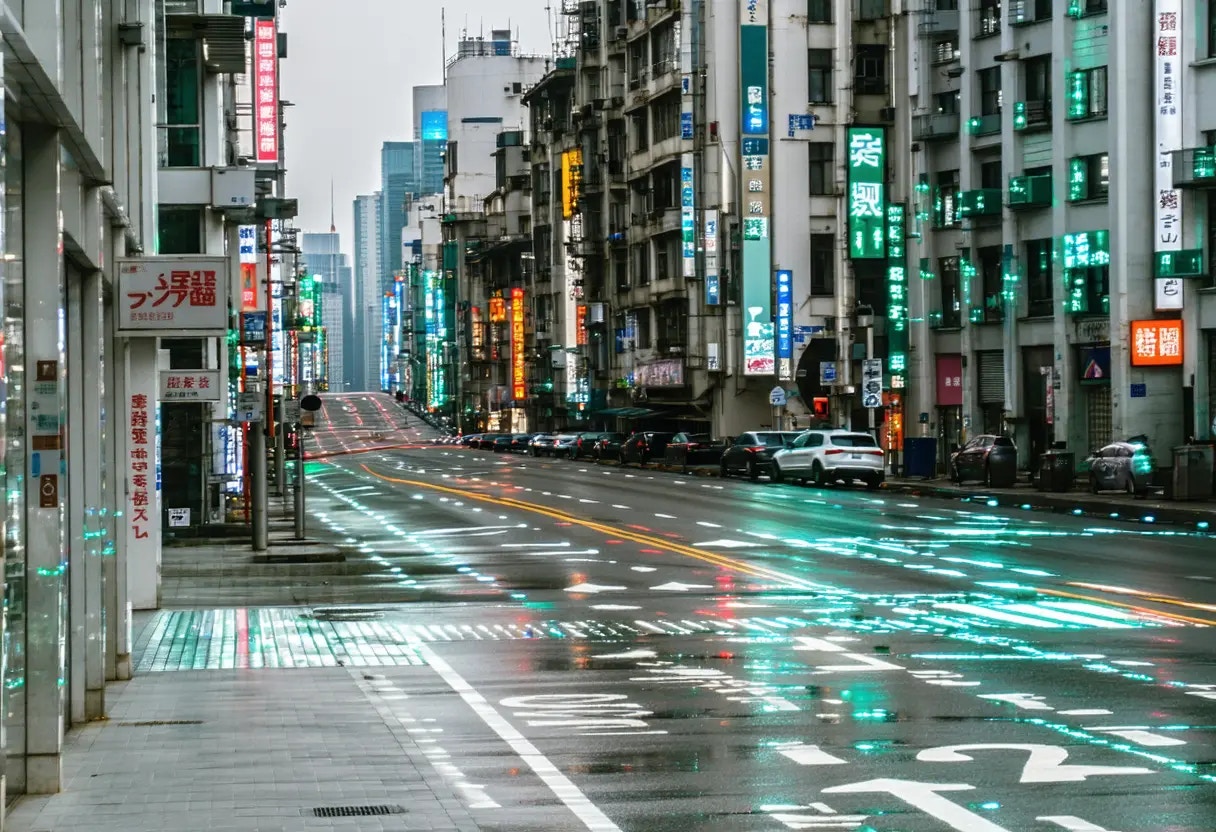
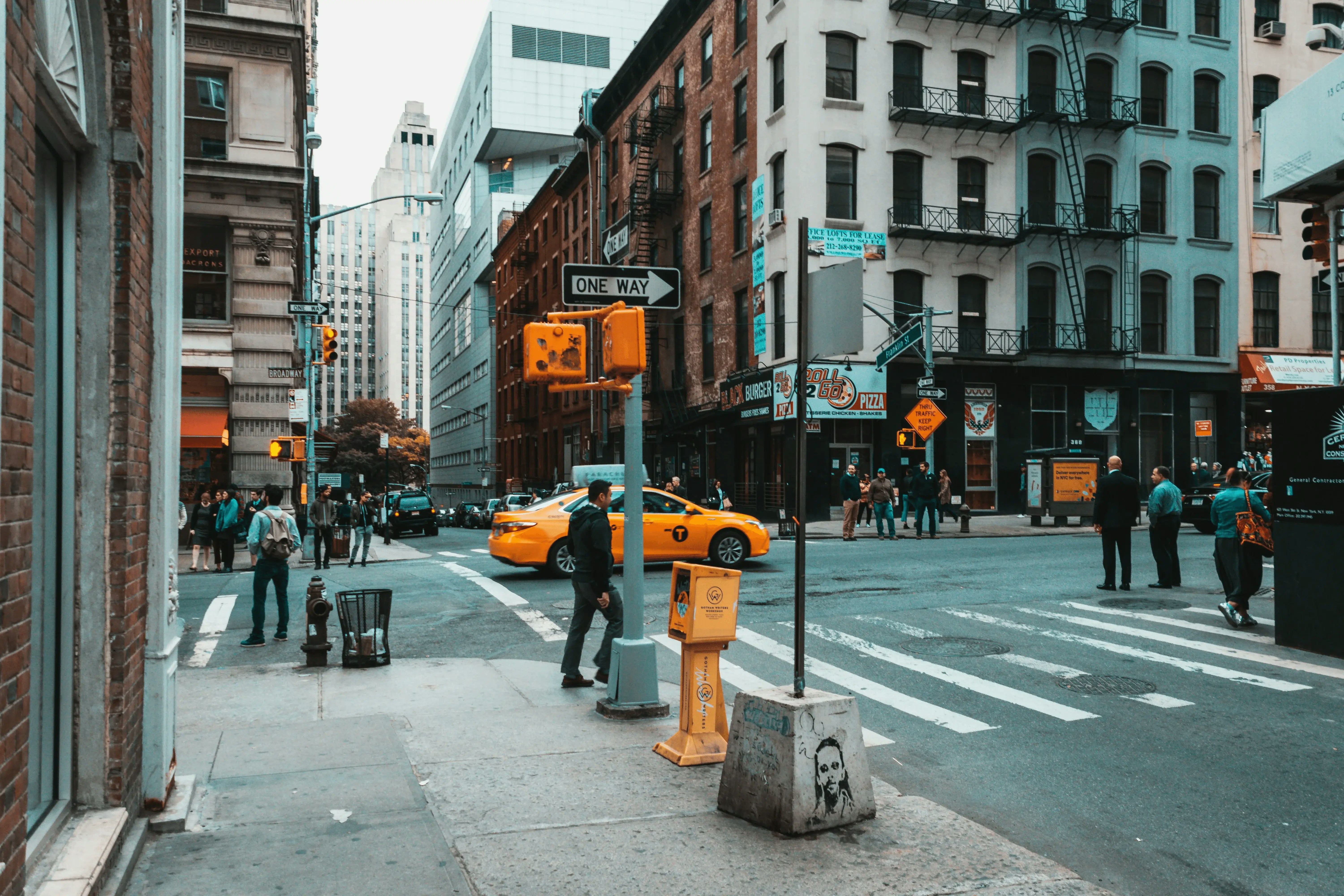 * **Prompt:** *“Reimagine this as a futuristic neon cyberpunk street scene.”*
* **Use Case:** Creative experimentation & mood transformation.
* **Output:**
* **Prompt:** *“Reimagine this as a futuristic neon cyberpunk street scene.”*
* **Use Case:** Creative experimentation & mood transformation.
* **Output:**
 ***
### 🔹 Same Style Image
* **Input:** Watercolor painting
***
### 🔹 Same Style Image
* **Input:** Watercolor painting
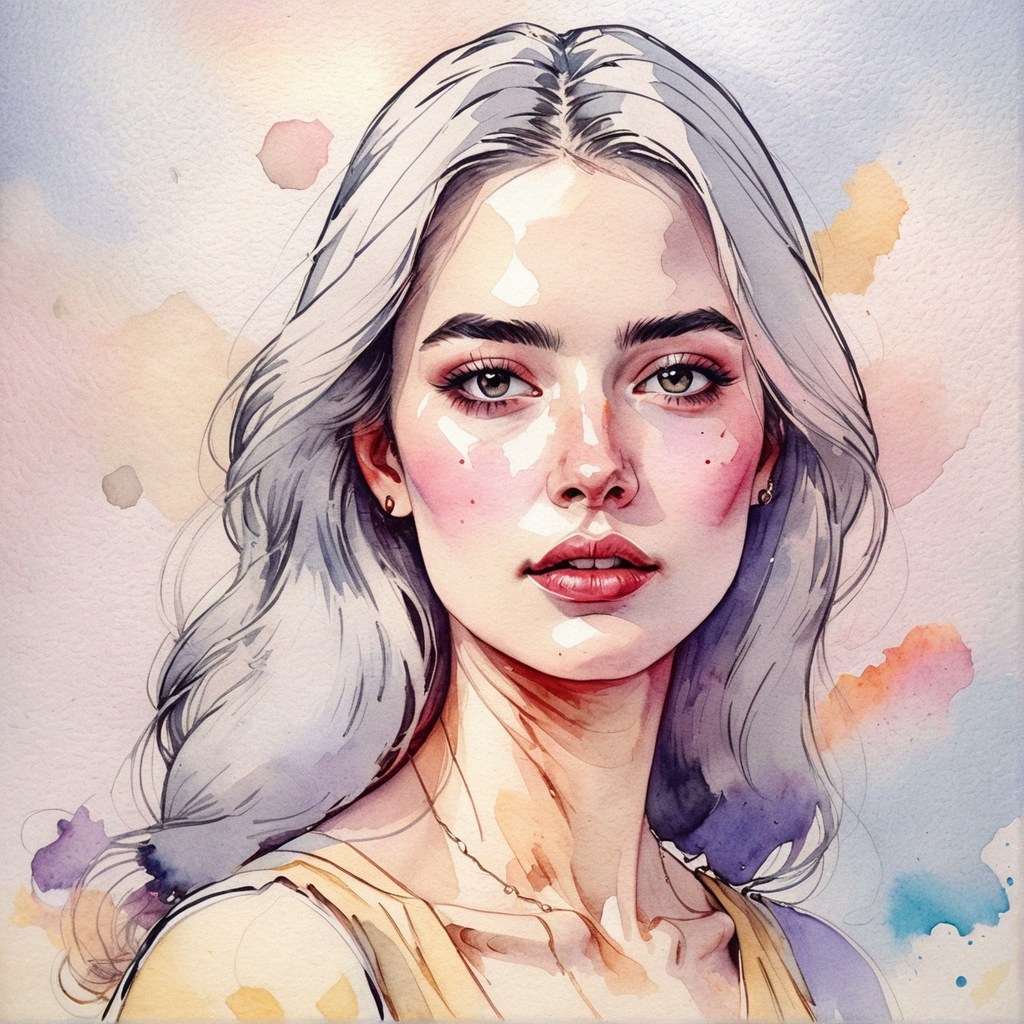
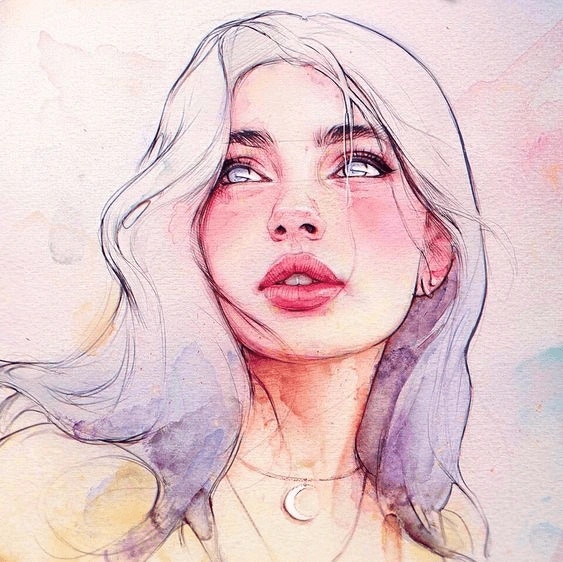 * **Prompt:** *“Generate a portrait of a woman in the same watercolor style as the reference immage”*
* **Use Case:** Maintaining brand consistency or replicating artistic styles.
* **Output:**
* **Prompt:** *“Generate a portrait of a woman in the same watercolor style as the reference immage”*
* **Use Case:** Maintaining brand consistency or replicating artistic styles.
* **Output:**
 ***
### 🔹 Erase Objects
* **Input:** Desk photo
For tasks like **Inpaint and Erase Objects,** you may need to **mask an object in your input image**. If you don’t mask it, the AI will simply regenerate the original image without applying your changes.
👉 To mask an image, you can use free tools like [AI Image Editor](https://ai-image-editor.netlify.app/).
***
### 🔹 Erase Objects
* **Input:** Desk photo
For tasks like **Inpaint and Erase Objects,** you may need to **mask an object in your input image**. If you don’t mask it, the AI will simply regenerate the original image without applying your changes.
👉 To mask an image, you can use free tools like [AI Image Editor](https://ai-image-editor.netlify.app/).
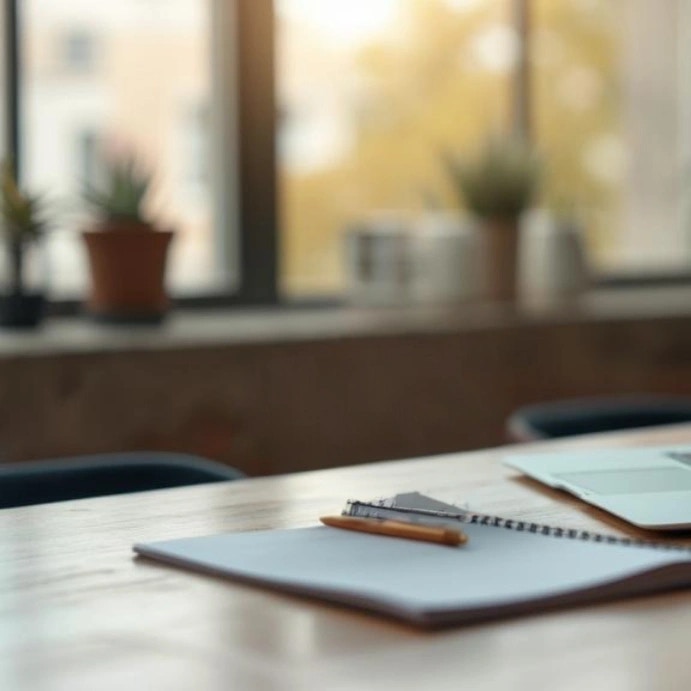
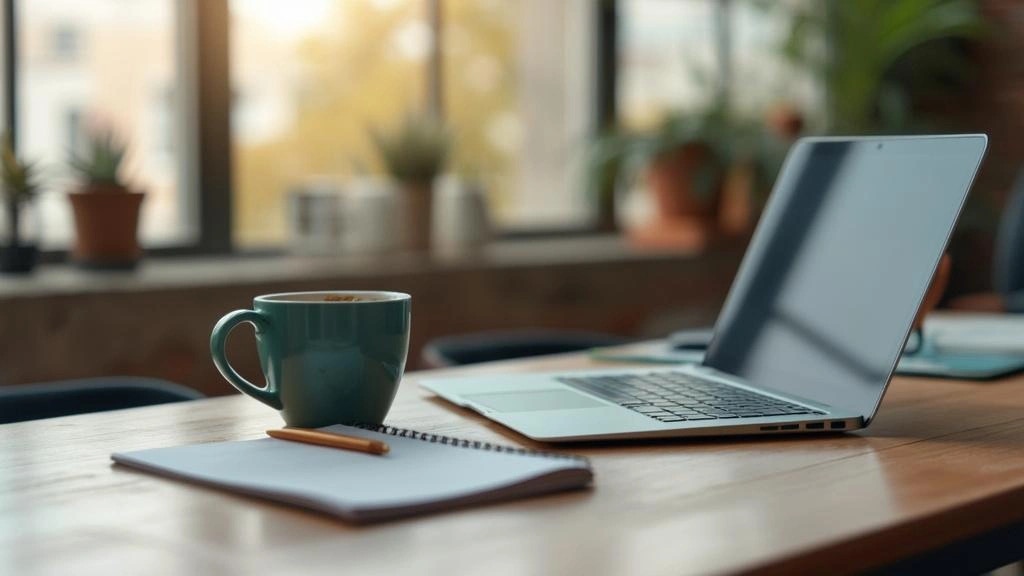 * **Prompt:** *“Erase the coffecup from the desk.”*
* **Use Case:** Removing distractions or unwanted objects.
* **Output:**
* **Prompt:** *“Erase the coffecup from the desk.”*
* **Use Case:** Removing distractions or unwanted objects.
* **Output:**
 ***
### 🔹 Inpaint
* **Input:** Landscape photo
For tasks like **Inpaint and Erase Objects,** you may need to **mask an object in your input image**. If you don’t mask it, the AI will simply regenerate the original image without applying your changes.
👉 To mask an image, you can use free tools like [AI Image Editor](https://ai-image-editor.netlify.app/).
***
### 🔹 Inpaint
* **Input:** Landscape photo
For tasks like **Inpaint and Erase Objects,** you may need to **mask an object in your input image**. If you don’t mask it, the AI will simply regenerate the original image without applying your changes.
👉 To mask an image, you can use free tools like [AI Image Editor](https://ai-image-editor.netlify.app/).
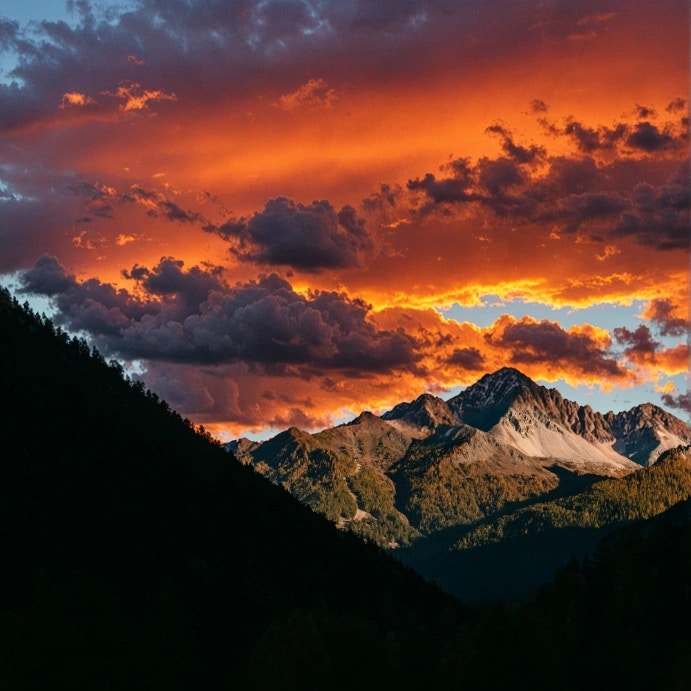
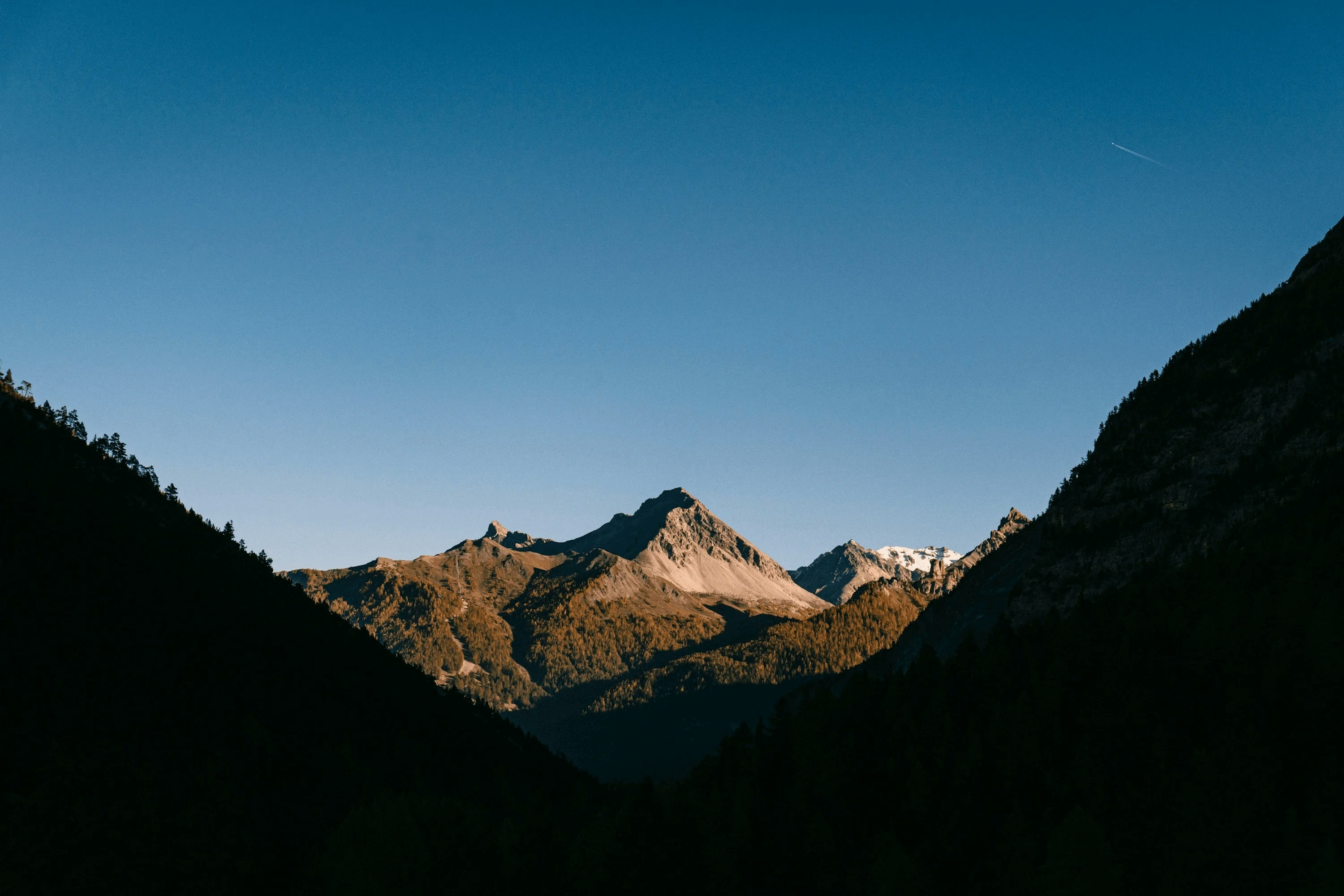 * **Prompt:** *“Replace the cloudy sky with a bright sunset.”*
* **Use Case:** Fixing or altering specific parts of an image.
* **Output:**
* **Prompt:** *“Replace the cloudy sky with a bright sunset.”*
* **Use Case:** Fixing or altering specific parts of an image.
* **Output:**
 ***
### 🔹 Outpaint
* **Input:** Portrait photo
***
### 🔹 Outpaint
* **Input:** Portrait photo
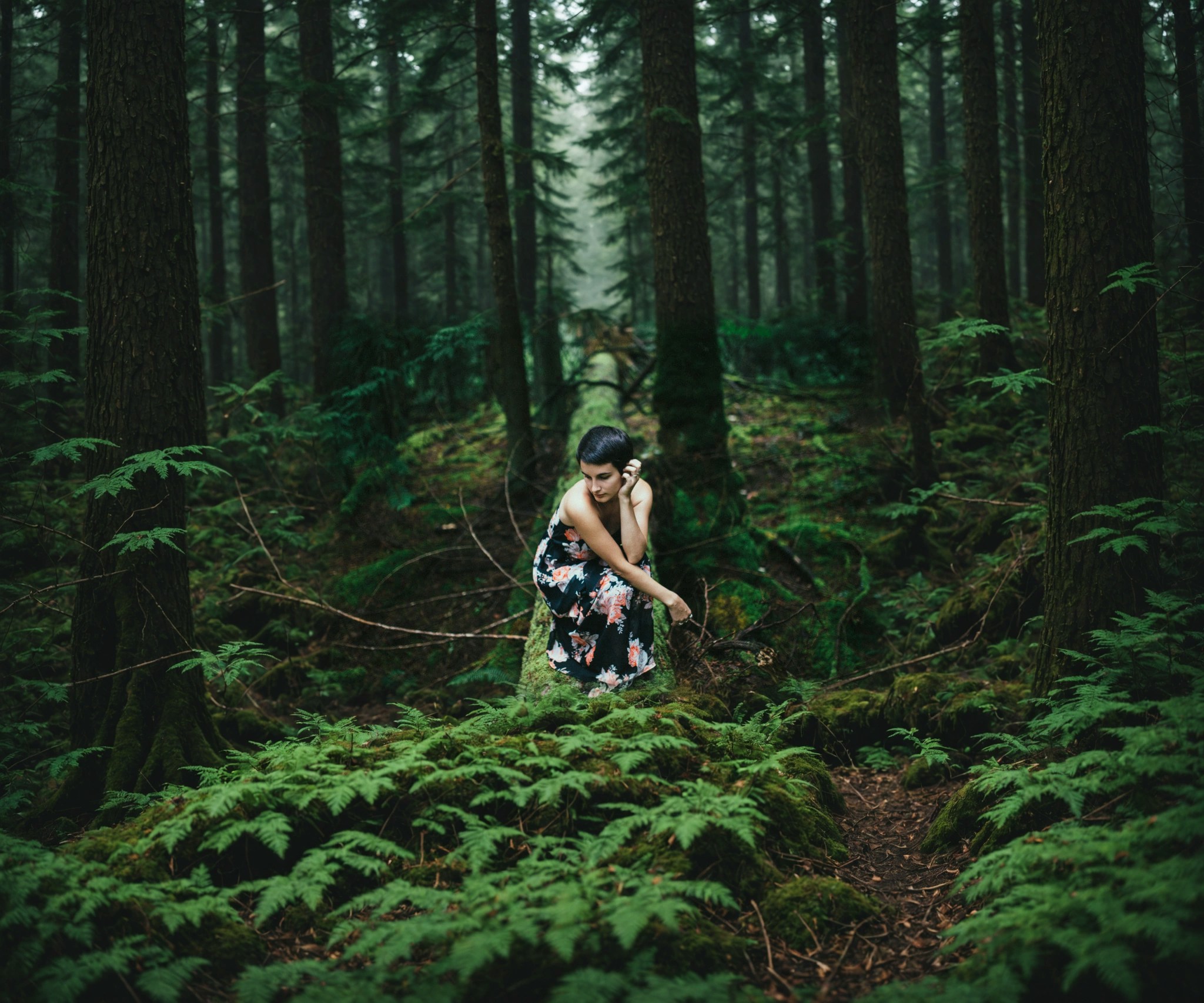
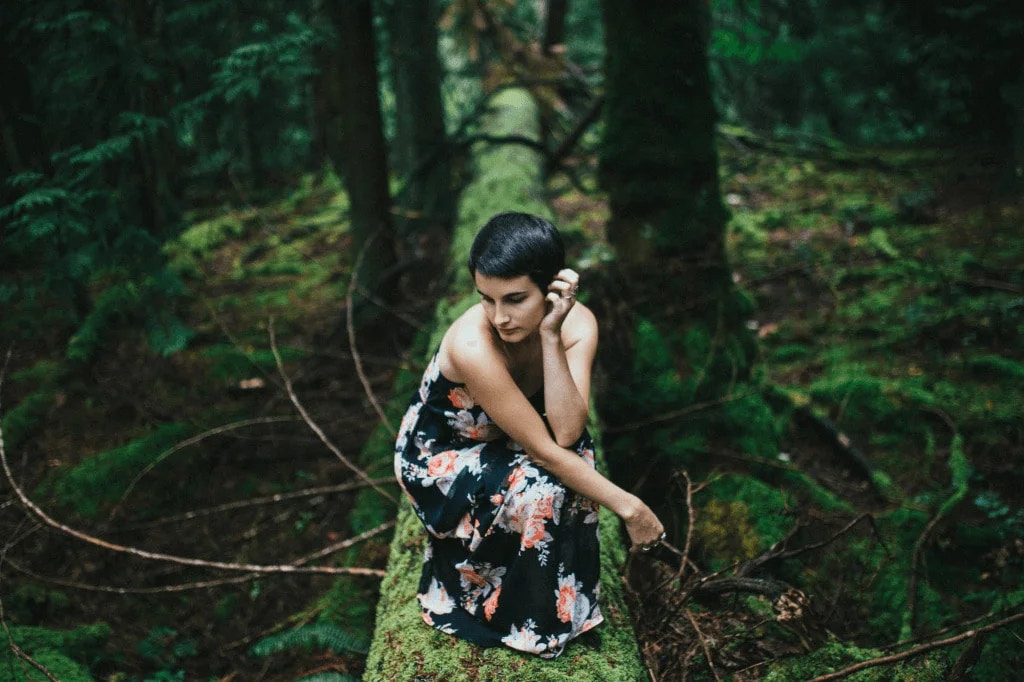 * **Prompt:** **“***Expand the forest with more tall trees and subtle morning mist, keeping natural lighting.***”**
* **Use Case:** Extending images for banners, posters, or creative layouts.
* **Output:**
* **Prompt:** **“***Expand the forest with more tall trees and subtle morning mist, keeping natural lighting.***”**
* **Use Case:** Extending images for banners, posters, or creative layouts.
* **Output:**
 ***
### 🔹 Search & Replace
* **Input:** Portrait Photo
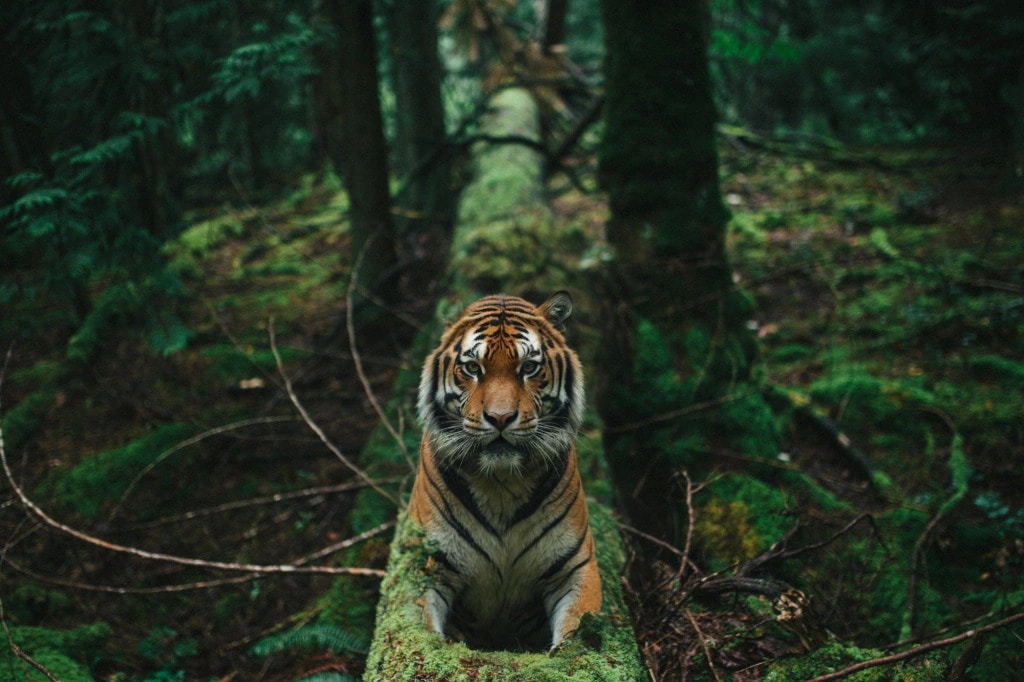
* **Prompt:** *“A tiger sitting on a moss-covered fallen tree trunk in a dense forest, surrounded by tall trees and natural foliage, with soft natural light filtering through.”*
* **Search Prompt:** "*Replace the woman with a tiger sitting on the tree trunk*"
* **Use Case:** Quick swaps in product/marketing visuals.
* **Output:**
***
### 🔹 Search & Replace
* **Input:** Portrait Photo
* **Prompt:** *“A tiger sitting on a moss-covered fallen tree trunk in a dense forest, surrounded by tall trees and natural foliage, with soft natural light filtering through.”*
* **Search Prompt:** "*Replace the woman with a tiger sitting on the tree trunk*"
* **Use Case:** Quick swaps in product/marketing visuals.
* **Output:**
 ***
### 🔹 Sketch to Image
* **Input:** Hand-drawn car sketch
***
### 🔹 Sketch to Image
* **Input:** Hand-drawn car sketch
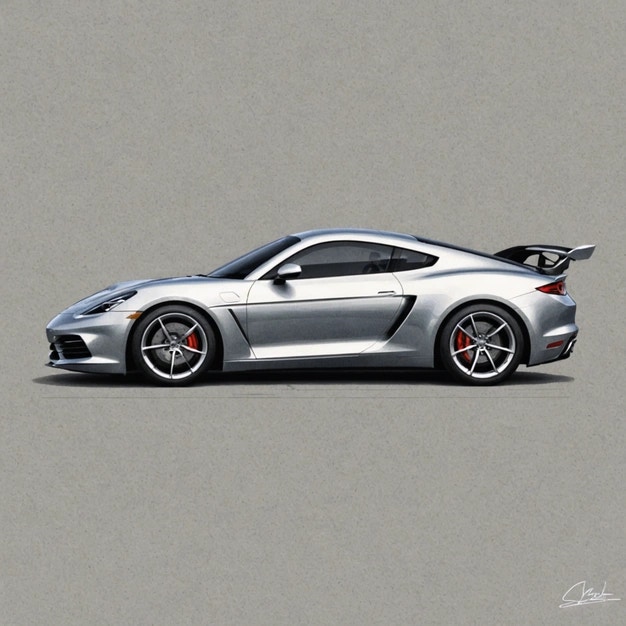
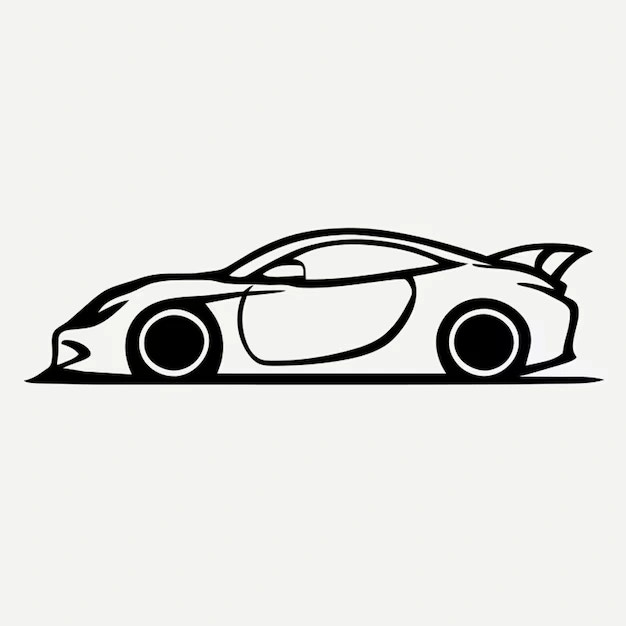 * **Prompt:** *“Generate a realistic sports car based on this sketch.”*
* **Use Case:** Turning rough concepts into finished visuals.
* **Output:**
* **Prompt:** *“Generate a realistic sports car based on this sketch.”*
* **Use Case:** Turning rough concepts into finished visuals.
* **Output:**
 ***
### 🔹 Structure to Image
* **Input:** Building outlines
***
### 🔹 Structure to Image
* **Input:** Building outlines
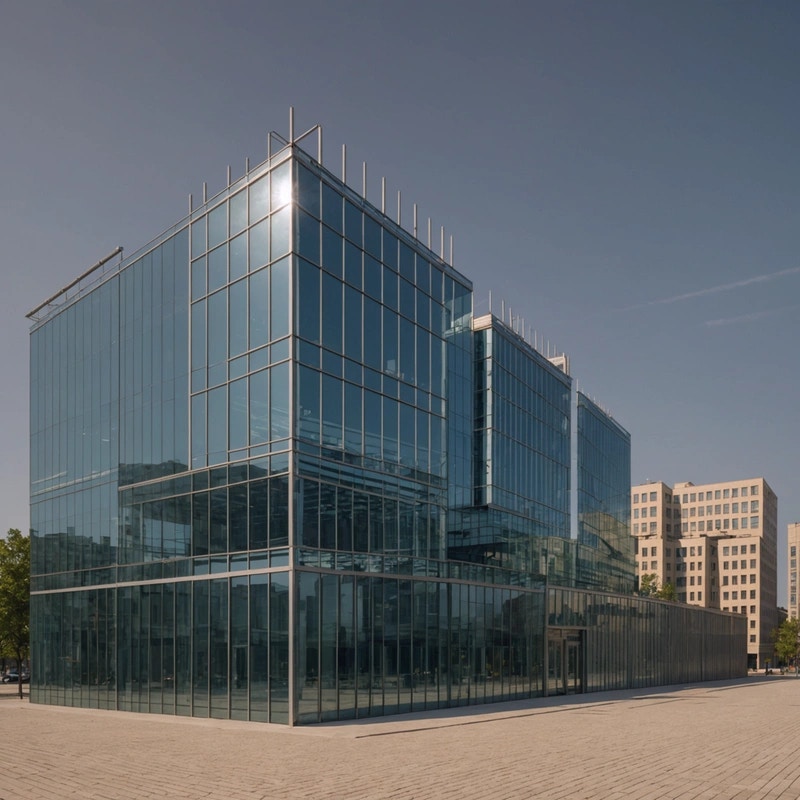
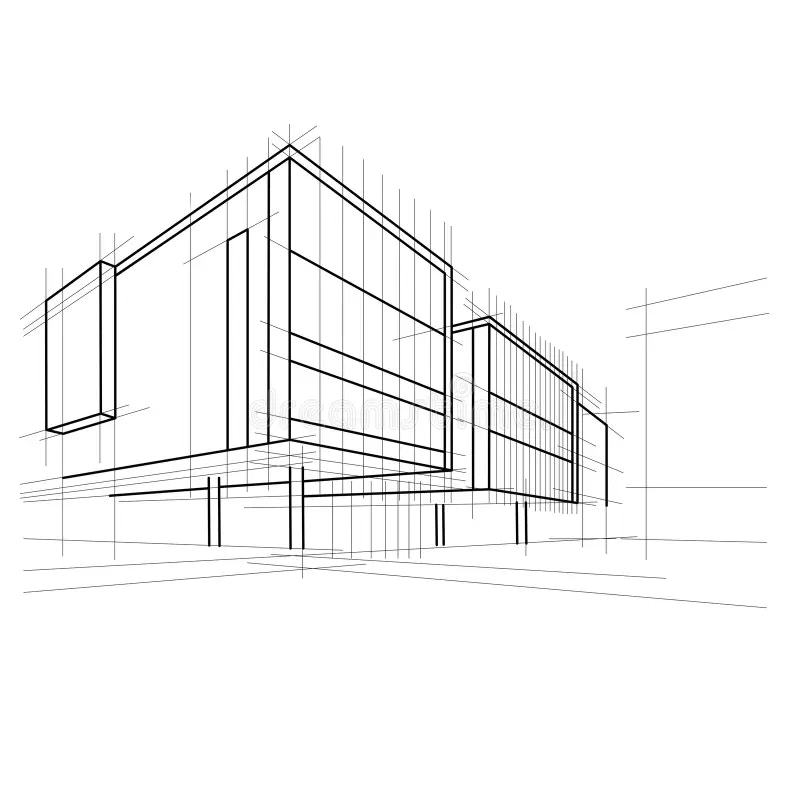 * **Prompt:** *“Generate a modern glass skyscraper using this structure.”*
* **Use Case:** Architectural previews or mockups.
* **Output**:
* **Prompt:** *“Generate a modern glass skyscraper using this structure.”*
* **Use Case:** Architectural previews or mockups.
* **Output**:
 ### 💡 Tips
* Use **Reimagine** for creative experimentation, **Inpaint/Erase** for precision fixes.
* Combine **Outpaint** with **Mood + Style** prompts to create dramatic extensions.
* For product photos, use **Remove Background** before placing items into marketing layouts.
* **Same Style Image** is excellent for maintaining brand consistency across campaigns.
* If you want reproducibility, set a **specific seed** value.
### 📌 Example Use Cases
* **Design Teams:** Reimagine mockups for multiple creative directions.
* **E-commerce:** Remove backgrounds, upscale images, or replace elements for catalog consistency.
* **Marketing Agencies:** Outpaint images into banners, ads, or posters.
* **Artists & Illustrators:** Turn sketches into polished artworks with “Sketch to Image.”
* **Photographers:** Use conservative upscaling to enhance resolution without losing authenticity.
* **Content Creators:** Quickly fix photos by erasing distractions or replacing unwanted objects.
### 💡 Tips
* Use **Reimagine** for creative experimentation, **Inpaint/Erase** for precision fixes.
* Combine **Outpaint** with **Mood + Style** prompts to create dramatic extensions.
* For product photos, use **Remove Background** before placing items into marketing layouts.
* **Same Style Image** is excellent for maintaining brand consistency across campaigns.
* If you want reproducibility, set a **specific seed** value.
### 📌 Example Use Cases
* **Design Teams:** Reimagine mockups for multiple creative directions.
* **E-commerce:** Remove backgrounds, upscale images, or replace elements for catalog consistency.
* **Marketing Agencies:** Outpaint images into banners, ads, or posters.
* **Artists & Illustrators:** Turn sketches into polished artworks with “Sketch to Image.”
* **Photographers:** Use conservative upscaling to enhance resolution without losing authenticity.
* **Content Creators:** Quickly fix photos by erasing distractions or replacing unwanted objects.