> ## Documentation Index
> Fetch the complete documentation index at: https://docs.klyra.ai/llms.txt
> Use this file to discover all available pages before exploring further.
# AI Web Chat
> Paste any website link and instantly interact with its content. AI Web Chat analyzes the page and answers your questions, providing insights and summaries in real time.
This feature is available only with a paid subscription plan.
## Introduction
AI Web Chat transforms any webpage into an interactive conversation. Simply share a link, and our intelligent chatbot will scan and analyze the content, offering relevant insights, summaries, and opinions. Whether you want a quick overview, a deep dive into specific sections, or a discussion on the page’s main ideas, AI Web Chat delivers tailored, engaging responses. With support for both text and voice input, you can explore web content more intuitively than ever.
AI Web Chat works best with publicly accessible, non-paywalled webpages.
## How to Use AI Web Chat
In your dashboard, go to **AI Conversations** in the left panel and click on the **AI Web Chat** tab.
On the AI Web Chat page, paste any valid website URL into the input field and click **Analyze**.\
Wait a few seconds for the chatbot to scan and process the page.
Once analysis is complete, the chatbot will greet you with:\
*"What would you like to know about this website?"*
Select an AI model from the dropdown menu based on your subscription plan.\
Then, begin asking questions or requesting summaries about the page content.
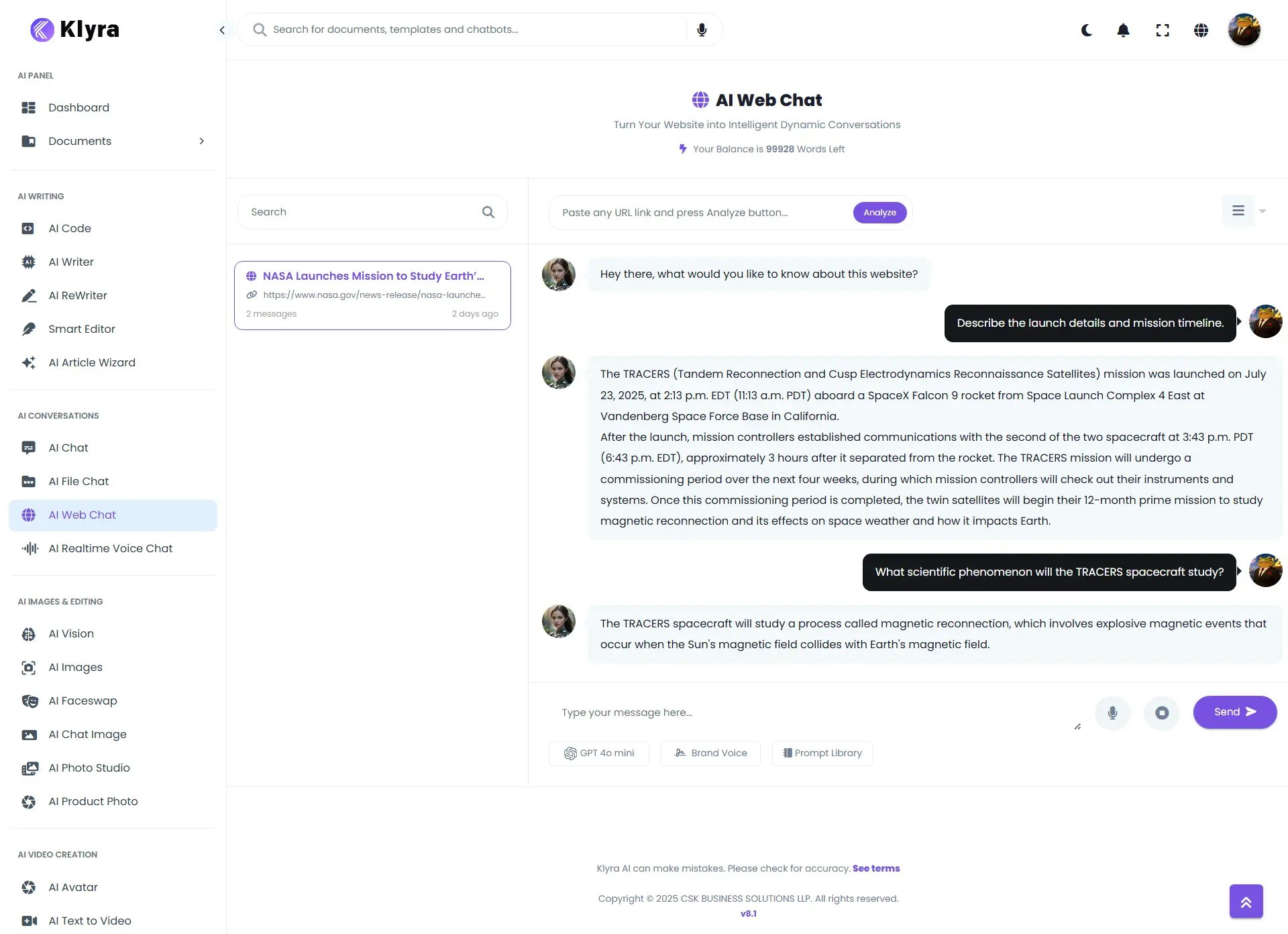 Click the **microphone icon** to speak your question instead of typing it.\
Voice mode is ideal for faster, hands-free queries.
When your session is complete, export the entire chat in your preferred format:
* **Text file (.txt)**
* **Microsoft Word (.docx)**
* **PDF (.pdf)**
Access to this feature is only available with a paid subscription plan.
### 💡 Tips
* Ask specific questions like “Summarize the key points” or “Explain the author’s main argument” for more focused responses.
* You can follow up with related questions without pasting the link again during the same session.
* Use voice mode when exploring multiple topics quickly.
* Use this tool for research, learning, or generating summaries of publicly available information.
* Avoid using URLs that contain sensitive, personal, or confidential data.
* Always verify AI-generated information with the original source before citing or sharing.
### 📌 Example Use Cases
* **Research**: Quickly summarize academic articles or long web pages.
* **Competitor Analysis**: Extract key messaging and positioning from competitor websites.
* **Content Ideation**: Gather insights and trends from news or blog posts.
* **Learning Aid**: Break down complex technical documentation into simpler explanations.
* **Customer Support**: Analyze FAQs or knowledge base pages and extract direct answers.
Click the **microphone icon** to speak your question instead of typing it.\
Voice mode is ideal for faster, hands-free queries.
When your session is complete, export the entire chat in your preferred format:
* **Text file (.txt)**
* **Microsoft Word (.docx)**
* **PDF (.pdf)**
Access to this feature is only available with a paid subscription plan.
### 💡 Tips
* Ask specific questions like “Summarize the key points” or “Explain the author’s main argument” for more focused responses.
* You can follow up with related questions without pasting the link again during the same session.
* Use voice mode when exploring multiple topics quickly.
* Use this tool for research, learning, or generating summaries of publicly available information.
* Avoid using URLs that contain sensitive, personal, or confidential data.
* Always verify AI-generated information with the original source before citing or sharing.
### 📌 Example Use Cases
* **Research**: Quickly summarize academic articles or long web pages.
* **Competitor Analysis**: Extract key messaging and positioning from competitor websites.
* **Content Ideation**: Gather insights and trends from news or blog posts.
* **Learning Aid**: Break down complex technical documentation into simpler explanations.
* **Customer Support**: Analyze FAQs or knowledge base pages and extract direct answers.