> ## Documentation Index
> Fetch the complete documentation index at: https://docs.klyra.ai/llms.txt
> Use this file to discover all available pages before exploring further.
# External Chatbots
> Create, train, customize, and embed AI chatbots on your website using models from OpenAI, Anthropic, Google Gemini, and xAI—with brand-aligned UI, data-aware answers, and live user insights.
## Introduction
[**External Chatbots**](https://klyra.ai/page/external-chatbots) let you design website-ready assistants that look and speak like your brand. Configure the bot’s role and tone, connect **knowledge sources** (URLs, PDFs, CSVs, YouTube, text/Q\&A), then **embed** it with a single snippet. Use detailed **chat histories** to learn what visitors ask, refine answers, and drive conversions.
**Key benefits**
* **Brand alignment:** Colors, logos, avatars, and widget placement match your site.
* **Adaptive training:** Keep adding sources as your content grows.
* **Personalized greetings:** Custom welcome & bubble messages.
* **Insights:** Review chat histories to improve content and funnels.
Access to this feature is only available with a **Premium** subscription plan.
## How to Use
> 🔎 **Navigation:** Dashboard → Left Panel → AI Connect & Integrations → External Chatbots
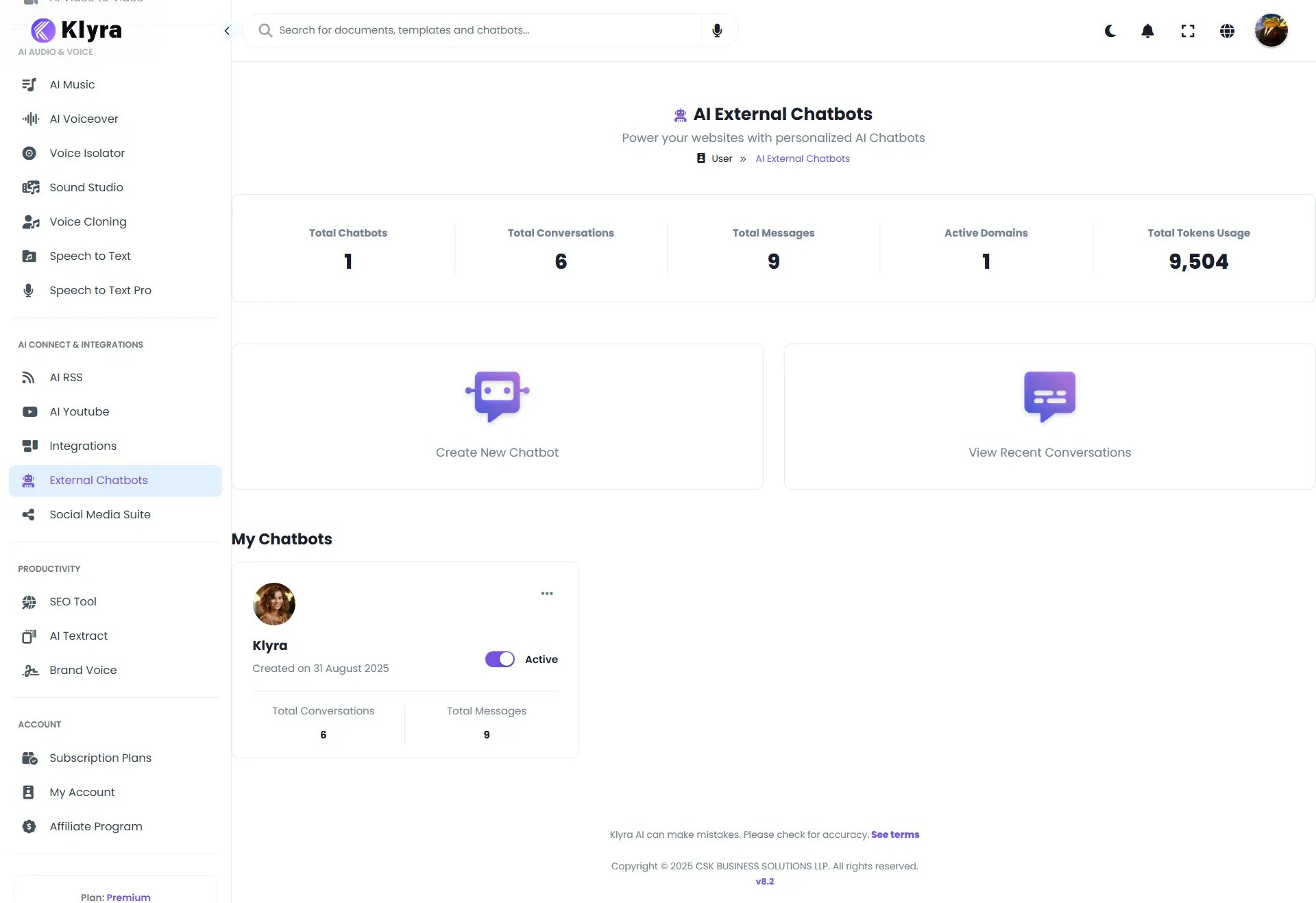
You’ll see:
* **General Statistics** (usage overview)
* **Create New Chatbot** and **View Recent Conversations**
* A list of your existing chatbots (create up to your plan’s limit; delete to free slots)
 Right-side **live preview** updates as you edit.
* **Chatbot Title** — Shown in the widget header.
* **AI Chatbot Name** — Display name (optional “Hide Chatbot Name”).
* **Chatbot Instructions** — Role, audience, guardrails (be specific).
* **Restrict to data source & instructions** (toggle): the bot answers **only** from your connected sources + system instructions.
* **Custom Fallback Message**: what to say when it can’t answer.
* **Greeting Message** — First message shown after open.
* **Bubble Message** — Teaser shown before open (can **Hide**).
* **User Message Placeholder** — Input hint text.
* **AI Model** — Choose from **OpenAI / Anthropic / Gemini / xAI** models available in your plan.
* **Main Header Logo** — Upload or use default; **Hide** if needed.
* **AI Avatar** — Custom avatar; **Hide** if needed.
* **Colors** — Set each independently:
* Header Background / Text
* AI Background / Text
* User Background / Text
* **Branding** — Show/Hide footer branding; optional **Footer Link**.
* **Hide Date & Time of Messages** — Toggle if you prefer cleaner UI.
* **Widget Position** — Choose where the launcher appears on your site.
* Click **Next** when styling is complete.
Choose one or many sources. You can retrain anytime.
**URL (Single Page / Entire Website)**
1. Select **URL** → **Train via URLs**.
2. On **Website Embedding** page, enter URL(s); choose **Single Page** or **Entire Website**.
3. **Start Crawling** → embedded content populates the table.
**PDF (up to 10 files, ≤30 MB each)**
1. Select **PDF** → upload → **Upload & Train** → wait for status notification.
**Excel/CSV (up to 10 files, ≤30 MB each)**
1. Select **Excel/CSV** → upload → **Upload & Train** → status notification.
**Text Input**
1. Select **Text** → add **Title + Content** pairs → **Add More** as needed → **Process Text**.
**Q\&A Input**
1. Select **Q\&A** → add **Question + Answer** pairs → **Add More** → **Process Text**.
**YouTube Videos**
1. Provide URL(s) to generate embeddings from transcripts/metadata (where available).
> Tip: When **Restrict to data source** is enabled, the bot declines questions outside your content—useful for compliance and accuracy.
* Copy the **embed code snippet** provided after creation/training.
* Paste it **just before** `` in your website’s HTML.
* Publish/deploy your site. The chatbot widget appears automatically.
Right-side **live preview** updates as you edit.
* **Chatbot Title** — Shown in the widget header.
* **AI Chatbot Name** — Display name (optional “Hide Chatbot Name”).
* **Chatbot Instructions** — Role, audience, guardrails (be specific).
* **Restrict to data source & instructions** (toggle): the bot answers **only** from your connected sources + system instructions.
* **Custom Fallback Message**: what to say when it can’t answer.
* **Greeting Message** — First message shown after open.
* **Bubble Message** — Teaser shown before open (can **Hide**).
* **User Message Placeholder** — Input hint text.
* **AI Model** — Choose from **OpenAI / Anthropic / Gemini / xAI** models available in your plan.
* **Main Header Logo** — Upload or use default; **Hide** if needed.
* **AI Avatar** — Custom avatar; **Hide** if needed.
* **Colors** — Set each independently:
* Header Background / Text
* AI Background / Text
* User Background / Text
* **Branding** — Show/Hide footer branding; optional **Footer Link**.
* **Hide Date & Time of Messages** — Toggle if you prefer cleaner UI.
* **Widget Position** — Choose where the launcher appears on your site.
* Click **Next** when styling is complete.
Choose one or many sources. You can retrain anytime.
**URL (Single Page / Entire Website)**
1. Select **URL** → **Train via URLs**.
2. On **Website Embedding** page, enter URL(s); choose **Single Page** or **Entire Website**.
3. **Start Crawling** → embedded content populates the table.
**PDF (up to 10 files, ≤30 MB each)**
1. Select **PDF** → upload → **Upload & Train** → wait for status notification.
**Excel/CSV (up to 10 files, ≤30 MB each)**
1. Select **Excel/CSV** → upload → **Upload & Train** → status notification.
**Text Input**
1. Select **Text** → add **Title + Content** pairs → **Add More** as needed → **Process Text**.
**Q\&A Input**
1. Select **Q\&A** → add **Question + Answer** pairs → **Add More** → **Process Text**.
**YouTube Videos**
1. Provide URL(s) to generate embeddings from transcripts/metadata (where available).
> Tip: When **Restrict to data source** is enabled, the bot declines questions outside your content—useful for compliance and accuracy.
* Copy the **embed code snippet** provided after creation/training.
* Paste it **just before** `` in your website’s HTML.
* Publish/deploy your site. The chatbot widget appears automatically.