> ## Documentation Index
> Fetch the complete documentation index at: https://docs.klyra.ai/llms.txt
> Use this file to discover all available pages before exploring further.
# AI Social Media
> Plan, create, and schedule text or media posts across Facebook, Twitter (X), LinkedIn, and Instagram — all from a single dashboard. Control your content pipeline, from draft to publishing, with the power of AI.
## Introduction
The [**AI Social Media Suite**](https://klyra.ai/page/ai-social-media) in Klyra AI streamlines your content publishing process. Instead of juggling multiple platforms, you can:
* **Create posts manually** or generate them with AI assistance.
* **Preview posts live** before publishing.
* **Upload media assets** directly into your post.
* **Connect and manage accounts** across X, LinkedIn, Instagram, and Facebook.
* **Schedule posts** to go out immediately, at a future date/time, or even as recurring reposts.
* **Track performance** through a unified **Posts Calendar** and **Scheduled Posts view**.
This tool helps creators, marketers, and businesses **orchestrate their social media strategy from one central hub.**
Access to this feature is only available with a **Starter** or **Premium** subscription plan.
## How to Use
> 🔎 **Navigation:** Dashboard → Left Panel → AI Connect & Integrations → Social Media Suite
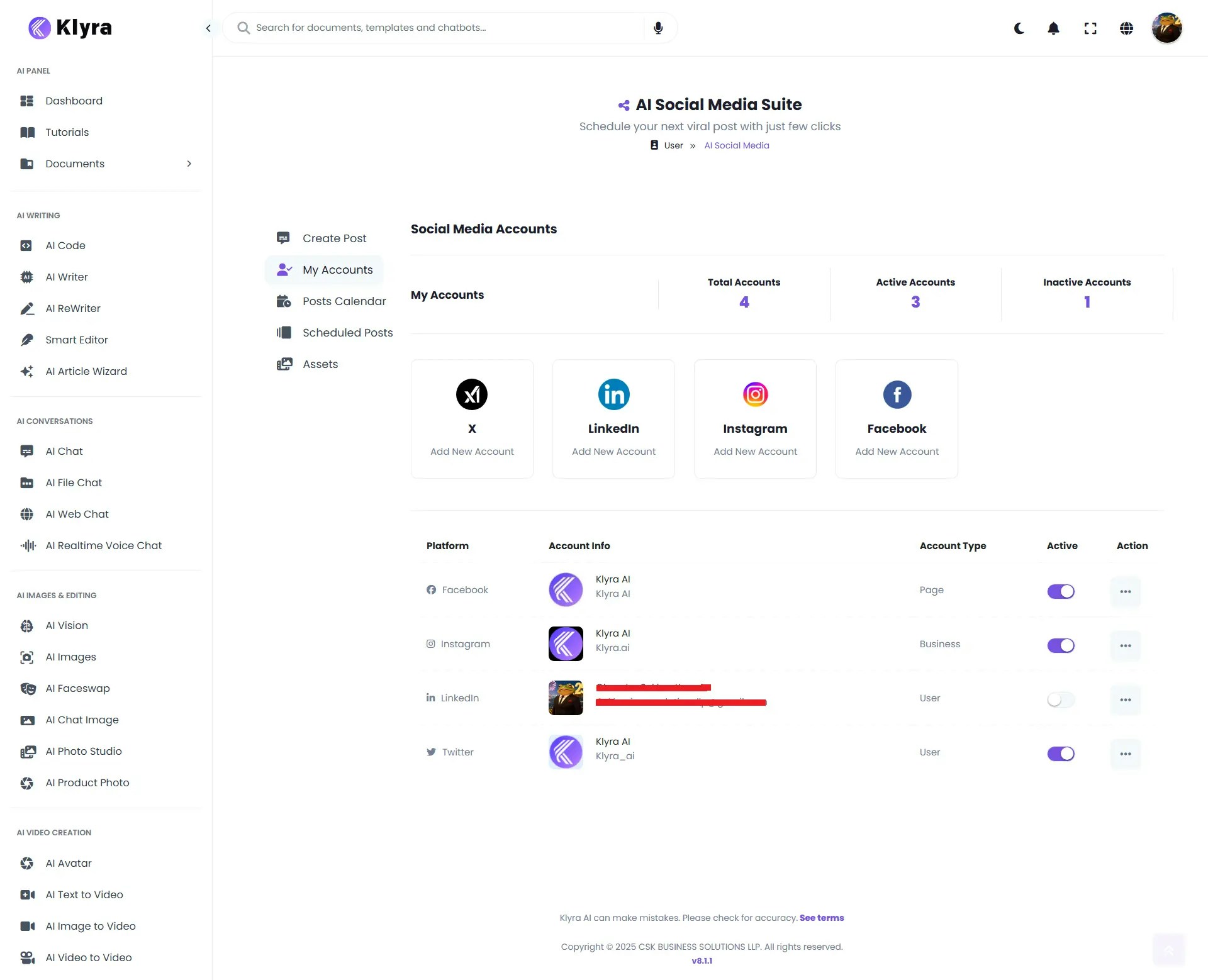
* Add new social accounts (X, LinkedIn, Instagram, Facebook).
* **Important:** To connect Instagram, you must first connect a Facebook account.
* Connected accounts appear in a **table view**:
* **Platform | Account Info | Account Type (Page/Business/User) | Active (Toggle) | Action (Delete)**
* Manage connections by toggling accounts **Active/Inactive** or deleting them anytime.
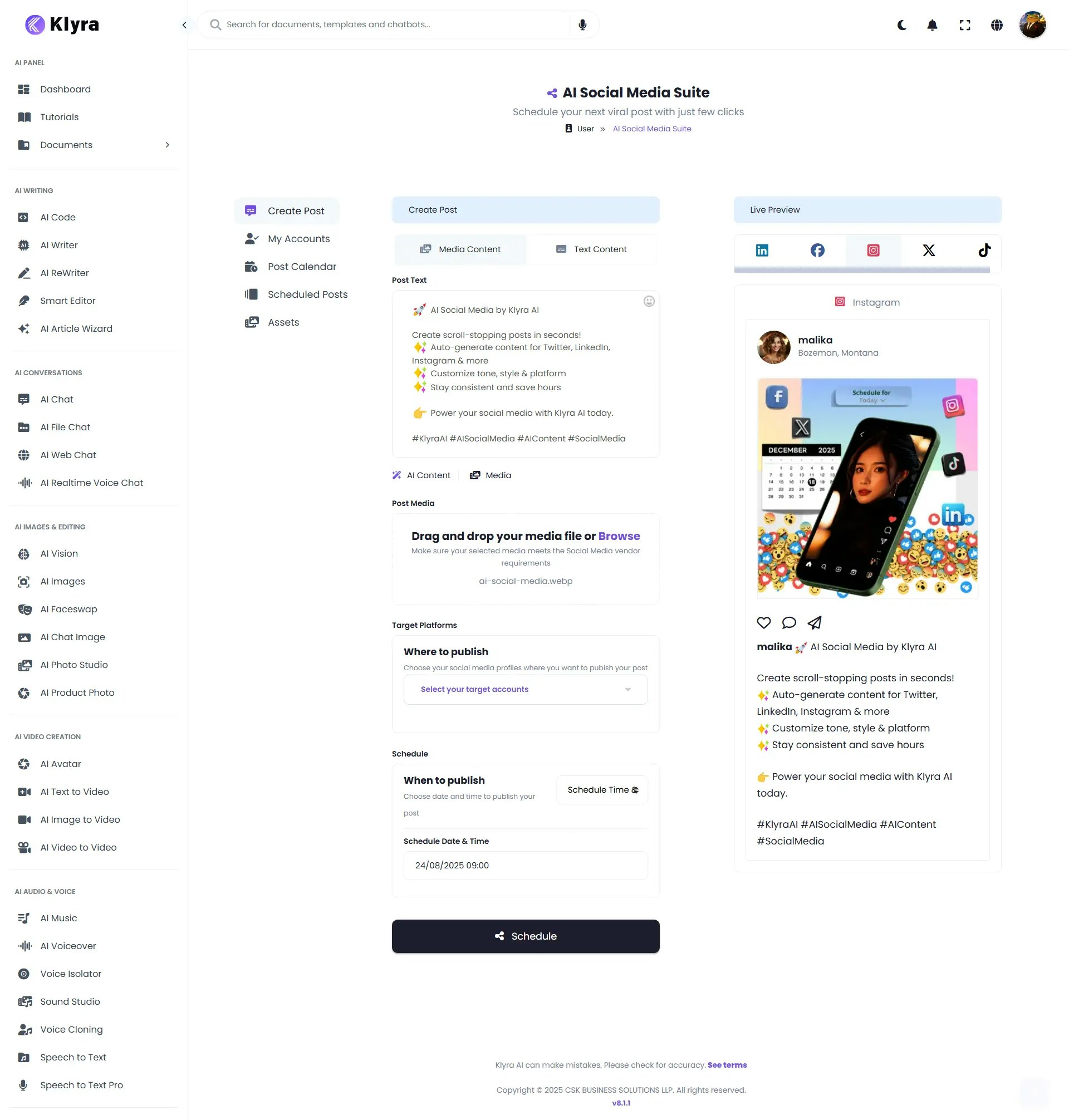
 * Choose between two tabs:
* **Text Content** — Write your own post text, or use the **AI Content Generator** for automatic copywriting.
* **Media Content** — Upload supporting media (images/videos) by drag-and-drop or browsing.
* A **Live Preview** panel (right side) shows how the post will appear on LinkedIn, Facebook, Instagram, and X.
* **Select Target Accounts** → Choose connected platforms from the dropdown.
* **When to Publish** → Select from:
* **Immediately** — Post goes live now.
* **Schedule Time & Date** — Set a specific publishing time.
* **Schedule & Repost** — Post on a schedule repeatedly.
* Click **Schedule** to confirm.
* Choose between two tabs:
* **Text Content** — Write your own post text, or use the **AI Content Generator** for automatic copywriting.
* **Media Content** — Upload supporting media (images/videos) by drag-and-drop or browsing.
* A **Live Preview** panel (right side) shows how the post will appear on LinkedIn, Facebook, Instagram, and X.
* **Select Target Accounts** → Choose connected platforms from the dropdown.
* **When to Publish** → Select from:
* **Immediately** — Post goes live now.
* **Schedule Time & Date** — Set a specific publishing time.
* **Schedule & Repost** — Post on a schedule repeatedly.
* Click **Schedule** to confirm.
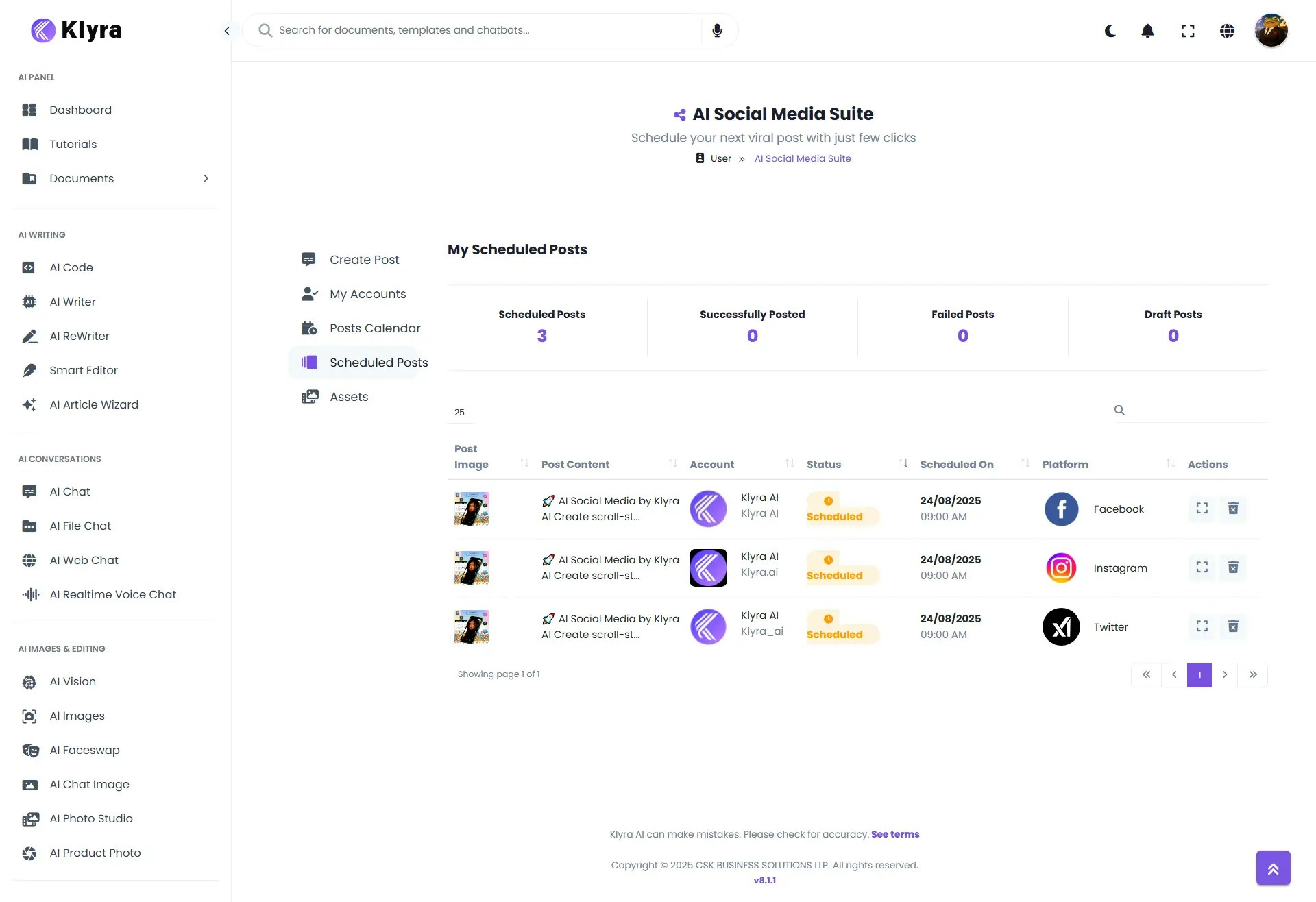
 * Provides a **table view** of all scheduled and past posts.
* Columns: **Post Image | Post Content | Account | Status (Scheduled/Posted) | Scheduled On | Platform | Actions (View/Delete)**.
* Use this to **manage drafts, confirm scheduled posts, and monitor publishing status**.
* Provides a **table view** of all scheduled and past posts.
* Columns: **Post Image | Post Content | Account | Status (Scheduled/Posted) | Scheduled On | Platform | Actions (View/Delete)**.
* Use this to **manage drafts, confirm scheduled posts, and monitor publishing status**.
 * Displays a **visual calendar** of all scheduled posts.
* Use this to **track your posting schedule at a glance**, ensuring even content distribution across weeks/months.
### 💡 Tips
* **Connect all accounts first** in *My Accounts* to avoid delays during post creation.
* **Use AI Content Generator** for idea inspiration, then refine manually for brand tone.
* **Preview before scheduling** to ensure your post looks polished across different platforms.
* **Use the Calendar** to spot posting gaps or overlaps across campaigns.
* **Schedule & Repost** is ideal for evergreen posts (e.g., promotions, event reminders).
### 📌 Example Use Cases
* **Digital Marketing Agencies:** Manage multiple client accounts in one place, with scheduled campaigns across all platforms.
* **Small Businesses:** Post promotions, seasonal offers, or product launches simultaneously to Facebook, Instagram, and LinkedIn.
* **Content Creators:** Plan weekly posting schedules in advance using the Calendar and Scheduled Posts.
* **Corporate Teams:** Store brand creatives in **Assets** for consistent use across posts.
* **Event Planners:** Schedule reminder posts leading up to an event and set **reposts** to boost attendance.
* Displays a **visual calendar** of all scheduled posts.
* Use this to **track your posting schedule at a glance**, ensuring even content distribution across weeks/months.
### 💡 Tips
* **Connect all accounts first** in *My Accounts* to avoid delays during post creation.
* **Use AI Content Generator** for idea inspiration, then refine manually for brand tone.
* **Preview before scheduling** to ensure your post looks polished across different platforms.
* **Use the Calendar** to spot posting gaps or overlaps across campaigns.
* **Schedule & Repost** is ideal for evergreen posts (e.g., promotions, event reminders).
### 📌 Example Use Cases
* **Digital Marketing Agencies:** Manage multiple client accounts in one place, with scheduled campaigns across all platforms.
* **Small Businesses:** Post promotions, seasonal offers, or product launches simultaneously to Facebook, Instagram, and LinkedIn.
* **Content Creators:** Plan weekly posting schedules in advance using the Calendar and Scheduled Posts.
* **Corporate Teams:** Store brand creatives in **Assets** for consistent use across posts.
* **Event Planners:** Schedule reminder posts leading up to an event and set **reposts** to boost attendance.