> ## Documentation Index
> Fetch the complete documentation index at: https://docs.klyra.ai/llms.txt
> Use this file to discover all available pages before exploring further.
# AI Speech to Text Pro
> Extend your transcription capabilities with AI Speech to Text Pro, featuring industry-leading accuracy in 99 languages, character-level timestamps, speaker diarization, and audio-event tagging.
## Introduction
The [**AI Speech to Text Pro**](https://klyra.ai/page/ai-speech-to-text) extension takes transcription to the next level with advanced features designed for professional use.
With this tool, you can:
* Transcribe audio in **99 languages** with exceptional accuracy.
* Use **character-level timestamps** for precise referencing.
* Automatically detect speakers through **speaker diarization**.
* Capture non-speech elements with **audio-event tagging**.
* Choose between **Audio Transcribe** (upload files) and **Live Transcribe** (real-time streaming).
It’s perfect for anyone who needs accurate, large-scale transcription with professional formatting and export options.
Access to this feature is only available with a **Starter** or **Premium** subscription plan.
 ## How to Use
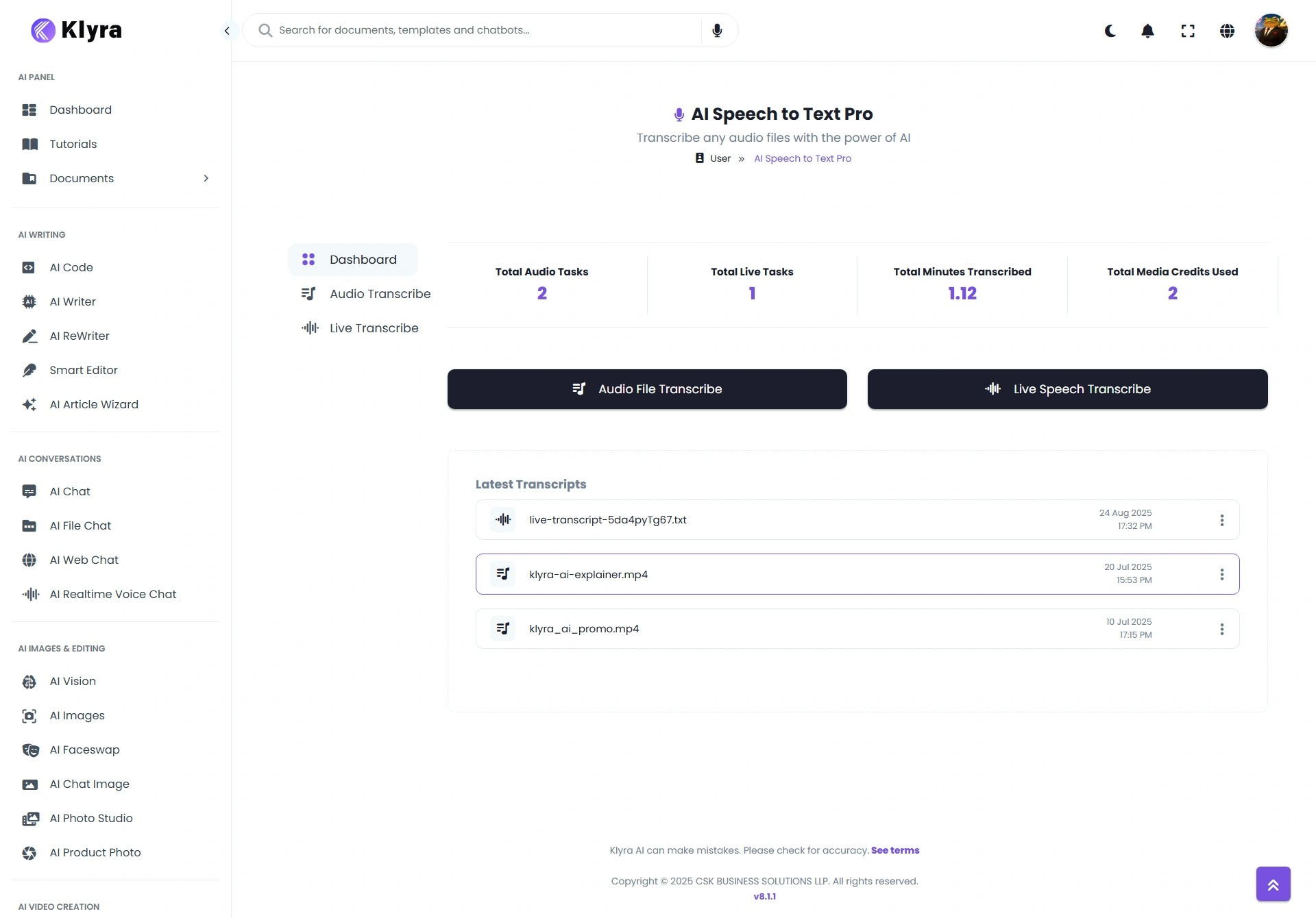
* Go to **Speech to Text Pro** in the Dashboard → Left Panel → AI Audio & Voice
* From the **Dashboard**, monitor your usage metrics:
* **Total Audio Tasks** – Number of file-based transcriptions created.
* **Total Live Tasks** – Number of saved live sessions.
* **Total Minutes Transcribed** – Audio file transcription time (does not apply to Live).
* **Total Media Credits Used** – Credits consumed across all transcription tasks.
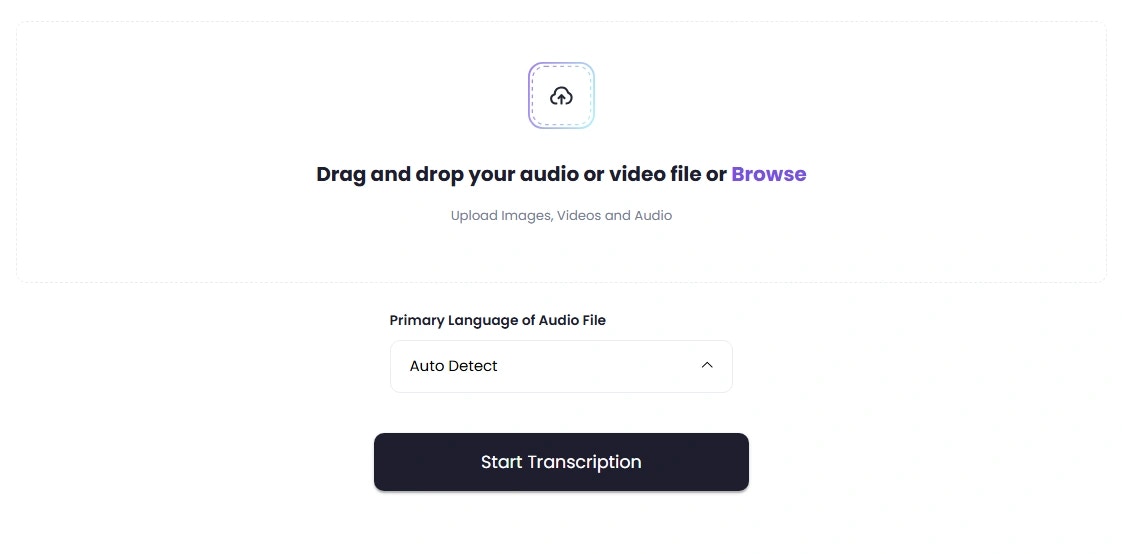
1. Click on **Audio Transcribe**.
2. Upload your media file.
* Supported: Audio or video files **up to 1GB** or **4.5 hours** long.
3. Select the **main language** of the audio (optional, but helps speed transcription).
4. Click **Transcribe** to begin.
5. When complete, your transcript appears under the **Dashboard tab**.
## How to Use
* Go to **Speech to Text Pro** in the Dashboard → Left Panel → AI Audio & Voice
* From the **Dashboard**, monitor your usage metrics:
* **Total Audio Tasks** – Number of file-based transcriptions created.
* **Total Live Tasks** – Number of saved live sessions.
* **Total Minutes Transcribed** – Audio file transcription time (does not apply to Live).
* **Total Media Credits Used** – Credits consumed across all transcription tasks.
1. Click on **Audio Transcribe**.
2. Upload your media file.
* Supported: Audio or video files **up to 1GB** or **4.5 hours** long.
3. Select the **main language** of the audio (optional, but helps speed transcription).
4. Click **Transcribe** to begin.
5. When complete, your transcript appears under the **Dashboard tab**.
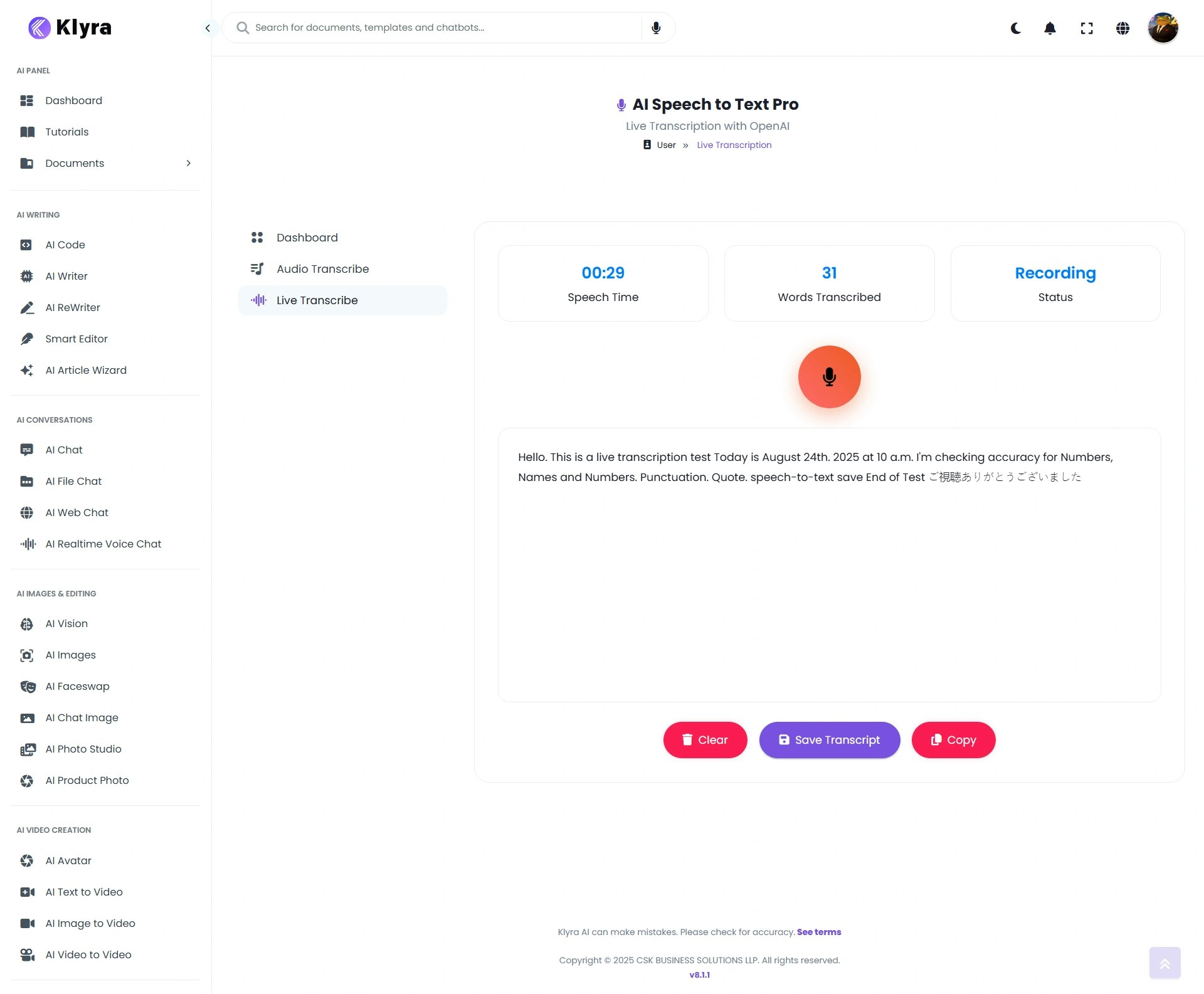
 1. Click on **Live Transcribe**.
2. Allow **mic access** (⚠️ requires a secure HTTPS connection, not local browser only).
3. Click the **Mic button** and begin speaking.
4. Your words are transcribed in real time.
5. Save the task to store it in your **Dashboard results**.
1. Click on **Live Transcribe**.
2. Allow **mic access** (⚠️ requires a secure HTTPS connection, not local browser only).
3. Click the **Mic button** and begin speaking.
4. Your words are transcribed in real time.
5. Save the task to store it in your **Dashboard results**.
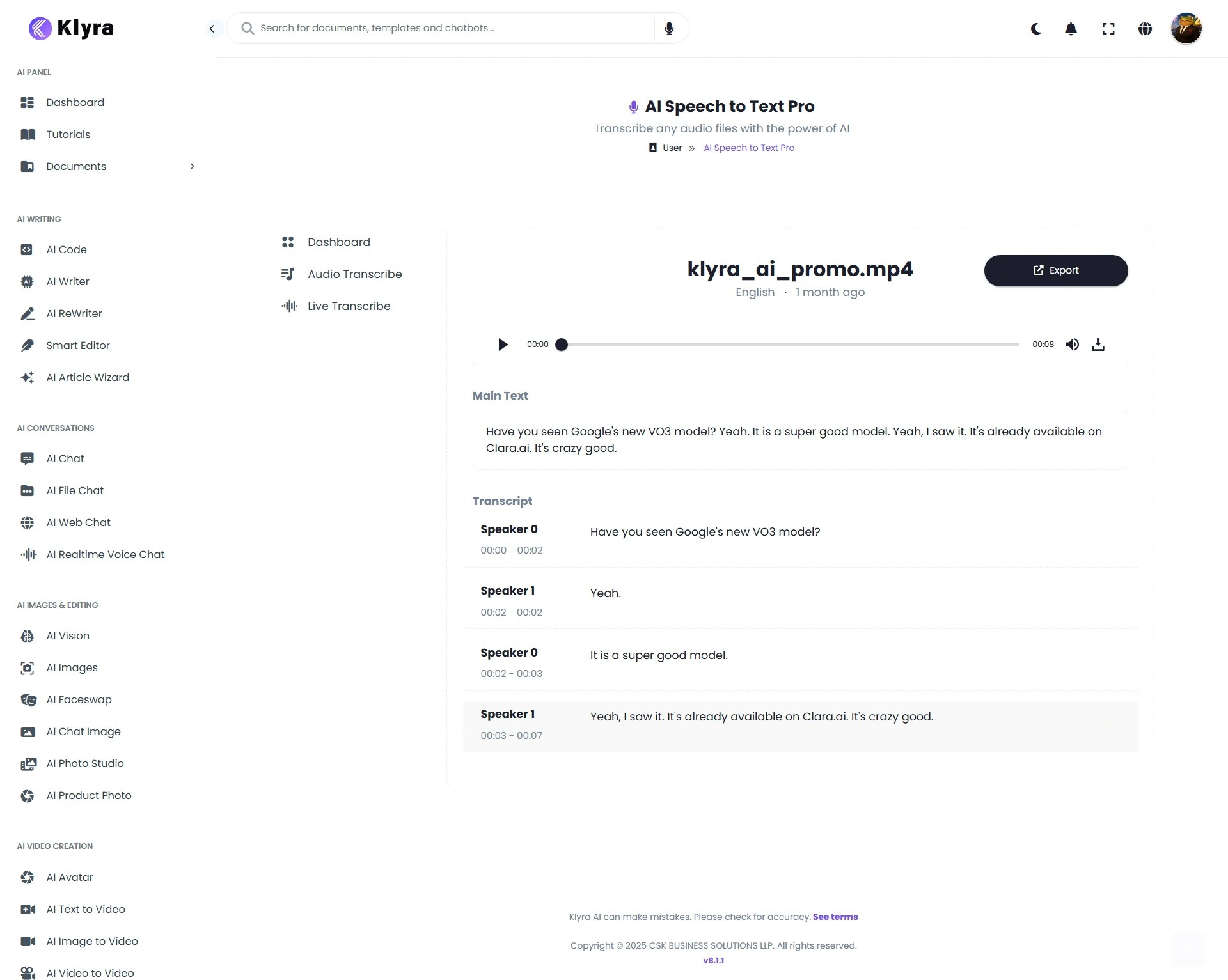
 * Go to the **Dashboard tab** to view all your transcripts.
* Click on any transcript to open it.
* Options available:
* **Edit title** for better organization.
* **Export transcript** in formats: **PDF, DOCX, HTML, SRT, TXT**.
* Go to the **Dashboard tab** to view all your transcripts.
* Click on any transcript to open it.
* Options available:
* **Edit title** for better organization.
* **Export transcript** in formats: **PDF, DOCX, HTML, SRT, TXT**.
 ### 🔹 Tips for Best Results
* **For faster processing** → Set the main language of your audio file before transcription.
* **Use Live Transcribe for meetings** → Great for capturing discussions in real time.
* **Ensure good audio quality** → Clear audio reduces errors and improves diarization accuracy.
* **Check browser setup** → Live Transcribe requires HTTPS access to enable mic streaming.
* **Export in SRT format** → Best for subtitles and captioning videos.
* **Organize by title** → Rename transcripts with descriptive titles (e.g., *“Team Meeting Q4”*).
### 🔹 Example Use Cases
* **Journalists** → Transcribe interviews and press conferences with diarization for multiple speakers.
* **Researchers** → Capture focus group discussions and export structured transcripts for analysis.
* **Businesses** → Record and live-transcribe meetings or training sessions for documentation.
* **Content Creators** → Convert podcasts, webinars, or live shows into text for SEO and accessibility.
* **Educators** → Provide captions and transcriptions for recorded lectures.
* **Video Producers** → Generate SRT subtitle files directly for video editing workflows.
### 🔹 Tips for Best Results
* **For faster processing** → Set the main language of your audio file before transcription.
* **Use Live Transcribe for meetings** → Great for capturing discussions in real time.
* **Ensure good audio quality** → Clear audio reduces errors and improves diarization accuracy.
* **Check browser setup** → Live Transcribe requires HTTPS access to enable mic streaming.
* **Export in SRT format** → Best for subtitles and captioning videos.
* **Organize by title** → Rename transcripts with descriptive titles (e.g., *“Team Meeting Q4”*).
### 🔹 Example Use Cases
* **Journalists** → Transcribe interviews and press conferences with diarization for multiple speakers.
* **Researchers** → Capture focus group discussions and export structured transcripts for analysis.
* **Businesses** → Record and live-transcribe meetings or training sessions for documentation.
* **Content Creators** → Convert podcasts, webinars, or live shows into text for SEO and accessibility.
* **Educators** → Provide captions and transcriptions for recorded lectures.
* **Video Producers** → Generate SRT subtitle files directly for video editing workflows.