> ## Documentation Index
> Fetch the complete documentation index at: https://docs.klyra.ai/llms.txt
> Use this file to discover all available pages before exploring further.
# Sound Studio
> Elevate your audio production with Sound Studio — merge AI Voiceover results, add background music, and create polished, professional-grade audio in minutes.
## Introduction
The [**Sound Studio**](https://klyra.ai/page/sound-studio) extension transforms your audio workflow into a seamless production pipeline. Whether you’re:
* **Merging AI Voiceover outputs** into one cohesive track,
* **Adding background music** to enhance emotional impact, or
* **Polishing podcasts, narrations, or learning modules**,
Sound Studio provides a simple yet powerful environment for creating **studio-quality audio**.
Key capabilities include:
* **Merging multiple AI Voiceover tracks** into one file.
* **Rearranging track order** via drag-and-drop.
* **Adding background music** from a library or your own uploads.
* **Customizing background audio volume** for the perfect blend.
All outputs are automatically saved under **Sound Studio Results** for easy access.
This feature is available only with a paid subscription plan.
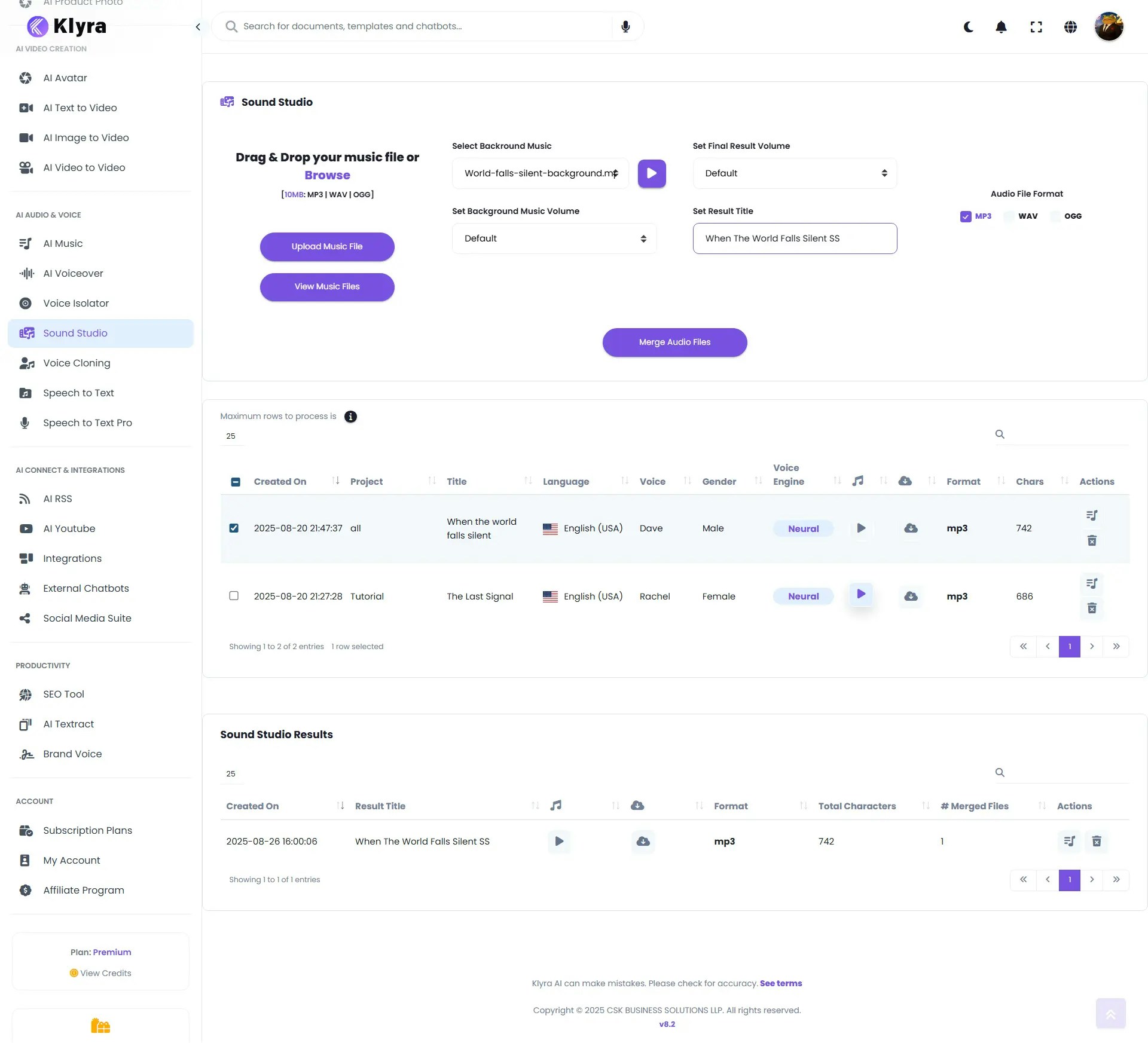 ## How to Use
> 🔎 **Navigation:** Dashboard → Left Panel → AI Audio & Voice → Sound Studio
1. In the Sound Studio workspace, you’ll see a **list of your AI Voiceover results**.
2. Select the rows (voiceover files) you want to merge.
3. Use **drag-and-drop** to reorder — the top row plays first, followed by subsequent rows.
* Example: Intro narration → Main body → Outro.
1. Choose a background track from the **Select Background Music** list.
2. Or upload your own file via the **Upload Music File** option (right panel).
3. Adjust the **background volume slider** to ensure voice remains clear while music adds atmosphere.
1. Once tracks and background audio are ready, click **Merge Audio Files**.
2. The system will process and generate a **single combined audio file**.
3. Your final result will appear in the **Sound Studio Results** table at the bottom of the page.
In **Sound Studio Results**, you can:
* **Play** the merged audio.
* **Download** it for external use.
* **Delete** it if no longer needed.
## 🎬 Example Walkthrough
Here’s an example of how to use **Sound Studio** to merge a custom background track (from AI Music) with a narrated voiceover (from AI Voiceover).
* **Title:** *World Falls Silent*
* **Model Used:** Stable Audio (47 seconds)
* **Prompt:**
> *“A dark, cinematic soundtrack with low drones and subtle pulses at the beginning, evoking mystery and unease. Soft, atmospheric synths layered with distant metallic echoes and deep rumbling bass build a sense of suspense. Around the midpoint, add tense strings and muted percussion to raise urgency, mimicking the sound of hearts racing. Toward the end, let the rhythm slow and dissolve into an eerie, fading soundscape, leaving only echoes and silence — a haunting cliff-hanger finish suitable for narration.”*
This generated a **haunting cinematic score** — ideal for storytelling narration.
* **Title:** *When the World Falls Silent*
* **Script:**
> *“In the silence of the night… a voice rises from the shadows. Low. Urgent. A warning… no one was meant to hear. They said the world would end quietly. But endings… are never quiet. They come with fire. With fear. With the sound of hearts racing in the dark. On the third night… at twelve forty-five… the message returned. Numbers etched in static. A path through ruin. A truth buried too deep to stay hidden. Across broken cities… through empty roads and endless silence… we followed the signal. Each step heavier than the last. Each breath… closer to the answer. And then… we found it. The reason. The revelation. The beginning… disguised as the end. When the world falls silent… the truth will speak. And nothing… will ever be the same..”*
* **Voice Selection:** Dave, Male, English (USA)
This produced a **powerful voice track** with gripping delivery.
1. Open **Sound Studio**.
2. Select the **voiceover track** generated in AI Voiceover.
3. Upload the **background music** generated earlier in **AI Music (Stable Audio)** into Sound Studio.
4. From the right panel, adjust the **background audio volume** (recommended \~25–30% so narration stays clear).
5. Click **Merge Audio Files**.
The result is a **cinematic narration with dramatic background music**, merging atmosphere with storytelling.
* The **Stable Audio soundtrack** creates tension and suspense.
* The **voiceover narration** delivers the story with clarity and gravitas.
* Combined, they form a **studio-quality audio drama track**, suitable for podcasts, trailers, or cinematic projects.
### 💡 Tips
* **Plan your track order** → Intro → Content → Outro creates a natural flow.
* **Keep background music subtle** → Too loud can overpower narration.
* **Use consistent voiceovers** → Same voice/style across merged files keeps audio professional.
* **Upload branded music** → Use custom jingles, theme tracks, or licensed music for branding.
* **Reuse outputs** → Merge different AI Voiceovers into one for ads, podcasts, or training modules.
***
### 📌 Example Use Cases
* **Podcasters** → Merge episode segments and add theme music for a polished release.
* **Marketers** → Create ad voiceovers with music tracks for campaigns.
* **E-learning Creators** → Merge lesson modules into one file with subtle background audio.
* **Corporate Teams** → Produce training or onboarding audios with intros, content, and outros.
* **Content Creators** → Mix narration with cinematic background for YouTube or social media.
## How to Use
> 🔎 **Navigation:** Dashboard → Left Panel → AI Audio & Voice → Sound Studio
1. In the Sound Studio workspace, you’ll see a **list of your AI Voiceover results**.
2. Select the rows (voiceover files) you want to merge.
3. Use **drag-and-drop** to reorder — the top row plays first, followed by subsequent rows.
* Example: Intro narration → Main body → Outro.
1. Choose a background track from the **Select Background Music** list.
2. Or upload your own file via the **Upload Music File** option (right panel).
3. Adjust the **background volume slider** to ensure voice remains clear while music adds atmosphere.
1. Once tracks and background audio are ready, click **Merge Audio Files**.
2. The system will process and generate a **single combined audio file**.
3. Your final result will appear in the **Sound Studio Results** table at the bottom of the page.
In **Sound Studio Results**, you can:
* **Play** the merged audio.
* **Download** it for external use.
* **Delete** it if no longer needed.
## 🎬 Example Walkthrough
Here’s an example of how to use **Sound Studio** to merge a custom background track (from AI Music) with a narrated voiceover (from AI Voiceover).
* **Title:** *World Falls Silent*
* **Model Used:** Stable Audio (47 seconds)
* **Prompt:**
> *“A dark, cinematic soundtrack with low drones and subtle pulses at the beginning, evoking mystery and unease. Soft, atmospheric synths layered with distant metallic echoes and deep rumbling bass build a sense of suspense. Around the midpoint, add tense strings and muted percussion to raise urgency, mimicking the sound of hearts racing. Toward the end, let the rhythm slow and dissolve into an eerie, fading soundscape, leaving only echoes and silence — a haunting cliff-hanger finish suitable for narration.”*
This generated a **haunting cinematic score** — ideal for storytelling narration.
* **Title:** *When the World Falls Silent*
* **Script:**
> *“In the silence of the night… a voice rises from the shadows. Low. Urgent. A warning… no one was meant to hear. They said the world would end quietly. But endings… are never quiet. They come with fire. With fear. With the sound of hearts racing in the dark. On the third night… at twelve forty-five… the message returned. Numbers etched in static. A path through ruin. A truth buried too deep to stay hidden. Across broken cities… through empty roads and endless silence… we followed the signal. Each step heavier than the last. Each breath… closer to the answer. And then… we found it. The reason. The revelation. The beginning… disguised as the end. When the world falls silent… the truth will speak. And nothing… will ever be the same..”*
* **Voice Selection:** Dave, Male, English (USA)
This produced a **powerful voice track** with gripping delivery.
1. Open **Sound Studio**.
2. Select the **voiceover track** generated in AI Voiceover.
3. Upload the **background music** generated earlier in **AI Music (Stable Audio)** into Sound Studio.
4. From the right panel, adjust the **background audio volume** (recommended \~25–30% so narration stays clear).
5. Click **Merge Audio Files**.
The result is a **cinematic narration with dramatic background music**, merging atmosphere with storytelling.
* The **Stable Audio soundtrack** creates tension and suspense.
* The **voiceover narration** delivers the story with clarity and gravitas.
* Combined, they form a **studio-quality audio drama track**, suitable for podcasts, trailers, or cinematic projects.
### 💡 Tips
* **Plan your track order** → Intro → Content → Outro creates a natural flow.
* **Keep background music subtle** → Too loud can overpower narration.
* **Use consistent voiceovers** → Same voice/style across merged files keeps audio professional.
* **Upload branded music** → Use custom jingles, theme tracks, or licensed music for branding.
* **Reuse outputs** → Merge different AI Voiceovers into one for ads, podcasts, or training modules.
***
### 📌 Example Use Cases
* **Podcasters** → Merge episode segments and add theme music for a polished release.
* **Marketers** → Create ad voiceovers with music tracks for campaigns.
* **E-learning Creators** → Merge lesson modules into one file with subtle background audio.
* **Corporate Teams** → Produce training or onboarding audios with intros, content, and outros.
* **Content Creators** → Mix narration with cinematic background for YouTube or social media.